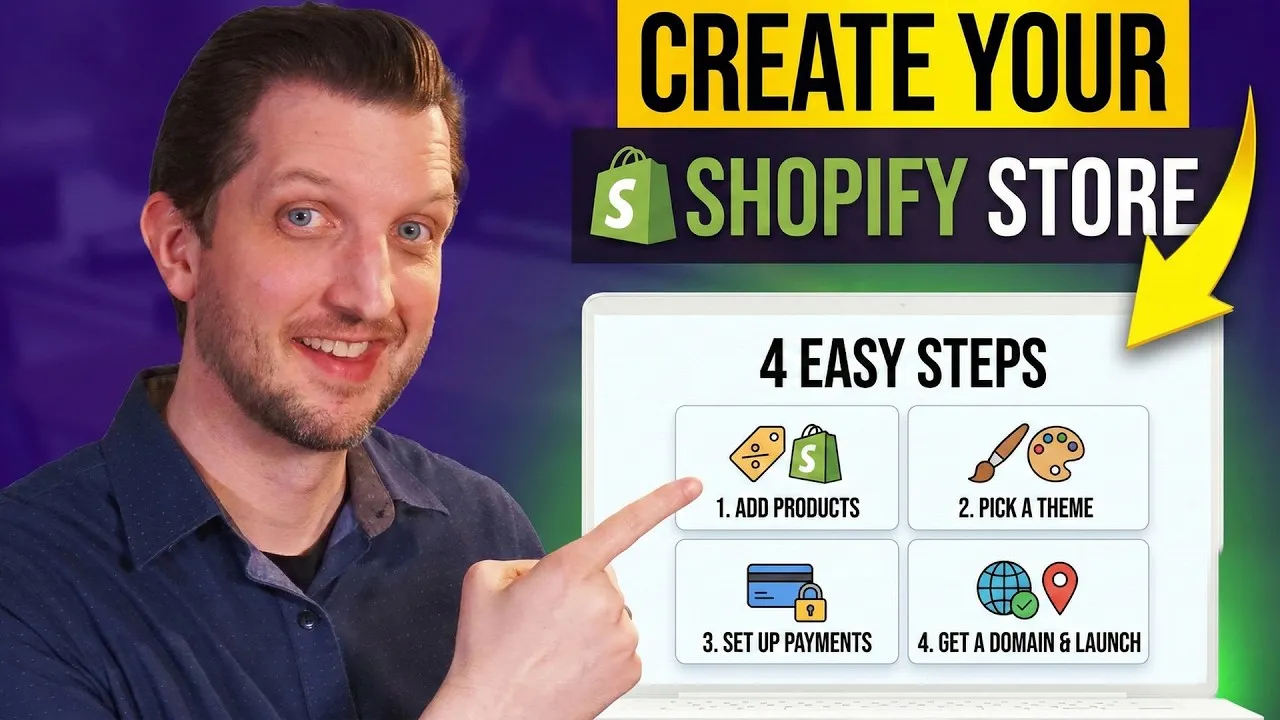
Create Your Own Shopify Website From Scratch
This guide will walk you through the essential steps to set up your very own Shopify website, even if you’re completely new to e-commerce. You’ll learn how to sign up, choose a theme, add products, configure payments, set up shipping, and connect a domain to get your online store operational.
Prerequisites
- A valid email address
- Payment information for Shopify subscription (after the free trial)
- Product images and details (if applicable)
- Business information (name, address, etc.)
Step 1: Sign Up for Shopify
The first step is to create your Shopify account. Head over to shopify.com.
Click on “Start free” and choose to sign up using your email address or Google account. Once you’ve entered your email and password, create your Shopify account.
You will be prompted to enter your payment information. This is for the subscription fee that will apply after your free trial period ends.
Shopify offers different plans, and you can select the one that best suits your needs. For beginners, the “Basic” plan is often a good starting point.
Step 2: Provide Business Information
Shopify will then ask you a series of questions to understand your business better and tailor the experience. You’ll be asked about your primary selling method (e.g., online store), whether it’s a new business, what kind of products you sell, and your store name. Fill this information out accurately.
Expert Note: Providing detailed information here helps Shopify suggest relevant themes and features, potentially streamlining your setup process.
Step 3: Choose and Customize a Theme
Once your account is set up, you’ll land on your Shopify dashboard. The next crucial step is to select a theme for your online store.
Navigate to “Online Store” in the left-hand menu. Shopify usually pre-selects a theme, like “Horizon” in this example, based on your initial answers.
You can explore other storefront themes by scrolling down. Some themes are free, while others require a purchase. For new stores, it’s recommended to start with a free theme, as many are well-designed and familiar to shoppers.
To customize your chosen theme, click “Edit theme.” This will open the theme editor, where you can modify various sections of your website, including the header, footer, and main content areas. You can click on any element (images, text, buttons) to make changes. You can also add or remove sections and elements as needed.
Tip: Experiment with different layouts and content blocks. You can easily change images, update text, and link elements. Remember to click “Save” in the top corner after making your desired changes.
Step 4: Add Products to Your Store
With your theme customized, it’s time to add the products you’ll be selling. Exit the theme editor and return to your main dashboard. Click on “Products” in the left-hand menu, then select “Add product.”
Enter the product title and a detailed description. Shopify’s platform often includes an AI generator that can help create descriptions if needed.
Under the “Media” section, upload high-quality images of your product. You can add multiple images to showcase different angles or variations.
Next, set the price for your product. You can also configure inventory tracking by enabling “Track quantity” and entering the available stock count. If you’re selling physical goods, add the product’s weight for shipping calculations.
Under “Options,” you can add variations such as size, color, or material. For example, you could add “Color” as an option and then specify “Gray” as a value. Once all product details are entered, click “Save.”
Expert Note: Organizing products into collections (e.g., “T-Shirts,” “Hats”) makes it easier for customers to navigate your store. You can create new collections from the “Collections” section in the Products menu.
Step 5: Set Up Payments
To start making sales, you need to configure your payment settings. Go to “Settings” in the bottom-left corner of your dashboard, then select “Payments.”
Click on “Shopify Payments” and then “Complete account setup.” You’ll need to provide personal and business information, including your name, date of birth, and address. This is a standard verification process. Once completed, your payment setup will be pending verification.
You can also add additional payment methods like Visa, Mastercard, or American Express. Customize these options based on your preferences and what you want to offer your customers.
Step 6: Configure Shipping and Delivery
If you’re selling physical products, setting up shipping is essential. Navigate to “Settings” and then “Shipping and delivery.” This section allows you to manage shipping rates and zones.
Under “General shipping rates,” you can set up default shipping options. You can also manage preferred carriers. If you offer local delivery or in-store pickup, you can configure those options here as well.
Tip: For flat-rate shipping, you can add custom package dimensions if you have specific box sizes you use.
Step 7: Configure Taxes and Duties
Proper tax setup is crucial for compliance. Go to “Settings” and then “Taxes and duties.” Shopify can often automate tax calculations based on your location and where you’re selling. It’s recommended to use Shopify’s automated tax service where applicable.
Warning: Always ensure you are compliant with local tax laws. Consult with a tax professional if you have any doubts.
Step 8: Connect Your Domain
To make your store look professional and trustworthy, connect a custom domain name. Go to “Settings” and then “Domains.” Shopify provides a default domain (e.g., your-store-name.myshopify.com), but a custom domain (e.g., www.yourstore.com) is highly recommended.
You have two options: connect an existing domain you already own or buy a new domain through Shopify. To buy a new domain, use the search bar to check availability and purchase it directly within Shopify. Once connected, your store will have a professional web address.
Conclusion
Congratulations! You’ve now set up your Shopify store, added products, configured payments and shipping, and connected your domain. Your online store is officially up and running, ready to start selling.
Source: How to Create a Shopify Website in 2026 (YouTube)