Master WhatsApp Web for Effortless Desktop Messaging
Are you tired of constantly switching between your phone and computer to manage your WhatsApp conversations? This guide will show you how to use WhatsApp directly from your computer, allowing you to stay connected while you work or browse. We’ll cover both the web interface and the downloadable application, explaining how to link your phone and start messaging from your desktop.
What You’ll Learn
By following this tutorial, you will learn how to:
- Access WhatsApp through your web browser.
- Download and install the WhatsApp desktop application.
- Link your phone to your computer using a QR code.
- Send and receive messages, including attachments, from your computer.
- Understand the basic functionalities of WhatsApp Web and the desktop app.
Prerequisites
- A smartphone with the WhatsApp application installed and an active account.
- A computer with internet access and a compatible web browser (like Chrome, Firefox, Edge, or Safari) or the ability to download and install applications.
- Your smartphone will need to be near your computer during the initial setup process.
Step-by-Step Guide
Step 1: Accessing WhatsApp on Your Computer
There are two primary ways to use WhatsApp on your computer: via the web interface or by downloading the desktop application. Both offer similar core messaging functionalities, though the desktop app may include additional features like voice and video calls.
Option A: Using WhatsApp Web
- Open your preferred web browser on your computer.
- In the address bar, type ‘web.whatsapp.com’ and press Enter, or search for ‘WhatsApp Web’ and select the official link.
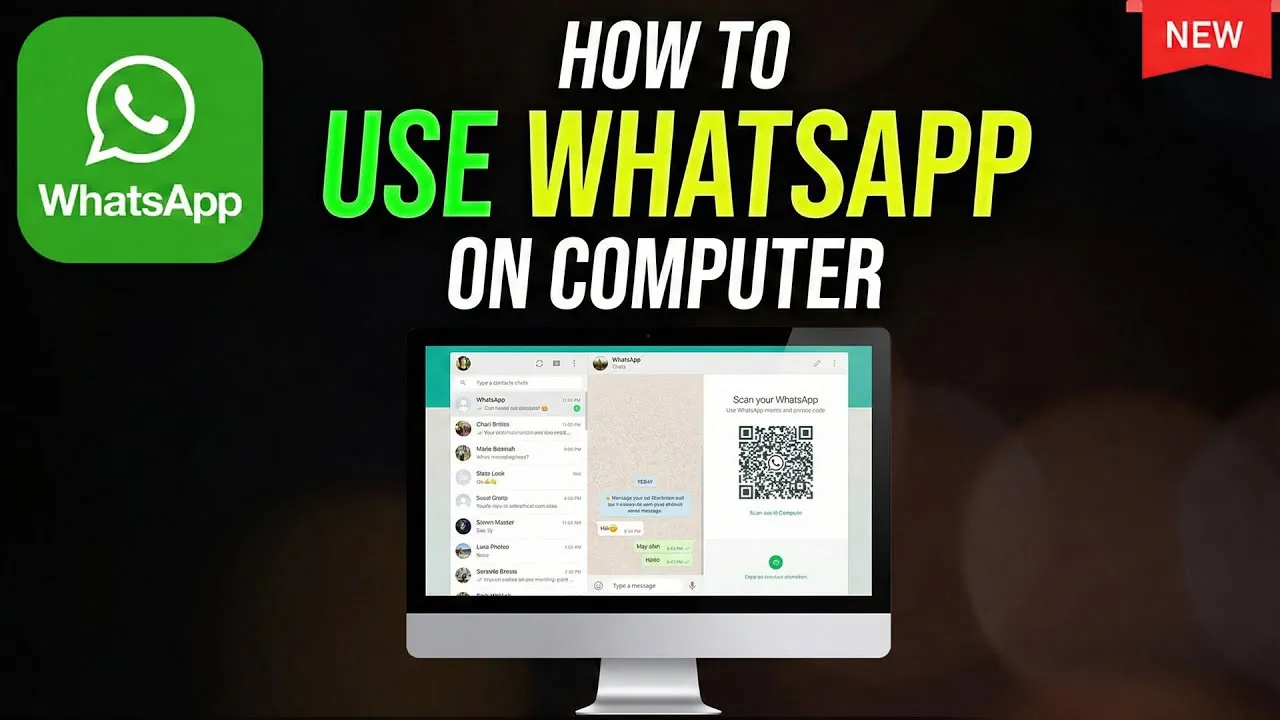
- You will be directed to a page displaying a QR code. This QR code is essential for linking your phone to the web version.
Option B: Downloading the WhatsApp Desktop App
- Go to the official WhatsApp download page (you can find this by searching for ‘WhatsApp download’ on your preferred search engine).
- Select the option to download the application for your operating system (Windows or macOS).
- Follow the on-screen prompts to install the application on your computer.
- Once installed, open the WhatsApp desktop application. Similar to the web version, you will be presented with a QR code.
Step 2: Linking Your Phone to Your Computer
This step synchronizes your WhatsApp account from your phone to your computer, ensuring all your messages and contacts are accessible.
- On your smartphone, open the WhatsApp application.
- For iPhone users: Tap on ‘Settings’ in the bottom right corner, then select ‘Linked Devices’.
- For Android users: Tap the three vertical dots in the top right corner to open the menu, then select ‘Linked devices’.
- On the ‘Linked Devices’ screen, tap on ‘Link a Device’.
- You may be prompted to enter your phone’s passcode or use biometric authentication (fingerprint or face unlock) for security.
- Your phone’s camera will now activate. Point your phone’s camera at the QR code displayed on your computer screen (either in the web browser or the desktop app).
- Hold your phone steady until the QR code is scanned successfully.
- Your phone will confirm that the device has been linked. On your computer, WhatsApp will now load your chats and contacts.
Step 3: Using WhatsApp on Your Computer
Once linked, you can start using WhatsApp just as you would on your phone.
- Viewing Conversations: Your chat list will appear on the left side of the screen. Click on any conversation to open it in the main viewing area.
- Sending Messages: Select a chat, type your message in the text field at the bottom, and press the ‘Enter’ key on your keyboard to send.
- Reacting to Messages: Hover your mouse over a specific message. A small emoji icon will appear. Click it to see available emoji reactions and select one to add it to the message.
- Adding Stickers and Emojis: Click the emoji icon in the text input area to access emojis, GIFs, and stickers. Select the one you wish to send.
- Sending Attachments: Click the paperclip icon (or a similar attachment icon) located near the text input field. This allows you to attach files stored on your computer, such as documents, photos, audio files, and more. This is a key advantage of using WhatsApp on your desktop, making it easy to share computer-based content.
Step 4: Synchronization and Functionality
WhatsApp Web and the desktop application are designed to sync seamlessly with your phone. Any message you send or receive on your computer will be mirrored on your phone, and vice versa. This ensures that your conversation history is always up-to-date across all your devices.
Expert Tip: Keep your phone connected to the internet while using WhatsApp on your computer, especially for the initial setup. While WhatsApp Web and the desktop app can function independently after linking, a stable internet connection on both devices ensures smooth synchronization.
Warning: For security, remember to log out of WhatsApp Web or the desktop app on shared or public computers when you are finished using them. You can do this from within the app on your computer or remotely from your phone via the ‘Linked Devices’ settings.
By following these steps, you can efficiently manage your WhatsApp communications directly from your computer, enhancing your productivity and convenience.
Source: How to Use WhatsApp Web on Your Computer (YouTube)