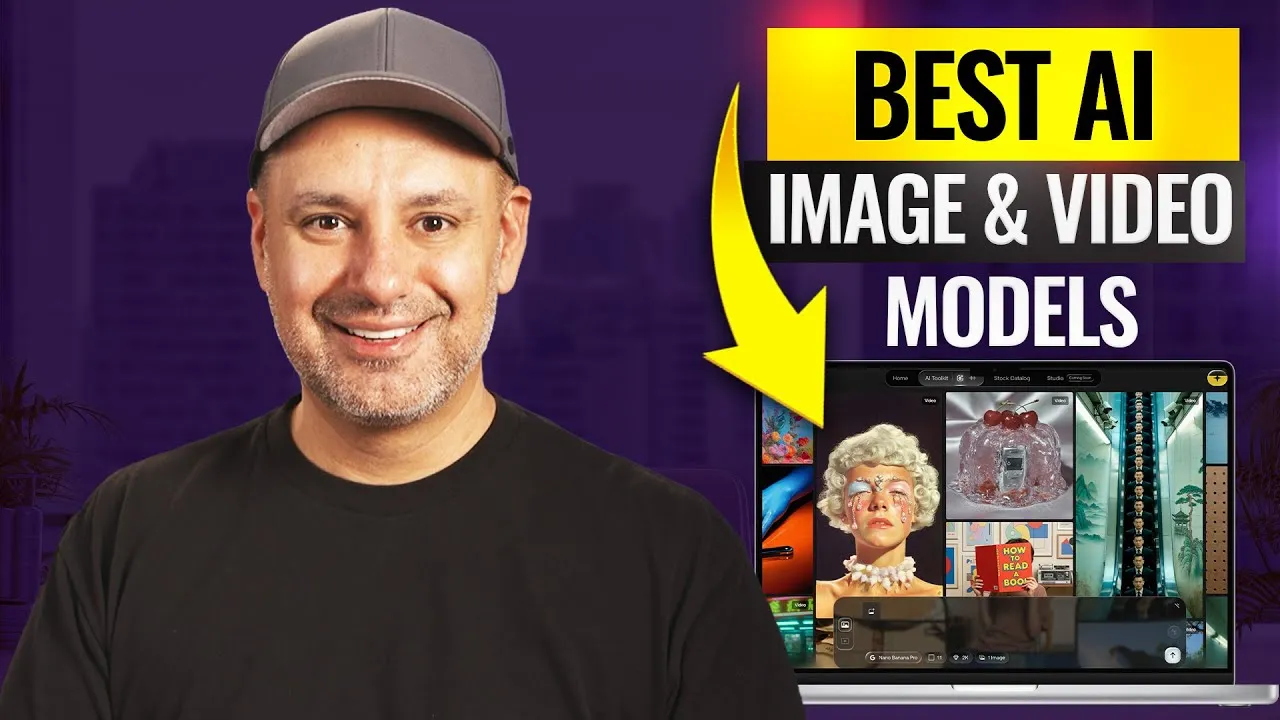
Master AI Image and Video Generation with Artlist’s AI Toolkit
The landscape of AI-powered content creation is evolving at an unprecedented pace. In the past year, AI image generation has seen remarkable advancements, and AI video generation has experienced significant upgrades in the last six months. Major tech companies like Google have released powerful video models such as Veo, while OpenAI’s Sora has demonstrated the ability to create realistic videos with audio.
To navigate this rapidly expanding ecosystem and access the best tools, a unified platform is essential. This guide will walk you through using Artlist’s AI Toolkit, a comprehensive solution that provides access to leading AI image and video generation models, as well as AI voiceover capabilities, all within a single, organized workspace.
What You’ll Learn
- How to generate high-quality AI images using various advanced models.
- Effective workflows for creating AI videos, including turning images into dynamic clips.
- How to utilize AI voiceovers to enhance your content.
- Tips for managing and organizing your AI-generated assets within the Artlist platform.
Prerequisites
- An Artlist subscription that includes access to the AI Toolkit.
- A stable internet connection.
Step 1: Accessing the AI Toolkit in Artlist
Upon logging into your Artlist account, navigate to the newly introduced AI Toolkit section. This is your central hub for all AI-powered content generation. Here, you’ll find distinct options for generating videos, images, and voiceovers.
Step 2: Generating AI Images
A highly effective workflow, particularly for AI video creation, is to start by generating an image and then using that image as a basis for your video prompt. This often yields more refined results than text prompts alone.
Crafting Your Image Prompt
Begin by entering your desired prompt in the prompt box. For example, a prompt like “A cinematic close-up of a woman in her 30s walking through a busy street” can be a starting point. Artlist offers an Autoprompt feature that can enhance your basic prompt by adding intricate details, which is highly recommended for most uses.
Selecting Image Models
Artlist provides access to a variety of top-tier AI image models, each with varying credit costs. Some of the leading models available include:
- Nanobanana Pro (Google): A highly capable model for image generation.
- GPT Image 1.5 (OpenAI): The model integrated within ChatGPT.
- Flux 2.0 Pro: Recommended as one of the best models in the Flux family.
- Ediogram: Another strong contender for quality image generation.
- Artless Original 1.0: Artlist’s proprietary model, trained on their extensive library of professional content, offering unique cinematic styles.
Configuring Image Settings
Before generating, you can customize several settings:
- Aspect Ratio: Choose from 16:9 (widescreen), vertical, or square, depending on your needs.
- Style: Select styles like Cinematic, Professional, Indie, or Commercial. For the example prompt, ‘Cinematic’ is appropriate.
- Resolution: Aim for 1080p if available with your chosen model.
Generating and Reviewing Images
Artlist allows you to generate multiple images simultaneously using different models. This is a significant advantage, enabling quick comparison.
After generation, you can view all results side-by-side, inspect the prompt and model used for each, and download, favorite, or organize them into folders. This centralized organization is a key benefit of using Artlist.
Image Editing and Upscaling
Artlist’s AI Toolkit includes powerful editing features:
- Edit: Modify existing images. For instance, you can remove elements like people from the background while preserving the rest of the scene.
- Upscale: Increase the resolution of your generated images, often doubling it (e.g., from 1K to 2K).
Exploring Different Prompts
Experiment with various prompts to understand the capabilities of different models:
- Example 2: “A white aerial shot of a remote desert landscape with no people. It’s a slow-moving drone.” This prompt is excellent for testing landscape generation and potential video conversion.
- Example 3: “A man working on a laptop with dust particles in the air that you could clearly see. Calm and quiet, subtle facial expression, natural blinking.” This tests the models’ ability to handle subtle details and realism. Flux 2.0 Pro often excels here.
- Example 4: “A dialogue scene between two people sitting across from each other at a coffee shop.” This is ideal for testing character interaction and scene composition.
Expert Tip: There isn’t one single ‘best’ AI image model. Test top contenders like Nanobanana Pro and Flux 2.0 Pro with your specific prompts to find what works best for your style and needs. Remember to leverage the Autoprompt feature for richer results.
Step 3: Generating AI Videos
The AI video generation capabilities have seen substantial improvements. Artlist integrates the most advanced video models, often making them available on the same day they are released.
Top AI Video Models
Key models available within Artlist include:
- Veo 3.1 (Google): Capable of generating high-resolution video (up to 4K) with audio, with a clip length of up to 8 seconds.
- Sora 2 Pro / Sora 2 (OpenAI): Can generate videos up to 12 seconds long, though typically at a lower resolution (e.g., 720p for Sora 2).
- Cling 2.6 Pro: A highly-regarded model known for its quality.
Each model has tags indicating capabilities like audio generation, maximum resolution, and clip length. Choose the model that best suits your project’s requirements.
Text-to-Video Generation
You can generate videos directly from text prompts. Using the same dialogue scene prompt from the image generation example, you can select multiple video models (e.g., Veo, Sora 2 Pro) to generate variations. Artlist allows you to adjust settings like aspect ratio, duration, and resolution based on the chosen model’s capabilities.
Image-to-Video Conversion (Recommended Workflow)
This is a powerful workflow:
- Generate an image using one of the AI image models.
- Open the generated image within Artlist.
- Select the video generation option. The image will be used as the start frame.
- Optionally, you can provide an end frame image to guide the video’s conclusion, or simply use the text prompt to define the action.
- Artlist will then generate the video, smoothly transitioning from the start frame (and potentially to the end frame), filling in the motion between.
This method often provides more control and predictable results compared to pure text-to-video.
Commercial Example
Test video generation with prompts like: “A product-style shot of a modern smartphone on a table with no people.” Generating this with various models allows you to compare their interpretations.
Warning: AI video generation is computationally intensive. Results can vary significantly between models and prompts. It’s often best to generate clips using 2-3 different top models and select the one that best meets your needs.
Step 4: Utilizing AI Voiceovers
Enhance your generated videos or any project with AI-generated voiceovers.
Accessing the Voiceover Tool
Within the AI Toolkit, find the Voiceover section. Artlist integrates leading text-to-speech models, including 11 Labs, widely recognized as a top-tier voice generation service.
Selecting Voices and Languages
You can choose from a vast library of voices, categorized by language, gender, and age. 11 Labs, in particular, offers advanced options and high-quality output.
Generating Voiceovers
Paste your script into the provided text box. You can further customize the voice by selecting specific accents or applying effects (e.g., walkie-talkie, robotic). For standard narration, select a regular voice and appropriate settings.
Reviewing and Downloading
Listen to the generated voiceover to ensure it meets your satisfaction. You can favorite the audio clips for easy access and download them as MP3 files directly from the platform. This keeps your audio assets organized alongside your images and videos.
Step 5: Organizing Your Workspace
One of Artlist’s primary advantages is its integrated library system. All your generated images, videos, and voiceovers are stored within your workspace, making it easy to manage and access your creative assets. This contrasts with using multiple disparate platforms, which can lead to disorganized project files.
Future Developments: Artlist Studio
Artlist is developing Artlist Studio, an advanced AI production platform designed to offer comprehensive control across all stages of content creation. Keep an eye on future updates for this promising new tool.
Conclusion
Artlist’s AI Toolkit provides a powerful and streamlined way to access and utilize the latest AI image, video, and voice generation models. By consolidating these tools into a single platform with excellent organizational features, it simplifies the creative process, allowing you to focus on bringing your ideas to life. Remember to explore the platform, experiment with different models and prompts, and leverage the integrated stock media library for a complete production solution.
Source: Best AI Image & Video Generators in 2026 (YouTube)