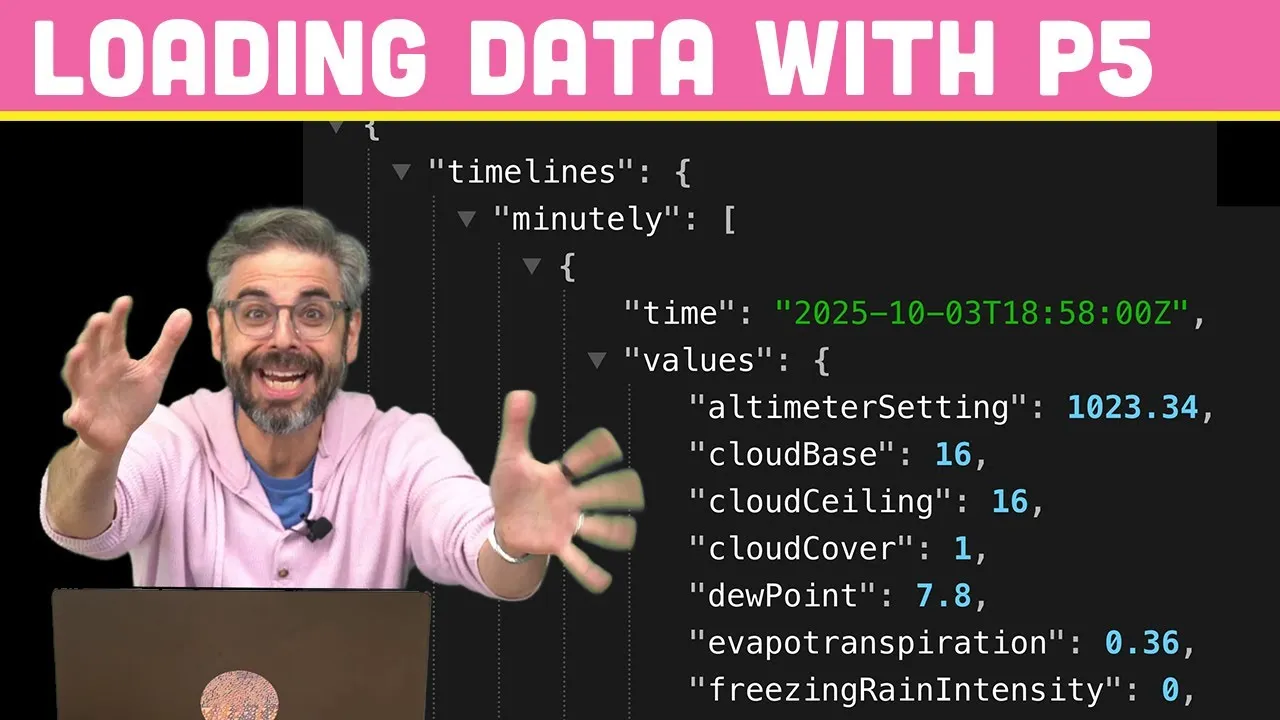
Load Images and Data with p5.js 2.0 Effortlessly
This guide will walk you through the process of loading various types of data, such as images and JSON files, into your p5.js sketches using version 2.0. You will learn how to properly handle asynchronous loading operations, display loaded images, fetch data from APIs, and implement strategies for managing loading states and optimizing performance.
Prerequisites
- Basic understanding of p5.js
- Familiarity with the p5.js Web Editor
- (Optional) Basic knowledge of JavaScript Promises, async, and await
Step 1: Uploading Your Assets
Before you can load any files into your p5.js sketch, you need to upload them to your project. This is particularly important for local files like images.
- Open your p5.js sketch in the p5.js Web Editor.
- In the top-left corner, click the arrow icon to open the sketch files navigation pane.
- Click the ‘+’ symbol to upload a file.
- Drag and drop your image file (e.g., a .jpg, .png) from your computer into the navigation pane.
- The file will appear in the list. You can click on it to verify it has been uploaded correctly.
Step 2: Loading an Image with loadImage()
P5.js version 2.0 introduces asynchronous loading for many functions, including loadImage(). This means you need to use async and await to handle the loading process correctly.
- Declare a global variable to store your image. For example:
let img; - In your
setup()function, you need to make it anasyncfunction. This tells JavaScript that it will contain operations that might take time to complete.async function setup() { ... } - Inside the
async setup()function, callloadImage()with the name of your uploaded image file. Use theawaitkeyword beforeloadImage(). This pauses the execution ofsetup()until the image is fully loaded and then assigns the loaded image to your global variable.img = await loadImage('your-image-name.jpg'); - In your
draw()function, you can now display the image using theimage()function:image(img, 0, 0);
Common Mistakes and How to Fix Them
- Forgetting
async: If you useawaitwithout marking your function asasync, you’ll get an error like ‘await is only valid in async function‘. Simply addasyncbeforefunction setup(). - Forgetting
await: If you forgetawaitbeforeloadImage(), your variable will store a Promise object, not the actual image. You cannot draw a Promise. This will likely result in a blank canvas or an error. P5.js often provides a helpful error message suggesting you add ‘await‘.
Step 3: Loading JSON Data with loadJSON()
Similar to images, JSON data (often fetched from APIs or local files) is loaded asynchronously. The process is almost identical to loading an image.
- Declare a global variable to hold your JSON data:
let jsonData; - Ensure your
setup()function is marked withasync. - Use
await loadJSON()with the URL of the JSON resource or the path to your local JSON file. Assign the result to your variable.jsonData = await loadJSON('https://api.example.com/data.json');Or
jsonData = await loadJSON('data.json'); - Once loaded, you can access the data within your
jsonDatavariable. For example, if your JSON has a ‘message’ property:console.log(jsonData.message);
Example: Fetching a Dog Image from an API
This demonstrates fetching a URL for a dog image from an API and then loading that image.
- Define global variables for the image and the JSON data:
let dogImage;,let dogApiData; - Make
setup()asynchronous. - Load the JSON data from the Dog API:
dogApiData = await loadJSON('https://dog.ceo/api/breeds/image/random'); - Use the URL from the loaded JSON to load the actual image:
dogImage = await loadImage(dogApiData.message); - In
draw(), display the loaded dog image:image(dogImage, 0, 0, width, height);
Step 4: Handling Loading Progress and Multiple Assets
When loading many assets or dealing with potentially slow network requests, it’s good practice to provide feedback to the user and manage the loading process efficiently.
Strategy 1: Loading in setup() with a Loading Indicator
If you want draw() to start immediately, even before all assets are loaded, you can move the loading logic out of setup() into a separate asynchronous function.
- Create a boolean variable to track if data is loaded, initialized to
false:let dataLoaded = false; - Define a new
asyncfunction, e.g.,async function loadAssets() { ... }. - Place all your
await loadImage()orawait loadJSON()calls inside thisloadAssets()function. - At the end of
loadAssets(), setdataLoaded = true;. - In your regular (non-async)
setup()function, callloadAssets();. Note that you do NOT useawaithere, sosetup()finishes quickly, anddraw()begins executing. - In your
draw()function:- Check the value of
dataLoaded. - If
false, draw a loading indicator (e.g., a progress bar, a spinning circle, or text like “Loading…”). - If
true, draw your actual sketch content.
- Check the value of
Creating a Simple Loading Bar
You can make the loading bar dynamic by mapping its width to the progress of loading assets.
- If loading multiple items into an array (e.g.,
let images = [];), you can track the array’s length.Inside
loadAssets(), after each successful load, push the item into the array:images.push(loadedItem); - In
draw(), calculate the width of the loading bar based on how many items are loaded:let numLoaded = images.length;let totalItems = 20; // The total number of items you expect to loadlet barWidth = map(numLoaded, 0, totalItems, 0, width);fill(0); // Black color for the barrect(0, 0, barWidth, 20); // Draw the loading bar at the top - Add
noLoop();insetup()if you only wantdraw()to run once after loading, or manage looping appropriately if you want animations during loading.
Strategy 2: Parallel Loading with Promise.all()
For maximum efficiency when loading multiple assets, you can start all loading operations simultaneously and then wait for all of them to complete.
- Create an array to store the Promises returned by the loading functions, e.g.,
let promises = []; - In your
asyncloading function (e.g.,loadAssets()), loop through your assets and push the Promise (the result ofloadImage()orloadJSON()*without*await) into thepromisesarray.for (let i = 0; i < 5; i++) {promises.push(loadImage('kitten' + i + '.png'));} - After the loop, use
Promise.all(promises). This function takes an array of Promises and returns a new Promise that resolves when all the input Promises have resolved. You must useawaitwithPromise.all().let loadedImages = await Promise.all(promises); - The
loadedImagesvariable will be an array containing all the successfully loaded assets in the same order as the original promises.// Now loadedImages[0] is the first image, loadedImages[1] is the second, etc.
Expert Note on Efficiency
Loading assets one by one using await in a loop is simpler but can be slower because each asset must finish loading before the next one starts. Using Promise.all() allows multiple assets to download concurrently, significantly speeding up the loading process, especially for many assets.
Important Considerations
- API Limits: Be mindful of how many requests you send to an API. Flooding an API with too many requests can lead to errors or temporary bans.
- Error Handling: The examples above do not include explicit error handling. In a real application, you should implement mechanisms to catch errors during loading (e.g., using
try...catchblocks withasync/await) and provide user feedback or alternative actions if an asset fails to load. - p5.js Version: Ensure you are using p5.js version 2.0 or later for these
async/awaitpatterns to work correctly. Older versions (like 1.x) handle loading differently, often using callback functions.
Source: How to Load Data with p5.js (2.0) (YouTube)