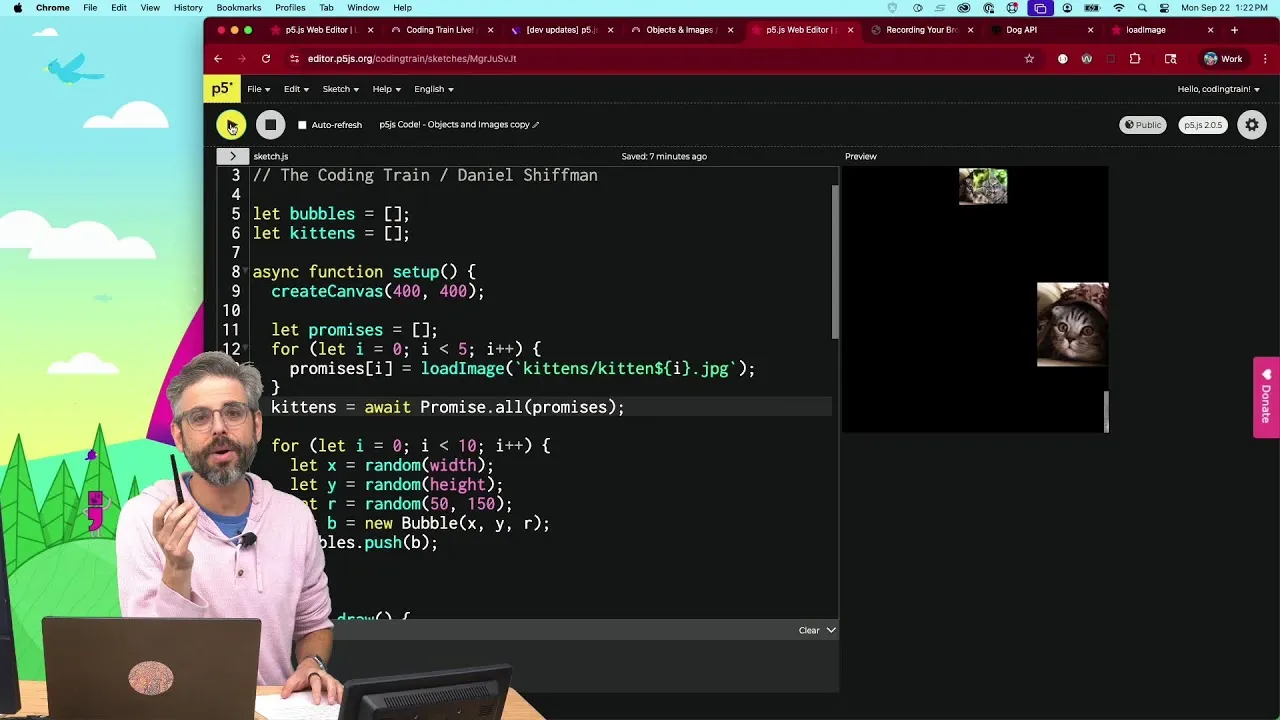
Master p5.js 2.0: Load External Data Effortlessly with Async/Await
In this tutorial, you’ll learn how to load external data like images, sounds, and JSON files into your p5.js sketches using the modern JavaScript features of async and await. This approach offers a cleaner and more manageable way to handle asynchronous operations compared to older methods, making your code more readable and less prone to errors. We’ll cover loading single files, loading files sequentially, and even touch upon advanced concepts like progress bars and Promise.all.
Prerequisites
- Basic understanding of p5.js (versions prior to 2.0 are helpful for context but not strictly necessary).
- Familiarity with fundamental JavaScript concepts.
- A code editor (like VS Code) and a web browser.
Understanding the Shift in p5.js 2.0
With the release of p5.js 2.0, the way we handle loading external assets has been updated to leverage modern JavaScript features. Previously, you might have used functions like preload() and callbacks. While these still work, async and await provide a more synchronous-looking syntax for asynchronous tasks, which can significantly improve code clarity, especially when dealing with multiple file loads or complex loading sequences.
Step 1: Loading a Single File with async/await
The core of loading data with async/await involves marking your function as async and then using the await keyword before any asynchronous operation that returns a Promise. For loading assets in p5.js 2.0, the loadJSON(), loadImage(), and loadSound() functions are now Promise-based.
Example: Loading an Image
Let’s start by loading a single image. We’ll create an async function, perhaps called loadMyImage(), and use await loadImage() within it.
- Set up your HTML file: Ensure you have a basic HTML file that includes the p5.js library and your sketch file.
- Create your sketch file (e.g.,
sketch.js):
let myImage;

async function preload() {
 // Use await to pause execution until the image is loaded
 myImage = await loadImage('path/to/your/image.jpg');
}

function setup() {
 createCanvas(400, 400);
}

function draw() {
 if (myImage) {
 image(myImage, 0, 0, width, height);
 } else {
 background(220);
 text('Loading image...', width / 2, height / 2);
 }
}
Explanation:
- The
preload()function is marked asasync. await loadImage('path/to/your/image.jpg');tells JavaScript to wait here until the image file is fully loaded and then assign the loaded image object to themyImagevariable.- In
draw(), we check ifmyImagehas been loaded before trying to display it.
Tip: The preload() function in p5.js is implicitly async when you use await inside it, so you don’t always need to explicitly write async function preload(), though it’s good practice for clarity.
Step 2: Loading Multiple Files Sequentially
When you need to load several files, and one must be loaded before the next can be processed, async/await makes this straightforward. You simply chain await calls.
Example: Loading an Image then JSON Data
Imagine you need to load an image and then use data from a JSON file to draw something related to that image.
let myImage;
let myData;

async function preload() {
 myImage = await loadImage('path/to/your/image.jpg');
 myData = await loadJSON('path/to/your/data.json');
}

function setup() {
 createCanvas(400, 400);
}

function draw() {
 background(220);
 if (myImage && myData) {
 image(myImage, 0, 0, width, height / 2);
 // Use data from myData to draw something
 fill(myData.color.r, myData.color.g, myData.color.b);
 rect(50, height / 2, 100, 100);
 text('Data loaded!', width / 2, height - 20);
 } else {
 text('Loading assets...', width / 2, height / 2);
 }
}
Explanation:
myImageis loaded first. The code pauses atawait loadImage(...)until it’s done.- Only after the image is loaded does the code proceed to
await loadJSON(...). - The
draw()function waits until bothmyImageandmyDataare available.
Step 3: Handling Loading with a Progress Bar
For larger files or slower connections, providing visual feedback is crucial. While p5.js 2.0’s loadImage, loadJSON, etc., directly return Promises, they don’t natively expose granular progress updates. To implement a progress bar, you’d typically need to use lower-level browser APIs (like fetch with ReadableStream) or rely on libraries that offer this functionality.
However, a common pattern is to load all assets and then display a progress bar *after* they are all loaded, or to use a library that wraps these loading functions and provides progress events.
For a simpler approach within p5.js’s standard functions, you can check if assets are loaded and update a visual indicator:
let myImage;
let assetsLoaded = 0;
let totalAssets = 1;

async function preload() {
 try {
 myImage = await loadImage('path/to/your/large_image.jpg');
 assetsLoaded++;
 } catch (error) {
 console.error('Error loading image:', error);
 // Handle error, maybe display a message
 }
}

function setup() {
 createCanvas(400, 400);
}

function draw() {
 background(220);
 if (myImage) {
 image(myImage, 0, 0, width, height);
 fill(0, 0, 0, 150);
 rect(0, height - 30, width, 30);
 fill(255);
 text('Image Loaded!', width / 2, height - 15);
 } else {
 // Display progress bar or text
 let progress = (assetsLoaded / totalAssets) * 100;
 fill(50);
 rect(20, height / 2 - 10, width - 40, 20);
 fill(0, 200, 0);
 rect(20, height / 2 - 10, (width - 40) * (progress / 100), 20);
 fill(255);
 text('Loading: ' + nf(progress, 1, 2) + '%', width / 2, height / 2 + 5);
 }
}
Expert Note: Implementing a true granular progress bar for p5.js’s built-in loaders requires more advanced techniques, potentially involving the fetch API directly for more control over the loading process.
Step 4: Using Promise.all() for Concurrent Loading
If the order of loading doesn’t matter and you want to load multiple assets as quickly as possible, you can use Promise.all(). This method takes an array of Promises and returns a new Promise that resolves when all the Promises in the array have resolved.
let img1, img2;
let jsonData1, jsonData2;

async function preload() {
 // Create an array of promises
 const promises = [
 loadImage('assets/image1.png'),
 loadImage('assets/image2.png'),
 loadJSON('assets/data1.json'),
 loadJSON('assets/data2.json')
 ];

 try {
 // Await all promises to resolve
 const results = await Promise.all(promises);

 // Assign results to variables (order matters here!)
 img1 = results[0];
 img2 = results[1];
 jsonData1 = results[2];
 jsonData2 = results[3];

 console.log('All assets loaded successfully!');
 } catch (error) {
 console.error('Error loading assets:', error);
 // Handle errors, e.g., display an error message to the user
 }
}

function setup() {
 createCanvas(600, 400);
}

function draw() {
 background(200);
 if (img1 && img2 && jsonData1 && jsonData2) {
 image(img1, 0, 0, width / 2, height);
 image(img2, width / 2, 0, width / 2, height);
 // You can now use jsonData1 and jsonData2
 fill(jsonData1.color.r, jsonData1.color.g, jsonData1.color.b);
 ellipse(width / 4, height - 50, 50, 50);

 fill(jsonData2.color.r, jsonData2.color.g, jsonData2.color.b);
 ellipse(width * 3 / 4, height - 50, 50, 50);
 } else {
 text('Loading assets concurrently...', width / 2, height / 2);
 }
}
Explanation:
- We create an array of Promises by calling the respective loading functions (
loadImage,loadJSON). Promise.all(promises)waits for all these loading operations to complete.- The
resultsarray will contain the loaded assets in the same order as they appeared in thepromisesarray. - A
try...catchblock is essential here to handle any potential errors during the loading of any of the assets.
Warning: If even one Promise in the array passed to Promise.all() rejects (i.e., an error occurs during loading), the entire Promise.all() will reject immediately, and you will not get the results from the successful Promises.
Conclusion
By embracing async and await in p5.js 2.0, you can write more robust and readable code for loading external data. Whether you’re loading a single image or multiple assets concurrently using Promise.all(), these modern JavaScript features streamline the process, allowing you to focus more on your creative coding and less on managing complex asynchronous logic.
Source: p5.js 2.0: loading data with async and await (LIVE RECORDING SESSION ARCHIVE) (YouTube)