Learn to Leverage p5.js 2.0’s Exciting New Features
This article will guide you through the significant updates in p5.js version 2.0, focusing on enhanced typography support, including variable fonts and the new textToContour function. You’ll learn how to implement asynchronous loading of fonts and create dynamic text animations. We’ll also touch upon the broader p5.js ecosystem, including contributing to the project and utilizing add-on libraries.
Understanding p5.js 2.0 and Its Release
P5.js version 2.0 introduces a range of improvements under the hood, making many new possibilities available. While it is now live, it will not be the default in the p5.js editor for at least a year, allowing ample time for the community to adapt and for resources to be developed. This phased rollout ensures that existing projects and learning materials remain compatible, while encouraging gradual adoption of the new features.
Key Changes and Resources
- Variable Fonts: Direct support for variable fonts, allowing smooth variation in font properties like weight.
- Asynchronous Loading: New support for asynchronous operations, crucial for loading external assets like fonts without blocking the draw loop.
textToContour: A new API that generates points based on the outline of text, enabling more complex text manipulations and shape generation.- Compatibility: Resources are available to help transition from 1.x to 2.0, including add-on libraries that enable the use of 2.0 features in 1.x sketches.
- Community Contributions: p5.js thrives on community input. Resources for contributing code, documentation, translations, and more are available.
Getting Started with p5.js 2.0
To begin using p5.js 2.0, you can select it within the p5.js editor. The editor’s UI now includes an option to change the library version you are using.
For detailed information on what’s new and how to manage compatibility, refer to the official p5.js website. Links to the release notes, compatibility guides, and examples updated for 2.0 can be found there.
Step-by-Step Guide to Using p5.js 2.0 Features
Step 1: Setting Up Your Sketch for p5.js 2.0
First, ensure you have selected version 2.0 in the p5.js editor. You can then start by creating a basic canvas and setting a background color.
function setup() {
 createCanvas(400, 400);
}

function draw() {
 background(255);
 // Your drawing code here
}
Step 2: Implementing Variable Fonts
P5.js 2.0 introduces direct support for variable fonts. This allows for smooth variations in font properties, such as weight. To use a variable font, you’ll typically need to load the font file.
Loading a Font Asynchronously:
The new asynchronous capabilities are essential here. You’ll use the async keyword to define functions that can pause execution while waiting for assets like fonts to load.
let myFont;

async function preload() {
 // Load a variable font from a URL
 myFont = await loadFont('path/to/your/variable-font.ttf');
}

function setup() {
 createCanvas(400, 400);
 // Ensure the font is loaded before proceeding if needed
 if (myFont) {
 textFont(myFont);
 }
}

function draw() {
 background(255);
 // Display text using the loaded font
 text('Hello p5.js 2.0!', 50, 50);
}
Step 3: Creating Dynamic Text Animations with Font Weight
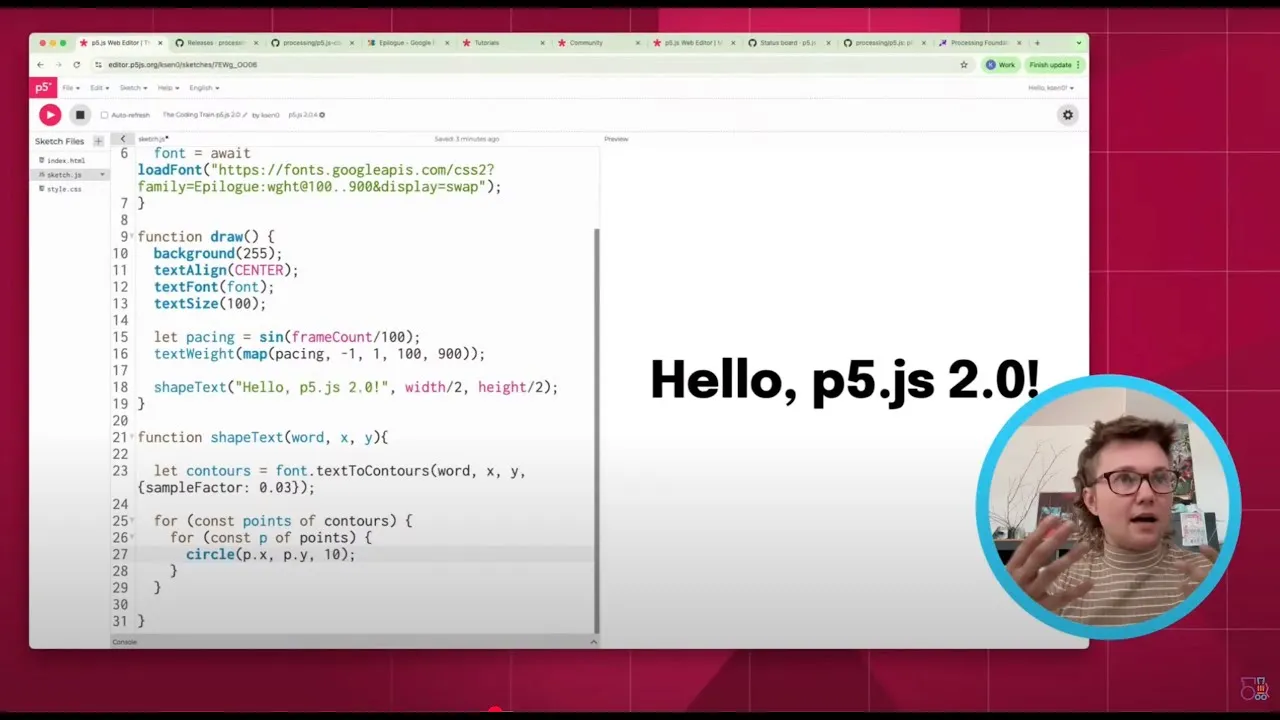
With variable fonts, you can animate properties like font weight. This example demonstrates how to create a dynamic weight animation based on the frame count.
let myFont;

async function preload() {
 myFont = await loadFont('path/to/your/variable-font.ttf');
}

function setup() {
 createCanvas(400, 400);
 textFont(myFont);
 textSize(50);
}

function draw() {
 background(255);

 // Calculate a dynamic weight based on frame count
 // The sign function creates an up and down oscillation
 // Map the output from -1 to 1 to the font's weight range (e.g., 100 to 900)
 let weightPacing = (sin(frameCount * 0.1) + 1) / 2;
 let currentWeight = map(weightPacing, 0, 1, 100, 900);

 // Set the current font weight
 // Note: This might require specific font support or a different approach
 // depending on the font's variable axes.
 // For demonstration, we'll assume a direct weight setting is possible or simulated.
 // In a real scenario, you might need to use textFont with specific axes.
 // For now, we'll just show the concept of animation.

 // A more accurate way might involve setting specific axes if the font supports it.
 // For simplicity, we'll just display text and imagine the weight changing.

 // Example of setting font with specific axes (if supported and known):
 // textFont(myFont, 'wght', currentWeight);

 fill(0);
 text('Animating Weight', 50, 200);
}
Expert Note: The exact method for setting variable font axes can vary. Consult the documentation for your specific variable font and p5.js examples for precise implementation, especially regarding the textFont() function and its parameters for variable font axes.
Step 4: Using textToContour for Advanced Text Effects
The textToContour function provides a way to get points along the outline of text characters, enabling the creation of shapes and more abstract visual effects.
- Enable 2.0 and Load Font: Ensure you are using p5.js 2.0 and have loaded your font.
- Use
textToContour: CalltextToContour()with your text and a sampling factor. This returns an array of contours, where each contour is an array of points. - Process Contours: Iterate through the returned data to draw shapes or manipulate the points.
let myFont;

async function preload() {
 myFont = await loadFont('path/to/your/variable-font.ttf');
}

function setup() {
 createCanvas(600, 400);
 textFont(myFont);
 textSize(100);
}

function draw() {
 background(200);
 fill(0);
 noStroke();

 let textString = '2.0';
 let contours = textToContours(textString, 0.1); // Sample factor

 // Draw shapes based on the contours
 for (let i = 0; i < contours.length; i++) {
 let contour = contours[i]; // Each contour is an array of points
 beginShape();
 for (let j = 0; j < contour.length; j++) {
 let p = contour[j];
 // textToContour returns points relative to the text's bounding box
 // You might need to offset or scale these points
 vertex(p.x + 100, p.y + 200); // Offset for positioning
 }
 endShape(CLOSE);
 }
}
Tip: Experiment with the sampling factor in textToContour. A lower factor results in more points and finer detail, while a higher factor simplifies the shape.
Step 5: Exploring Add-on Libraries
The p5.js ecosystem includes numerous add-on libraries that extend its functionality. Many of these are compatible with p5.js 2.0. Libraries like p5.wf2 (for advanced font handling) or tools for creating videos can be integrated to enhance your projects.
To add a library, you can often include a script tag in your HTML file or use the library manager within the p5.js editor if available.
Contributing to p5.js
P5.js is a community-driven project. There are many ways to contribute beyond just writing code:
- Documentation: Improve existing documentation or add new examples.
- Testing: Help identify and report bugs.
- Translations: Contribute to making p5.js accessible in multiple languages.
- Hosting Events: Organize workshops or meetups.
- Educational Materials: Create tutorials or learning resources.
The all-contributors model recognizes all forms of contribution. The GitHub repository’s README file lists hundreds of contributors and the diverse ways they’ve helped the project.
What’s Next for p5.js?
The p5.js team is continually developing new features and resources. As 2.0 becomes more integrated, expect more tutorials and updates focusing on its advanced capabilities. The project encourages users to experiment with the new version and provide feedback to help shape its future development.
Conclusion
P5.js 2.0 represents a significant step forward, particularly in its handling of typography and asynchronous operations. By exploring features like variable fonts and textToContour, you can unlock new creative possibilities. Remember to leverage the available resources, engage with the community, and consider contributing to the ongoing development of this powerful creative coding tool.
Source: p5.js 2.0 with Kit Kuksenok (YouTube)