Learn to Optimize Your React Applications with Tanstack Pacer
In modern web development, efficiently handling user interactions and background processes is crucial for a smooth user experience. Often, repetitive actions like typing in a search bar or resizing a window can lead to excessive API calls or complex calculations, negatively impacting performance.
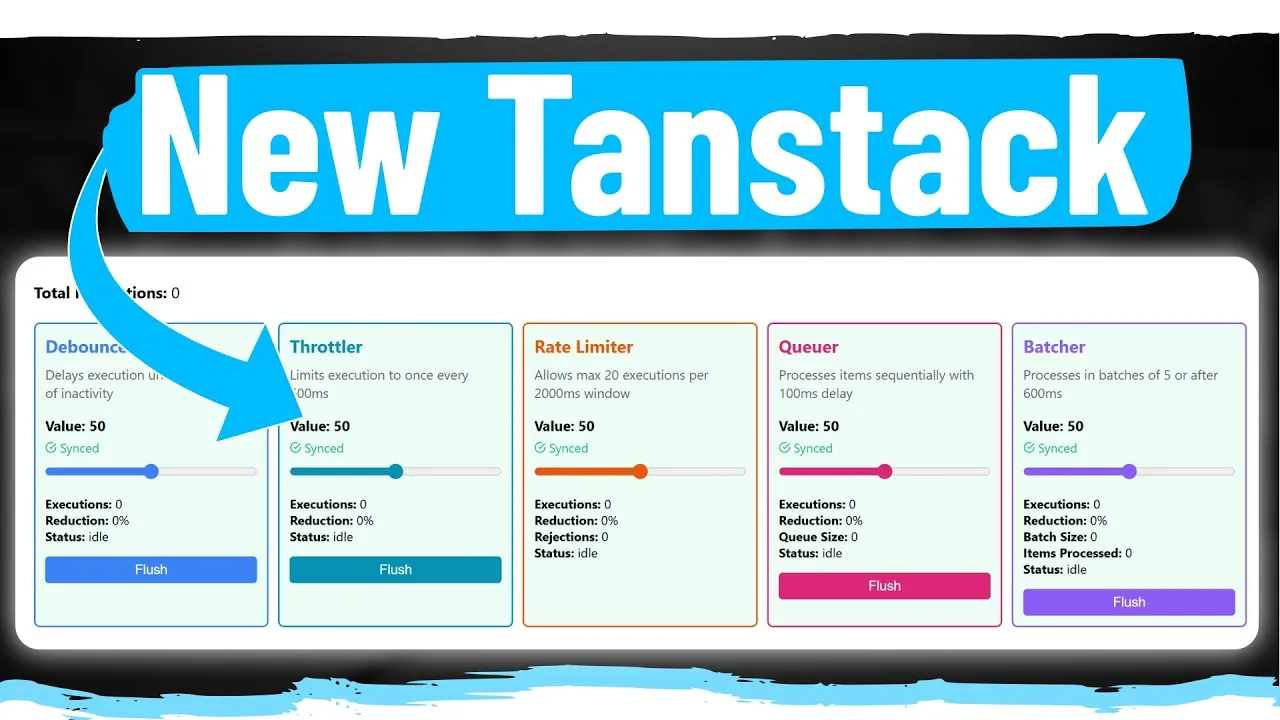
Tanstack Pacer is a new library designed to elegantly solve these problems by providing powerful tools for debouncing, throttling, and batching operations. This article will guide you through implementing these techniques in your React applications, showing you how to improve performance and reduce unnecessary computations and network requests.
Understanding the Problem: Uncontrolled Function Calls
Before diving into solutions, let’s understand the common issues Tanstack Pacer addresses. Consider a typical search input in a React application. Every time a user types a character, a function is triggered to fetch search results.
If a user types five characters, five API requests are made. This is inefficient and can overload your server.
Similarly, an expensive operation tied to window resizing or scrolling can be triggered hundreds or thousands of times as the user adjusts their screen. This leads to significant performance degradation.
Introducing Tanstack Pacer
Tanstack Pacer offers a collection of hooks to manage the timing and frequency of function executions. It simplifies complex patterns like debouncing (waiting for a pause in activity before executing) and throttling (limiting execution to once per specified interval).
Prerequisites
- Basic understanding of React and its hooks (useState, useEffect).
- Node.js and npm/yarn installed for package management.
Step 1: Install Tanstack Pacer
To begin, you need to install the React version of the Pacer library. Open your terminal in your project directory and run:
npm install @tanstack/react-pacer
Or
yarn add @tanstack/react-pacer
Step 2: Implement Debouncing for Search Inputs
Debouncing is ideal for scenarios where you want to delay an action until a user has stopped performing an activity for a set period. A prime example is a search input.
Using useDebouncedCallback
The useDebouncedCallback hook wraps a function and returns a new, debounced version of it. This new function will only execute after a specified delay has passed without it being called again.
- Import the hook:
import { useDebouncedCallback } from '@tanstack/react-pacer'; - Define your original function: This is the function that would normally be called on every input change (e.g., fetching search results).
- Create the debounced callback: Wrap your original function with
useDebouncedCallback, providing the function and an options object. The key option iswait, which specifies the delay in milliseconds.
 const debouncedSearch = useDebouncedCallback(async (searchQuery) => {
 // Your original search logic here
 console.log('Fetching results for:', searchQuery);
 // ... Fetch data ...
 }, {
 wait: 1000, // Wait for 1 second after the last input
 });
- Use the debounced function: In your component, call
debouncedSearchwhenever the input changes. Ensure your component’s state updates correctly to pass the current input value.
const [searchTerm, setSearchTerm] = useState('');const handleInputChange = (event) => {
setSearchTerm(event.target.value);
debouncedSearch(event.target.value);
};return (
);
How it works:
When the user types, handleInputChange is called. It updates the searchTerm state and then calls debouncedSearch.
If the user types again within the 1000ms wait period, the timer resets. Only after the user stops typing for a full second will the actual search logic inside debouncedSearch execute.
Expert Note: While useDebouncedCallback is common, useDebouncer offers more control, returning an object with methods like execute, cancel, and flush, which can be useful for advanced scenarios.
Step 3: Implement Throttling for Resize and Scroll Events
Throttling is useful when you want to ensure a function is called at most once within a specific time interval. This is perfect for expensive operations tied to events like window resizing or scrolling.
Using useThrottledState
The useThrottledState hook is similar to React’s useState but delays updates to the state value based on a throttling interval.
- Import the hook:
import { useThrottledState } from '@tanstack/react-pacer'; - Initialize the throttled state: Use
useThrottledState, passing the initial value and the throttling options (specificallywaitin milliseconds).
 const [width, setWidth] = useState(window.innerWidth);
 const [throttledWidth, setThrottledWidth] = useThrottledState(width, {
 wait: 1000, // Update at most once per second
 });
- Update the state on event: In a
useEffecthook, listen for the relevant event (e.g.,resize) and update the primary state variable. The throttled state will update automatically according to the defined interval.
 useEffect(() => {
 const handleResize = () => {
 setWidth(window.innerWidth);
 };
 window.addEventListener('resize', handleResize);
 return () => window.removeEventListener('resize', handleResize);
 }, []);
How it works:
The width state updates instantly when the window resizes. However, throttledWidth will only reflect the latest width value at most once every second, preventing rapid, performance-draining updates.
Using useThrottledValue
If you need both the instantaneous value and a delayed, throttled version of a value, useThrottledValue is useful. It returns an array containing the throttled value and the underlying throttler object.
- Import the hook:
import { useThrottledValue } from '@tanstack/react-pacer'; - Get the throttled value: Pass the value you want to throttle and the options.
 const [width] = useState(window.innerWidth);
 const [throttledWidth] = useThrottledValue(width, {
 wait: 1000,
 });
Tracking Throttler State
You can also access the internal state of the throttler, such as whether it’s currently pending an update. This requires passing a third argument to the hook: a function that returns an object of state you want to track.
- Add the state tracking function:
const [isPending, setIsPending] = useState(false);useThrottledState(width, {
wait: 1000,
}, (state) => {
// This function runs when the throttler's state changes
setIsPending(state.isPending);
return { isPending: state.isPending }; // Return state you want to track
});
- Use the tracked state: You can now use
isPendingin your component to display feedback, for example, showing “Pending” while the throttled update is waiting.
return (Current Width: {width}
Throttled Width: {throttledWidth}
{isPending &&
Updating...
}
);
Warning: Without the third parameter, your component won’t automatically re-render when the throttler’s internal state (like isPending) changes. This is essential for reactive UI updates.
Step 4: Implement Batching for Autosave Features
Batching is useful for grouping multiple operations together and executing them as a single unit. This is common in autosave features, where you might want to save changes only after a certain number of edits or after a delay, rather than saving every single keystroke.
Using useBatchedCallback
The useBatchedCallback hook allows you to batch function calls based on a maximum size or a timeout.
- Import the hook:
import { useBatchedCallback } from '@tanstack/react-pacer'; - Define your batching logic: Use
useBatchedCallback, providing the function to be batched, and options forwait(timeout) andmaxSize(batch size).
 const [count, setCount] = useState(0);
 const [serverCount, setServerCount] = useState(0);
const batchSaveToServer = useBatchedCallback(async (newCount) => {
console.log('Saving to server:', newCount);
// Simulate API call
await new Promise(resolve => setTimeout(resolve, 1000));
setServerCount(newCount);
}, {
wait: 2000, // Send if no new calls for 2 seconds
maxSize: 5, // Send after 5 calls, even if wait hasn't passed
});
- Trigger the batched function: Call the batched function whenever an update occurs that should eventually trigger the batched operation.
 const handleIncrement = () => {
 const newCount = count + 1;
 setCount(newCount);
 batchSaveToServer(newCount);
 };
return (
Count: {count}
Server Count: {serverCount}
);
How it works:
When you click the “Increment” button, count increases, and batchSaveToServer is called. The library collects these calls.
If 5 calls are made before 2 seconds pass, the batchSaveToServer function executes with the latest count. If fewer than 5 calls are made but 2 seconds pass, it will execute with the current count to ensure data isn’t lost.
Expert Note: This batching significantly reduces server load. Instead of potentially hundreds of requests for a document edit, you might send only a few, saving bandwidth and improving server responsiveness.
Conclusion
Tanstack Pacer provides elegant and efficient solutions for common performance challenges in React applications. By leveraging debouncing, throttling, and batching, you can create more responsive, performant, and resource-friendly user experiences. Whether it’s optimizing search inputs, handling scroll events, or implementing autosave features, Pacer offers the tools to manage function calls effectively.
Source: Every Project Needs This NEW Tanstack Library (YouTube)