Master HTML dialog for Seamless Modals
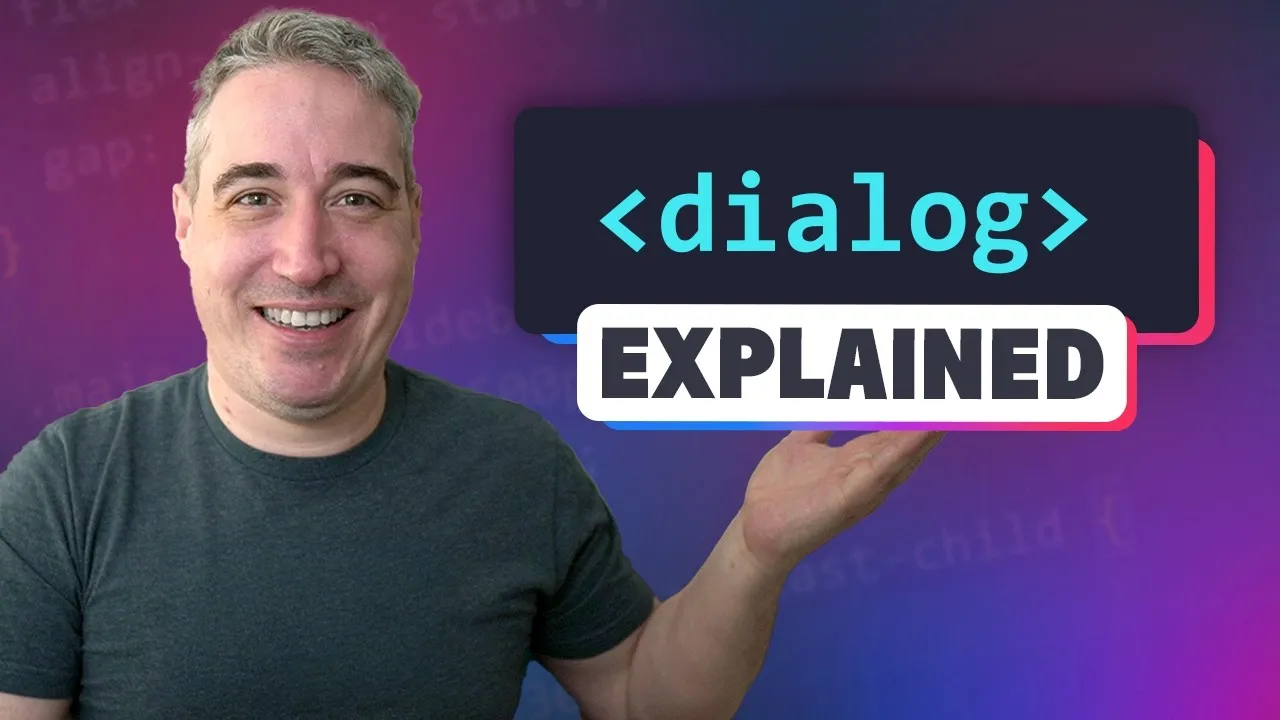
Modals are a common UI element, essential for forms, notifications, and confirmations. Traditionally, building them involved significant JavaScript and CSS to handle their behavior, accessibility, and focus management. Fortunately, the HTML <dialog> element simplifies this process dramatically, offering built-in functionality for opening, closing, focus trapping, and accessibility, saving you considerable development time.
In this guide, you’ll learn how to leverage the <dialog> element to create functional and accessible modals. We’ll cover the basic setup, how to open and close them using JavaScript, essential accessibility considerations like focus management and keyboard navigation, and finally, how to style them to fit your design.
Prerequisites
- Basic understanding of HTML and CSS.
- Familiarity with JavaScript event listeners.
Step 1: Structure Your HTML
Start by adding the <dialog> element to your HTML. It’s good practice to give it an ID so you can easily select it with JavaScript. You’ll also need a trigger element, like a button, to open the dialog.
- Create a
<dialog>element. Assign it a unique ID for JavaScript selection. - Inside the
<dialog>, structure your modal content. This typically includes headings, form elements, or other relevant information. - Add a button or link outside the dialog that will serve as the trigger to open it. Give this trigger element an ID as well.
- For closing the modal, add a button inside the dialog. Give this close button an ID.
Example HTML Structure:
<button id="open-modal-btn">Open Modal</button>

<dialog id="my-dialog">
 <h2>Enroll in Our Course</h2>
 <p>Learn about the art of home brewing.</p>
 <form>
 <!-- Form elements here -->
 <input type="email" placeholder="Your email">
 <button type="submit">Enroll Now</button>
 </form>
 <button id="close-modal-btn">Close</button>
</dialog>
Step 2: Control Modals with JavaScript
The <dialog> element has built-in JavaScript methods to control its visibility. You’ll use these methods in conjunction with event listeners on your trigger and close buttons.
- Get references to your trigger button and your dialog element using their IDs.
- Add a click event listener to the trigger button. When clicked, call the dialog’s
.showModal()method. This method displays the dialog as a modal, trapping focus and dimming the background. - Get a reference to your close button.
- Add a click event listener to the close button. When clicked, call the dialog’s
.close()method.
Example JavaScript:
const openButton = document.getElementById('open-modal-btn');
const dialog = document.getElementById('my-dialog');
const closeButton = document.getElementById('close-modal-btn');

openButton.addEventListener('click', () => {
 dialog.showModal();
});

closeButton.addEventListener('click', () => {
 dialog.close();
});
Understanding show() vs. showModal()
The <dialog> element offers two methods for display:
show(): This method displays the dialog without creating a modal behavior. It doesn’t trap focus, dim the background, or automatically close when the escape key is pressed. It’s useful for elements like tooltips or non-intrusive notifications.showModal(): This is the preferred method for creating true modals. It creates an overlay, traps focus within the dialog, and automatically closes when the Escape key is pressed. It also ensures the dialog is rendered in a separate top layer, preventing z-index issues.
For most modal use cases (forms, confirmations), showModal() is the correct choice.
Automatic Closing
When using showModal():
- Pressing the
Escapekey will automatically close the dialog. - If the dialog contains a form that is submitted, the dialog will also automatically close. If you need to perform actions before closing (e.g., AJAX submission), you might need to prevent the default form submission.
Step 3: Enhance Accessibility and User Experience
The <dialog> element comes with significant accessibility benefits out-of-the-box, but there are further enhancements you can implement.
Focus Management
When a modal opens using showModal(), focus is automatically moved to the first focusable element within the dialog. This is crucial for keyboard navigation.
- Autofocus: You can explicitly set focus on a specific element within your dialog by adding the
autofocusattribute to it (e.g., an input field in a form). This is useful if the first element isn’t the most logical place for the user to start interacting. - Programmatic Focus: If you need more control, you can use JavaScript’s
.focus()method on a specific element after the dialog has opened.
Warning: Avoid placing the autofocus attribute on the close button, as it can be disorienting if the modal closes accidentally when the user intended to interact with it.
Closing on Backdrop Click
By default, clicking outside the dialog (on the backdrop) does not close it. If you want this behavior, you need to implement it manually:
- Add a click event listener to the dialog element itself.
- Inside the event handler, check if the click target is the dialog element itself (meaning the click happened on the backdrop, not on an element inside the dialog).
- If it is, call
dialog.close().
Example for backdrop click:
dialog.addEventListener('click', (event) => {
 if (event.target === dialog) {
 dialog.close();
 }
});
Keyboard Navigation for Close Buttons
While the Escape key closes the modal, ensure your close button is clearly labeled and behaves as expected for screen reader users.
- If your close button is an icon (like an ‘X’) without text, use an
aria-labelattribute to describe its function (e.g.,aria-label="Close modal").
Step 4: Style Your Dialog
The <dialog> element comes with default browser styling. You’ll likely want to override these to match your website’s design.
Overriding Default Styles
The browser applies several styles to dialogs, especially when they are in the ‘top layer’ (used by showModal()):
- Positioning: Modals are often centered in the viewport by default due to
margin: auto. If you’ve reset margins globally (e.g.,margin: 0on*), your dialog might stick to the top-left. Resettingmargin: autoon the dialog will re-center it. - Overlay:
showModal()creates a backdrop. You can style this backdrop using the::backdroppseudo-element. - Sizing: Dialogs have default
max-widthandmax-heightvalues, often involving percentages and fixed pixel values. You’ll likely want to set your ownwidth,max-width, and potentiallyheightormax-height. - Padding: Default padding exists, which you can easily override.
Example CSS:
/* Center the dialog */
#my-dialog {
 margin: auto;
 padding: 2rem;
 border: none; /* Remove default border */
 width: 90%; /* Example width */
 max-width: 500px; /* Example max-width */
 box-shadow: 0 4px 15px rgba(0,0,0,0.2); /* Add a shadow */
}

/* Style the backdrop */
#my-dialog::backdrop {
 background-color: rgba(0, 0, 0, 0.7);
 backdrop-filter: blur(3px); /* Optional blur effect */
}

/* Style the close button */
#close-modal-btn {
 position: absolute;
 top: 10px;
 right: 10px;
 background: none;
 border: none;
 font-size: 1.5rem;
 cursor: pointer;
}
Preventing Background Scrolling
When a modal is open, you often want to prevent the background page from scrolling. You can achieve this using CSS selectors that target the html or body when the dialog is open.
Example CSS for preventing background scroll:
/* When the dialog is open, hide overflow on the HTML element */
html:has(#my-dialog[open]) {
 overflow: hidden;
}

/* Optional: Reserve space for scrollbar to prevent content jump */
html {
 scrollbar-gutter: stable;
}
Styling Display Properties
If you need to apply display properties like display: grid or display: flex to the dialog’s content, ensure you only apply them when the dialog is open. Otherwise, the dialog might become visible and unclosable when it’s hidden.
Example CSS for conditional display:
#my-dialog[open] {
 display: grid;
 grid-template-columns: 1fr;
 gap: 1rem;
}
Conclusion
The HTML <dialog> element is a powerful and accessible tool for creating modals. By understanding its basic structure, JavaScript methods (showModal()), and styling capabilities, you can significantly reduce the complexity of implementing this common UI pattern. Remember to prioritize accessibility by ensuring proper focus management and clear labeling for interactive elements within your dialogs.
Source: Build modals in minutes with the dialog element (YouTube)