Master Your Research with NotebookLM’s Mind Map Tool
Are you spending too much time sifting through research materials for your projects? NotebookLM has a powerful mind map feature that can help. This tool lets you see all your important topics and subtopics at a glance. It helps you quickly pick out the most useful information, saving you a lot of time. Imagine cutting your research workload by 50% – this feature makes that possible.
What You’ll Learn
This guide will show you how to use NotebookLM’s mind map tool to:
- Quickly organize and visualize your research sources.
- Identify key topics and subtopics relevant to your project.
- Skip irrelevant information efficiently.
- Jump directly from a topic overview to a focused chat.
Prerequisites
- An active NotebookLM account.
- At least one source document uploaded to NotebookLM.
Step-by-Step Guide to Using the Mind Map Feature
Step 1: Upload Your Sources
First, you need to add the documents you want to work with into NotebookLM. These can be articles, PDFs, notes, or any other text-based material. Make sure you upload all the sources that might contain useful information for your project. This sets the foundation for your mind map.
Step 2: Generate the Mind Map
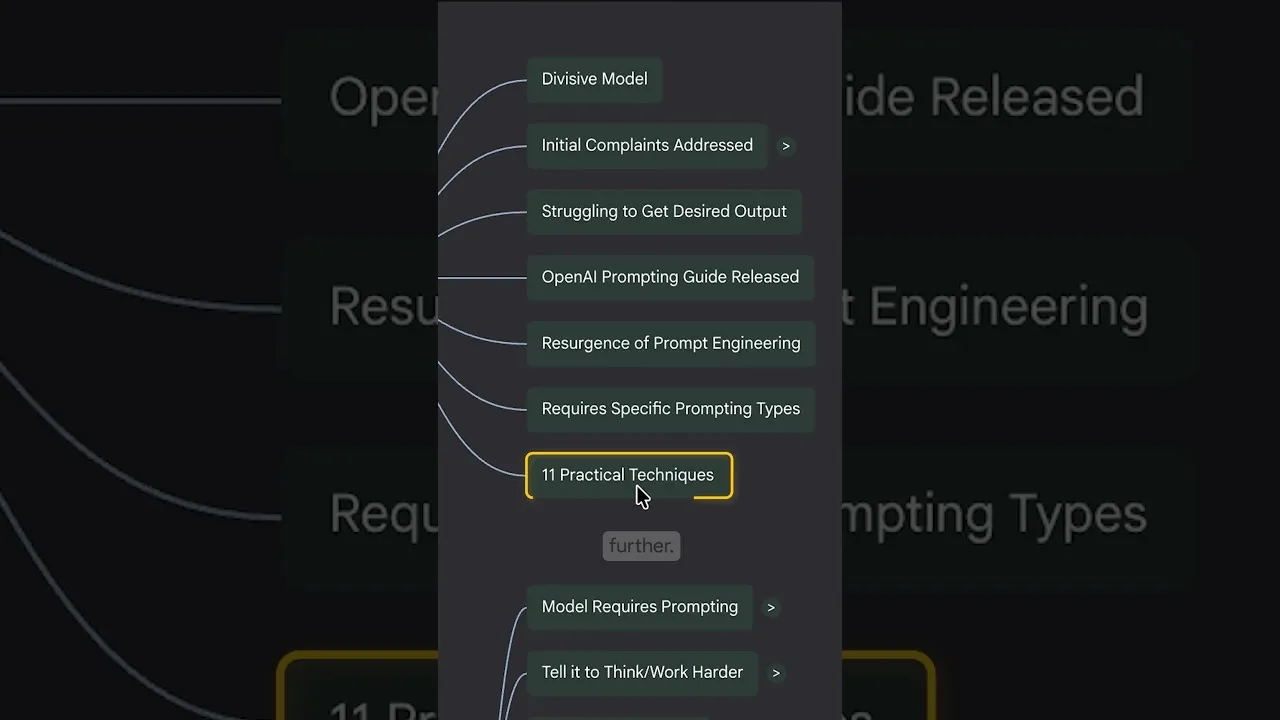
Once your sources are uploaded, look for the option to generate a mind map. NotebookLM will process your documents and create a visual representation of the main themes and ideas within them. This map displays every topic and subtopic discussed across all your uploaded materials. It’s like getting a bird’s-eye view of your entire research library.
Step 3: Visually Scan and Identify Key Topics
Take a few moments to look over the generated mind map. Notice how topics are arranged and connected. You can instantly see which subjects are covered and how they relate to each other. This visual layout makes it much easier to spot the most important themes for your specific needs. Think of it as looking at a map to find the quickest route.
Step 4: Cherry-Pick Relevant Information
As you scan the mind map, decide which topics are most important for your project. For example, if you’re writing a report, you might see a main topic like “Practical Techniques” with subtopics like “11 ways to improve efficiency.” This is exactly what you need. Conversely, you might see a subtopic like “Advanced API Settings” that is too technical or not relevant to your audience. You can simply ignore these less important branches of the map.
Expert Tip: Focus on the main branches that directly address your project’s core questions. Don’t get lost in the smaller details unless they are crucial.
Step 5: Dive Deeper with a Single Click
Found a topic you want to explore further? NotebookLM makes this incredibly simple. When you click on a specific topic or subtopic in the mind map, it automatically opens a chat window. This chat is pre-filled with context related to that specific topic from your sources. You go from a broad overview to a focused conversation instantly. This saves you the time you would normally spend searching for relevant sections within your documents.
Example: If you clicked on “11 practical techniques,” a chat would open, ready for you to ask specific questions about those techniques. You wouldn’t need to search your documents for where those techniques are mentioned.
Step 6: Refine and Focus Your Research
Use the focused chat to ask questions, summarize information, or brainstorm ideas related to the selected topic. Because the chat is already focused on that specific area, your conversations will be more productive. You can quickly gather the exact information you need without getting sidetracked by unrelated content. This process helps you significantly reduce the time spent on research and writing.
Warning: While the mind map helps identify topics, always double-check the information in the focused chat against your original sources for accuracy, especially for critical details.
Step 7: Repeat and Organize
Continue this process for all the key topics you identified on the mind map. Each click leads to a focused conversation, allowing you to gather information efficiently. As you work through different topics, you’ll build a collection of focused chats. This organized approach ensures you’re only working with the most relevant information, directly contributing to cutting your workload.
By using the mind map feature, you transform your research process from a time-consuming chore into a streamlined, efficient activity. You can quickly see what matters most and dive directly into the details, saving you valuable time and effort.
Source: This NotebookLM feature cuts my workload by 50% (YouTube)