How to Share Your Location with ChatGPT to Get Local Answers
ChatGPT has a new feature that can make asking questions much easier. It lets you share your current location with the app. This means ChatGPT can give you answers that are specific to where you are right now. Think of it like telling a friend where you are so they can suggest the best pizza place nearby. This guide will show you how to turn on this helpful feature and use it.
What You Will Learn
In this tutorial, you will learn how to find the location sharing setting within ChatGPT. You will also discover how to enable it and see how it helps you get more personalized recommendations. We will cover how to ask questions that use your location data.
Prerequisites
- You need to have the ChatGPT mobile app installed on your smartphone.
- You must be logged into your ChatGPT account.
Steps to Enable and Use Location Sharing
Open ChatGPT Settings: First, open the ChatGPT app on your phone. Look for the settings menu. This is usually found by tapping on your profile picture or a menu icon, often located in the top corner of the screen.
Find Data Controls: Once you are in the settings menu, you will need to locate the section related to data and privacy. Tap on the option that says ‘Data Controls’ or something similar. This is where ChatGPT keeps settings that affect how your information is used.
Enable Location Feature: Inside the Data Controls, you should see a new option for ‘Location’. This feature is turned off by default for your privacy. To activate it, simply toggle the switch or tap the button to turn the location sharing on. A confirmation message might appear asking you to allow location access; you’ll need to grant this permission for the feature to work.
Expert Note: Turning on location sharing means ChatGPT will have access to your device’s location data when you are using the app. This information is used to provide more relevant responses to your queries.
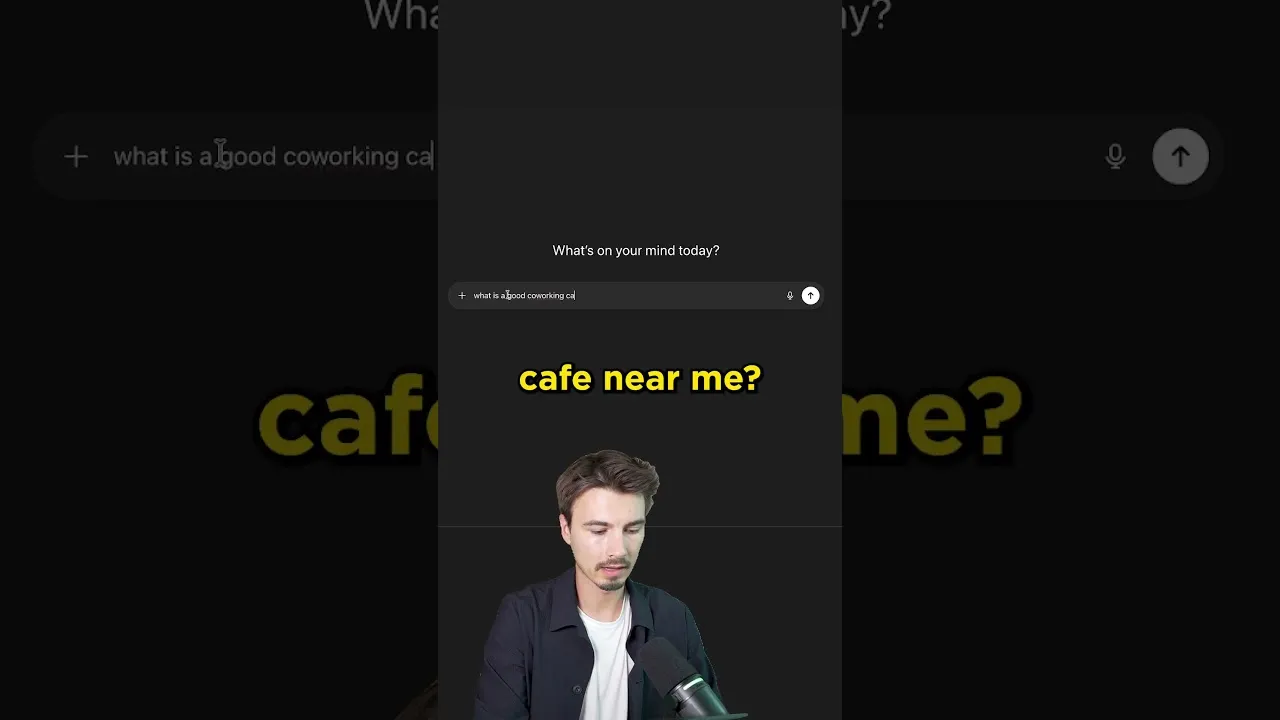
Ask Location-Based Questions: With location sharing enabled, you can now ask questions that benefit from knowing your whereabouts. For example, instead of just asking ‘What’s a good cafe?’, you can ask, ‘What is a good co-working cafe near me?’
Receive Personalized Recommendations: When you ask a question like the one above, ChatGPT will use your current location to find relevant places or information. If you are in Miami, it will suggest places in Miami. The app can pinpoint your general area to offer suggestions that are actually close by.
Example: If you’re visiting a new city and ask, ‘Find a highly-rated Italian restaurant nearby,’ ChatGPT will use your shared location to show you the closest and best-reviewed options, saving you time searching.
View Your Location (Optional): The app might show you a confirmation of the location it has detected. This helps you see exactly what information ChatGPT is using. You can often see a map or a general area displayed, confirming it understands where you are.
Turn Off Location Sharing: If you no longer want to share your location, you can easily disable the feature. Just go back to the same ‘Location’ setting within ‘Data Controls’ and toggle the switch off. This will stop ChatGPT from accessing your location for future requests.
Warning: Remember to turn off location sharing if you are finished using the feature or if you have privacy concerns. It’s good practice to manage app permissions regularly.
Conclusion
Using ChatGPT’s location sharing feature is a simple yet powerful way to get more useful and personalized answers. By allowing the app to know your general location, you can unlock recommendations for places and services right in your neighborhood. Remember to manage your settings and privacy preferences to ensure you are comfortable with the data you share.
Source: How to Use New ChatGPT Location Sharing 📍 (YouTube)