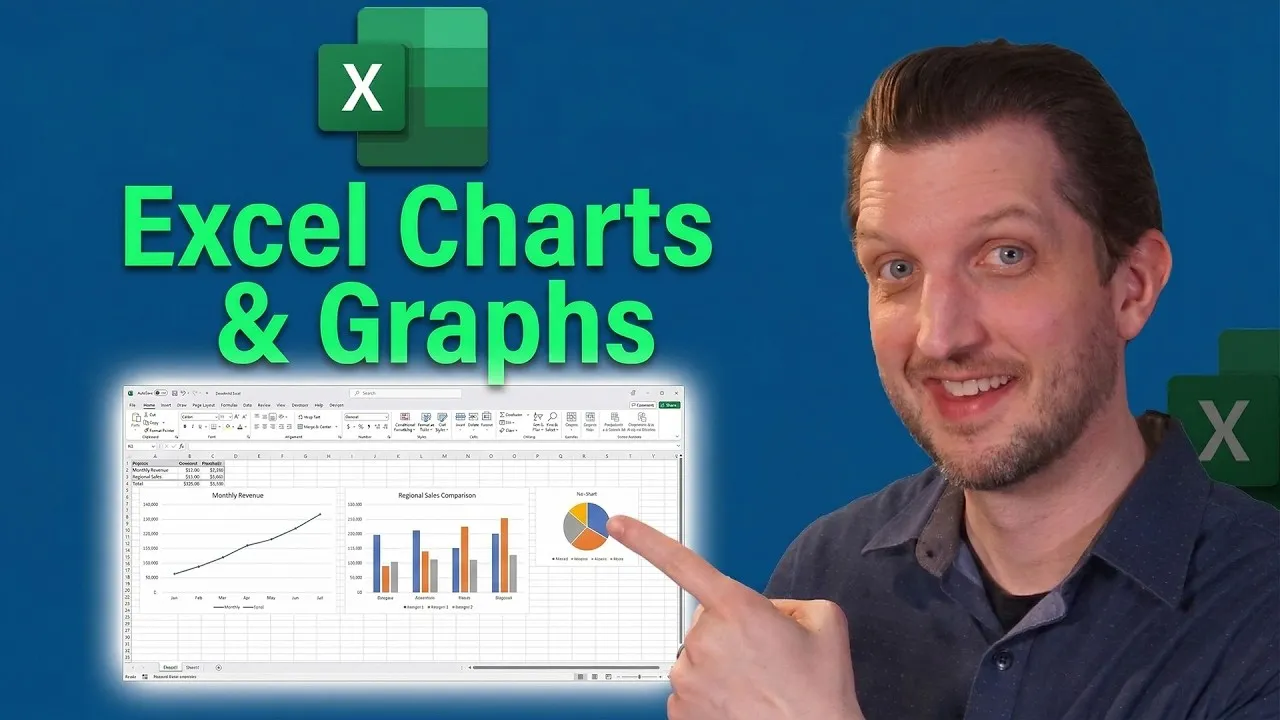
How to Create Stunning Excel Charts and Graphs Easily
Excel charts and graphs are powerful tools. They help you show information from your tables in a way that’s easy to see and understand. This guide will walk you through creating and customizing these visuals step-by-step. You’ll learn how to pick the right chart type, adjust the data it shows, and make it look professional.
What You Will Learn
This tutorial will cover how to select your data, insert basic charts, move and resize them, and update them as your data changes. We’ll also explore how to change chart types, add elements like trend lines, filter data shown in the chart, and customize styles and colors. Finally, you’ll see how to represent different types of data within the same chart.
Prerequisites
- Microsoft Excel installed on your computer.
- A basic understanding of how to enter data into Excel spreadsheets.
Steps to Create Your Excel Charts
Select Your Data
First, open your Excel worksheet. Highlight the cells containing the information you want to include in your chart. For example, if you want to show months and the total number of movies watched, select those columns.
Insert a Recommended Chart
Go to the ‘Insert’ tab at the top of the Excel window. Look for the ‘Charts’ section and click on ‘Recommended Charts’. Excel will suggest chart types that best fit your selected data. A line chart is often good for showing trends over time.
Create and Position Your Chart
Choose the recommended chart type you prefer and click ‘OK’. Your chart will appear on the worksheet. You can click on the chart’s border to move it around your page. Use the small dots on the corners and sides to resize it until it’s positioned where you want it.
Understand the Live Link
When your chart is selected, Excel will highlight the data in your table it’s using. This connection is live. If you change any numbers in your selected data range, the chart will update automatically to reflect those changes. This is incredibly useful for keeping your visuals current.
Expert Tip: Treat your chart as a dynamic representation of your data. Any updates made to the source data table will instantly appear in the chart, saving you time and effort.
Adjust Chart Elements
With the chart selected, you’ll see a plus (+) icon next to it. Click this to access ‘Chart Elements’. Here, you can add or remove items like chart titles, data labels (the numbers on the chart), and axes titles. You can also add a ‘Trendline’, which shows a dotted line indicating the general direction of your data over time.
Filter Data in the Chart
Click on the funnel icon next to your chart. This allows you to filter the data shown. You can uncheck specific months or categories you don’t want to see in the chart and then click ‘Apply’. This is great for focusing on specific periods or data points.
Example: To see only the summer months’ movie trends, deselect all months except June, July, and August, then click ‘Apply’.
Change the Chart Type
If the current chart type doesn’t best represent your data, you can change it. Right-click on the chart and select ‘Change Chart Type’. You can choose from various options like column charts, bar charts, or pie charts. Excel will show you a preview of how your data looks in the new format.
Tip: A bar chart is often better for comparing different categories, while a line chart excels at showing trends over a period.
Customize Chart Style and Colors
With the chart selected, click the paintbrush icon. This opens the ‘Chart Styles’ and ‘Color’ options. You can choose from pre-designed styles that change the overall look, including backgrounds and effects. You can also select different color palettes or customize individual colors to match your preferences or branding.
Represent Multiple Data Series
To show more complex data, like different movie genres instead of just total movies, you need to adjust the data selection. Right-click the chart, choose ‘Select Data’. In the ‘Chart Data Range’ box, re-select the desired range. Crucially, deselect any columns you don’t want to plot, like ‘Total Movies’, if you’re now showing individual genres.
Choose the Best Chart for Multiple Series
When plotting multiple categories (like different movie genres), a simple line chart might become cluttered. After adjusting your data selection (as in step 9), go back to ‘Change Chart Type’ or click ‘Recommended Charts’ again. A bar chart or clustered column chart often works better for comparing multiple categories side-by-side.
Example: A bar chart can clearly show how many action movies, comedies, and dramas you watched each month, with each genre represented by a different colored bar.
Update and Verify
Remember that your chart remains linked to your data. As you add new data or change existing entries in your table, the chart will update. Always double-check that the chart accurately reflects the information you intend to convey after making any data adjustments.
By following these steps, you can transform raw data into clear, professional-looking charts and graphs within Excel. Experiment with different chart types and customization options to find the best way to visualize your information.
Source: How To Build Your Excel Charts & Graphs (YouTube)