Overview
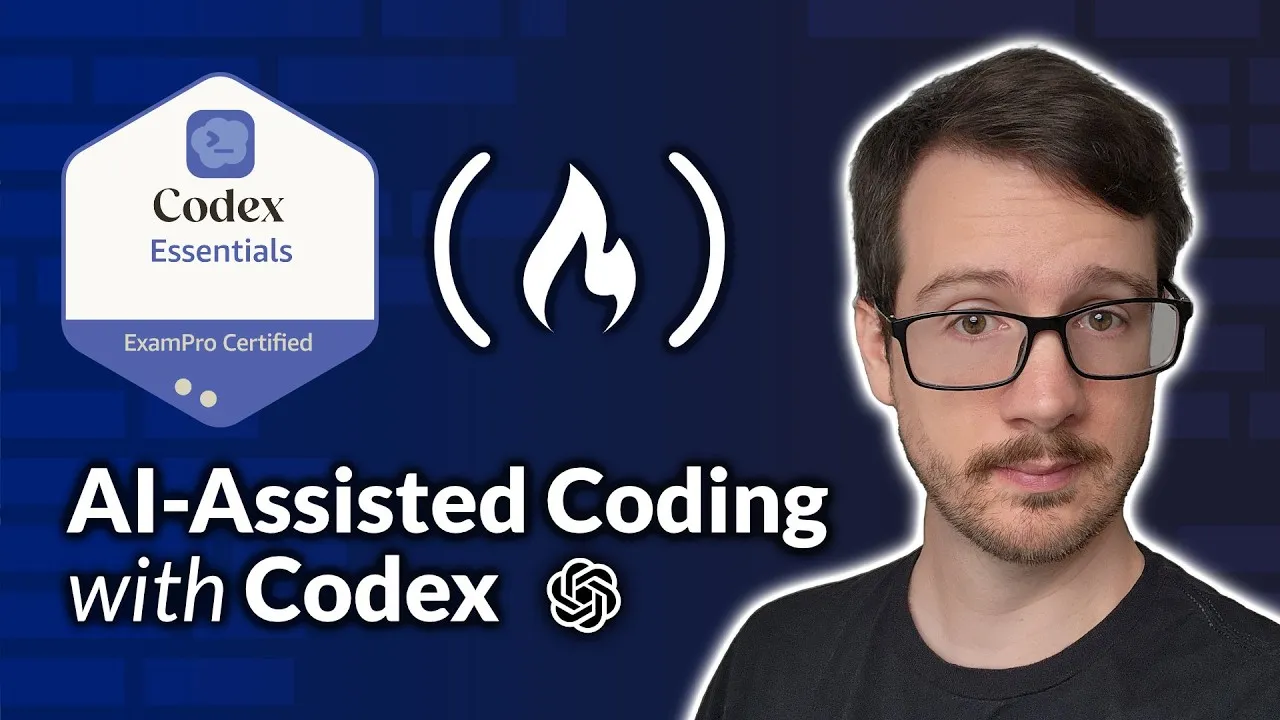
Welcome to the essential guide for mastering OpenAI Codex, an AI-powered coding assistant. This article will walk you through what Codex is, its core features, how to install and authenticate it, and how to use its API key for advanced control. You’ll learn how Codex can automate coding tasks, build features, and fix bugs, making your development workflow smoother and more efficient.
What is OpenAI Codex?
OpenAI Codex is an agentic coding tool, sometimes called a coding harness. It’s designed to understand and generate code. Think of it like a super-smart assistant that can read your entire project, make changes to files, and even run commands for you. It integrates with your existing development tools, making it a powerful addition to your coding toolkit.
You can access Codex in various ways, including your terminal, Integrated Development Environment (IDE), desktop app, or browser. The most common way you’ll interact with it is through its Command Line Interface (CLI), which is specialized for coding operations but can also write documentation, run builds, and research topics.
How Codex Works: The Agentic Loop
Codex uses something called an agentic loop. This is a process where the AI thinks, takes action, and then re-evaluates. While the exact internal workings of Codex are not fully disclosed, the general idea is that it takes your prompt, processes it through its models for reasoning, and then uses tools to perform actions. It repeats this cycle until it reaches a final result, and you can interrupt it at any point.
This loop involves multiple AI models and tool calls. Unlike some other tools that clearly define each step, Codex operates more like a ‘mystery box’ where the AI reasons and interacts with tools internally before giving you the output. This allows it to handle complex tasks by breaking them down and using specialized functions.
Choosing Your Codex Model
Codex uses OpenAI’s GPT models. The model you choose affects the speed, cost, and intelligence of the AI’s responses. When you open Codex, you can see a list of available models. These often include a default ‘Goldilocks’ model, a smaller, faster ‘mini’ version, and a more powerful ‘max’ version.
OpenAI also offers specialized Codex models designed specifically for coding tasks. These models might offer different levels of reasoning, context window size (how much information it can remember), and optimization for long-running tasks. It’s important to check the details, like cost and capabilities, on OpenAI’s developer website to pick the best model for your needs.
Understanding Model Details
OpenAI provides detailed ‘model cards’ that explain the cost, usage, and reasoning capabilities of each model. For example, you can compare models like GPT-4.5 versus GPT-4.2, noting differences in cost and performance. Some models are cheaper but might be slower or less capable, while others are more expensive but offer higher intelligence and speed.
When looking at model specs, you’ll often see ‘context window size’ and ‘max output tokens’. The context window is how much information the AI can consider at once, while max output tokens limit how much it can generate in a single response. Understanding these helps you manage complexity and cost.
Prerequisites
- Node.js installed on your system.
- A modern operating system like macOS, Linux, or Windows Subsystem for Linux (WSL 2).
- An OpenAI account with an active subscription or API access.
Step 1: Install Codex
Installing Codex is typically a straightforward process. You’ll need Node.js on your system. It’s highly recommended to use WSL 2 on Windows, or a Mac or Linux environment, as coding tools are often optimized for these platforms.
Open your terminal or command prompt and run the following command to install Codex as a global Node.js package:
npm install -g codexExpert Note: While some tools are moving to standalone binaries, Codex still relies on Node.js for its CLI program. If you encounter issues, ensure your Node.js installation is up-to-date and correctly configured.
Step 2: Launch and Authenticate Codex
Once installed, you can launch Codex by simply typing codex in your terminal. The first time you launch it, especially in a new project folder, it might ask if you trust the contents. You’ll also need to authenticate your account.
To authenticate, type codex login. You will likely see three options:
- Subscription: The easiest method if you have a standard ChatGPT Plus subscription.
- Device Code: Uses a one-time code for authentication.
- API Key: Allows you to use a specific API key, often from OpenAI or Azure.
For most users, logging in with your subscription via the browser is the simplest way to start.
Logging In with Subscription
When prompted, choose the subscription login option. Codex will typically provide a URL that you need to open in your web browser. You may need to copy and paste this URL if it doesn’t open automatically, especially in environments like WSL 2.
In your browser, you’ll be asked to log in to your OpenAI account and authorize Codex. Once authenticated, you can close the browser tab and return to your terminal. Press Enter to confirm you are logged in.
Checking Your Status
To verify your login status and see current usage details, type codex status. This command provides more information than just login status; it shows your account, current mode, project directory, active model, and session details. It’s a useful command to understand your current configuration.
Step 3: Create Your First Project (Hello World)
To test your installation and authentication, let’s create a simple ‘Hello World’ file. First, navigate to a new directory for your project in your terminal. You can create a new folder, for example, named codex-hello-world.
Inside this new directory, launch Codex again by typing codex. When prompted to trust the contents, say ‘yes’. Then, you can ask Codex to create a file. For instance, you could say:
Can you make me a file hello_world.rb that prints 'Hello, World!'Codex will generate the file with the requested code. You can then verify its creation in your file system. To add this to version control, you would typically run git init, git add ., and git commit -m "Initial commit".
Step 4: Using Codex with an API Key
For production use cases, automated systems, or when you need to exceed subscription limits, using an API key is recommended. This method gives you more control over costs and usage.
To use an API key:
- Generate an API Key: Go to the OpenAI platform website (platform.openai.com), log in, and navigate to the API keys section. Create a new secret key.
- Add Credits: Ensure your account has sufficient credits or funds added to your balance on the OpenAI platform.
- Configure Codex: You can either paste the API key directly when prompted by Codex during login, or set it as an environment variable (e.g.,
export OPENAI_API_KEY='your_key_here') before running Codex.
Logging out of Codex is done with the codex logout command, which will confirm your logged-out status.
Conclusion
You have now learned the basics of OpenAI Codex, from understanding its purpose and how it works to installing, authenticating, and creating your first project. By mastering these steps, you’re well on your way to using Codex to automate tasks, enhance your coding efficiency, and explore the capabilities of AI in software development.
Source: OpenAI Codex Essentials – AI Coding Agent (YouTube)