How to Start Editing Videos in Adobe Premiere Pro
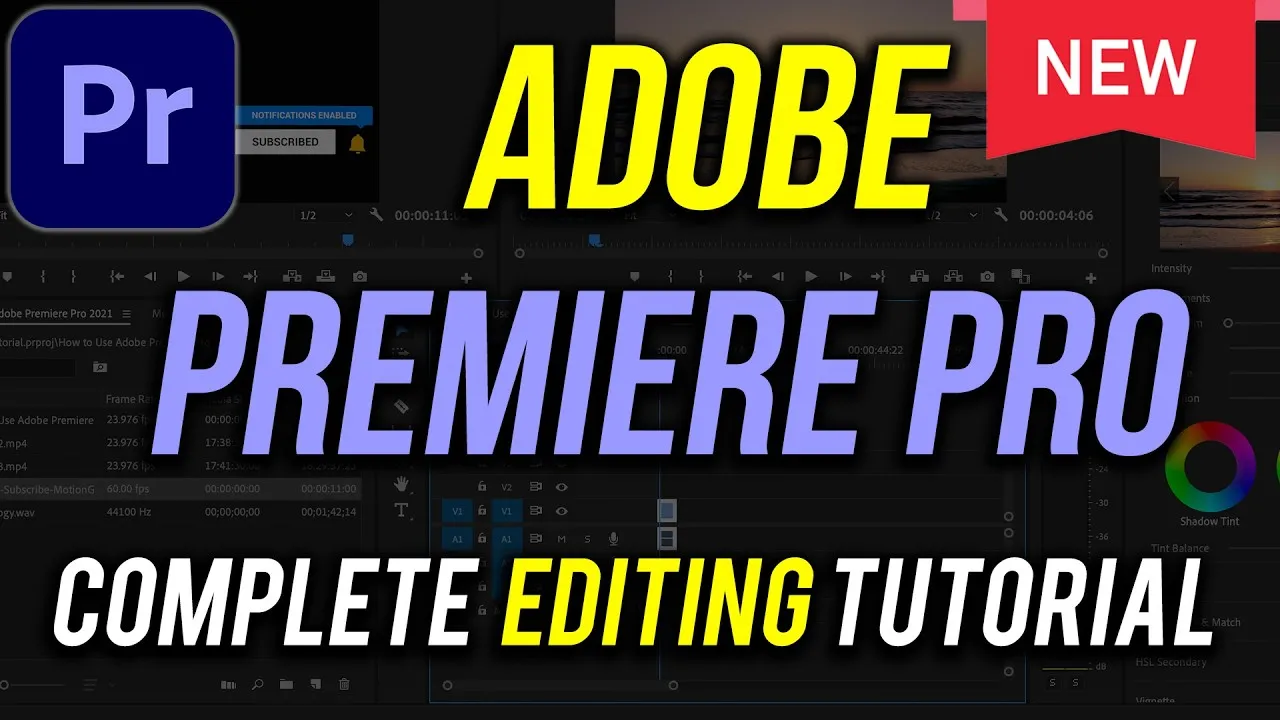
This guide will teach you the basic steps to start editing videos using Adobe Premiere Pro. You will learn how to set up a new project, import your video clips, organize your files, create a sequence, make basic edits, add text and transitions, and finally export your finished video.
Prerequisites
Before you begin, make sure you have Adobe Premiere Pro installed on your computer. A link to download a free trial is provided in the description of the original video.
Step 1: Create a New Project
When you open Adobe Premiere Pro, you’ll see a welcome screen. Click on ‘New Project’ to start a fresh project.
You’ll need to give your project a name, like ‘My First Edit’, and choose where to save it on your computer. For now, you can skip the template options and click ‘Create’.
Step 2: Understand the Premiere Pro Interface
Premiere Pro has several screens or tabs: Home, Import, Edit, and Export. The ‘Edit’ screen is where you’ll spend most of your time.
You can change the layout of the panels by clicking the ‘Workspace’ button and choosing a preset like ‘Editing’. All these panels are adjustable; you can click and drag their borders to resize them or move them around to fit your workflow.
Customizing Your Workspace
If you don’t see a panel you need, go to the ‘Window’ menu and select it. For example, ensure your ‘Project’ panel is visible, as this is where all your imported files will be stored.
Step 3: Import Your Footage
In the ‘Project’ panel, click ‘Import Media’ to bring your video, audio, and image files into Premiere Pro. Navigate to where your files are saved on your computer, select them, and click ‘Open’. Your imported files will appear in the ‘Project’ panel.
Organizing Your Clips
To keep your project organized, create folders, called ‘bins’ in Premiere Pro. Select related clips, like all your screen recordings, and drag them onto the folder icon at the bottom of the ‘Project’ panel.
Name these bins, for example, ‘Screen Shares’, ‘Audio’, and ‘Video’. This makes it much easier to find the clips you need later.
Step 4: Create a Sequence
A sequence is like your digital canvas where you will assemble and edit your video. The easiest way to create one is to drag your primary video clip from the ‘Project’ panel directly onto the ‘New Item’ icon (which looks like a page) at the bottom of the panel. Premiere Pro will automatically create a sequence that matches the format of your video clip.
Naming and Organizing Your Sequence
Premiere Pro will name the sequence after your clip. You can rename it by clicking on it, for example, to ‘How-to Edit v1’.
It’s a good habit to place your sequence in its own bin, just like your clips. Adding a version number like ‘v1’ can help you save different stages of your edit.
Step 5: Add Clips to Your Timeline
Your new sequence will open in the timeline panel. This is where you arrange your video and audio clips. You can drag other clips, like audio files or B-roll footage, onto the timeline.
Video clips go on the higher tracks, and audio clips go on the lower tracks. Think of it like stacking layers; the top layer is what you see or hear first.
Layering Clips
If you place a B-roll video clip on a track above your main video, it will appear on screen, covering the main video. You can then cut away to this B-roll and back to your main footage. You can also add additional video clips to the end of your sequence.
Step 6: Basic Editing Techniques
You can move clips around on the timeline by clicking and dragging them. To trim the beginning or end of a clip, hover over its edge until you see a red bracket, then click and drag to shorten it. This is a simple way to remove unwanted parts.
Cutting and Deleting Clips
For more precise cuts, use the ‘Razor Tool’ (it looks like a razor blade). Click on the timeline where you want to split a clip.
Once split, you can select a section and press ‘Delete’ to remove it. The ‘Ripple Delete’ option (right-click on the deleted section) will remove the gap and automatically move the following clips forward to close the space.
Overlapping Clips
You can also drag one clip directly over another to replace a section. If you make a mistake, don’t worry; you can always drag the edges of clips to readjust them. Deleting or moving clips does not harm your original files.
Step 7: Add Text to Your Video
To add text, select the ‘Type Tool’ (it looks like a ‘T’) from the toolbar. Click on the preview monitor where you want your text to appear and start typing. You can add multiple lines of text this way.
Formatting Text
To change the appearance of your text, go to the ‘Effects Controls’ panel. With your text highlighted, you can change the font, size, color, and alignment. The text you create will appear as a new clip on the timeline above your video, and you can adjust its duration and position just like any other clip.
Step 8: Add Transitions and Effects
Transitions smoothly connect two clips, like a fade or a dissolve. Go to the ‘Effects’ panel, then ‘Video Transitions’.
Drag a transition, such as ‘Cross Dissolve’, onto the point where two clips meet on the timeline. You can adjust the length of the transition by clicking on it and dragging its edges.
Applying Effects
You can also add effects to change the look of your video. For example, under ‘Lumetri Color’, you can find presets to quickly adjust the color and mood of your footage. In the ‘Effects Controls’ panel, you can fine-tune these adjustments, like changing the white balance or exposure.
Step 9: Add Music and Adjust Volume
Import background music the same way you imported video clips. Drag the music file onto an audio track in your timeline. To adjust the music’s volume, expand the height of the audio track by dragging its bottom edge.
You’ll see a thin line across the audio clip; this represents the volume. Click on this line and drag it down to lower the volume, making it background music.
Step 10: Export Your Video
Once your editing is complete, it’s time to export your video. Make sure your timeline is selected, then go to ‘File’ > ‘Export’ > ‘Media’.
Export Settings
Give your exported video a name and choose where to save it. For most cases, leaving the preset on ‘Match Source – High Bitrate’ is a good option, as it will match the settings of your sequence.
Finally, click the ‘Export’ button. Premiere Pro will then process all your edits and create a single video file.
This process might take a few minutes depending on the length and complexity of your video. Once finished, you’ll find your completed video file in the folder you selected.
Source: Premiere Pro Tutorial for Beginners (YouTube)