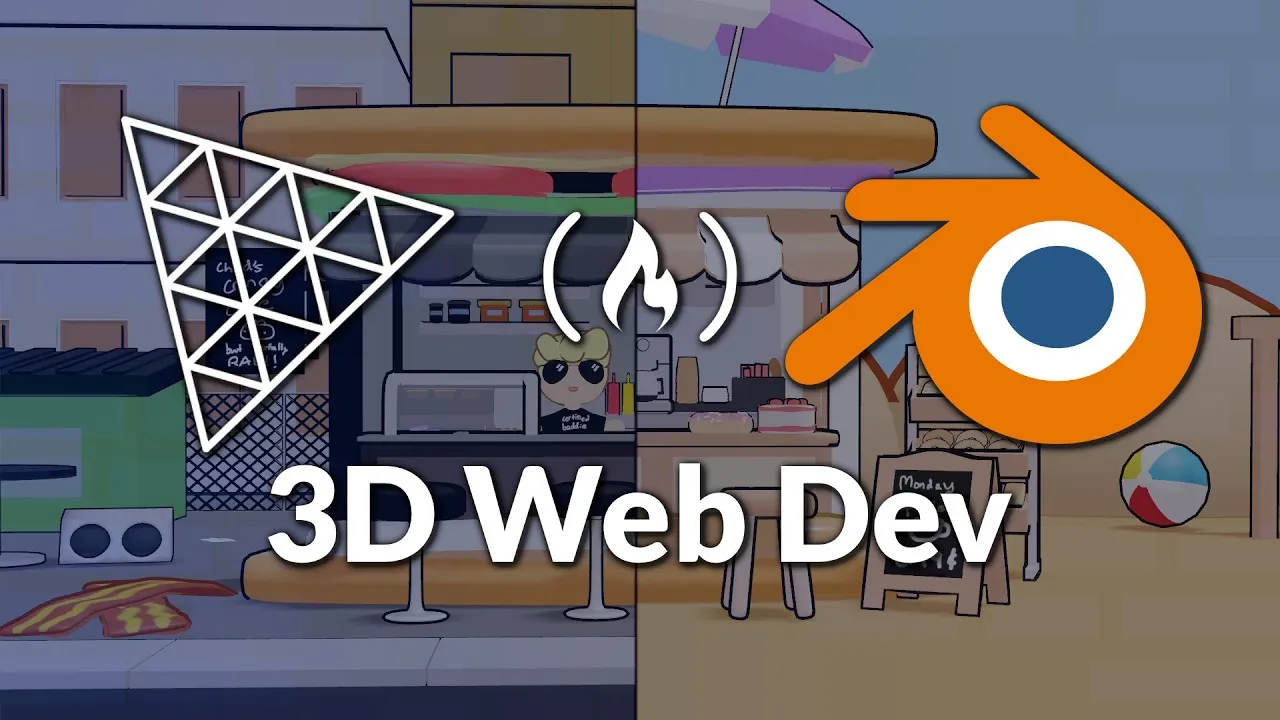
Build an Interactive 3D Cafe Portfolio
This guide will show you how to build a stunning, interactive 3D cozy cafe portfolio for the web. You’ll learn how to use Blender for 3D modeling and Three.js for bringing your creation to life online. This project uses professional techniques, including subdivision modeling, texture painting, and creating dynamic web experiences.
What You Will Learn
By following this tutorial, you will learn to:
- Model a 3D cafe environment using Blender.
- Apply subdivision surface modeling for smoother shapes.
- Implement basic web interactions like scrolling animations and hover effects.
- Understand how to set up your Blender scene and Three.js project.
- Explore concepts like AI-assisted scripting in Blender and TSL shaders for lighting.
Prerequisites
Before you start, it’s helpful to have some basic knowledge:
- Familiarity with 3D modeling concepts is beneficial.
- A basic understanding of JavaScript and web development is recommended.
- If you are new to Three.js, consider watching an introductory course first. The creator offers a slower-paced intro course on the Free Code Camp channel and their own channel.
Step 1: Prepare Your Blender Scene
Start by opening Blender and cleaning up the default viewport. You can adjust the layout by dragging the corners of windows or using the right-click menu on the dividers. Instead of the default cube, begin with a plane.
Starting with a plane is useful because its origin point is at the bottom. This means when you scale the object, it won’t move through the floor, saving you adjustment time later. You can always change the origin point if needed.
Modeling the Basic Structure
Go into Edit Mode by pressing Tab. Select all vertices (press A), then switch to edge select mode (press 2).
Extrude the edges upwards by pressing E, which will lock to the Z-axis by default. This creates the basic walls of your cafe.
When you scale now, it will scale from the bottom origin point. This method works whether you are in vertex, edge, or face select mode as long as everything is selected.
Creating Cutouts (e.g., for Doors/Windows)
Traditionally, you might use a boolean modifier to cut shapes. This involves adding a cube, positioning it where you want the cut, and then using the boolean modifier on your main object to subtract the cube’s shape. However, this can sometimes create messy geometry called ‘bad topology’.
A cleaner method is to use loop cuts. In Edit Mode, press Ctrl+R (or Command+R on Mac) to add loop cuts.
You can use the mouse wheel to add multiple cuts and then right-click to cancel their movement. Scale these cuts along the desired axis (e.g., S+Y for the Y-axis) to define the area you want to extrude or inset.
For an inset effect, select the face, press I to inset, and then E to extrude inwards. If proportions seem off, check the object’s scale in the Item tab (press N) and apply it (Ctrl+A > Scale) before insetting.
Another approach for creating structures like overhangs is to select faces, separate them into a new object (P > Selection), and then add loop cuts and extrude. You can then add a Subdivision Surface modifier (Ctrl+1, Ctrl+2, etc.) to smooth the shape. To control the sharpness of edges with subdivision, you can either bevel edges (Ctrl+B) or use the crease tool (Shift+E) to make specific edges sharper.
Alternative: Array Modifier for Repetitive Elements
For elements like repeating roof tiles or overhangs, the Array modifier is very useful. Create a single segment, add an Array modifier, and set the count and offset. You can also use the ‘Merge’ option in the Array modifier to automatically merge overlapping geometry, which helps prevent visual glitches later.
Remember to set the origin point of your new objects to their center (Object > Set Origin > Origin to 3D Cursor) so they rotate and scale correctly.
Step 2: Understanding Design and Inspiration
Before modeling, it’s helpful to think about the mood and style you want. Look at reference images, like those on platforms such as Sketchfab.
Analyze the wireframes of existing models to see how they are constructed. You’ll often find that complex shapes are built from simple primitives like subdivided cubes.
Notice patterns in how artists handle corners, outlines, and overall forms. This can help you break down your own modeling tasks.
Consider the emotional qualities you want to convey. Assign scores for aspects like ‘whimsical,’ ‘humorous,’ or ‘fantastical’ to different reference images. This helps you understand the balance of elements in your desired style and translate those feelings into your 3D model’s proportions and shapes.
Step 3: Basic Web Interactions with Three.js
Once your 3D model is ready, you’ll use Three.js to display it on a webpage. This involves setting up a basic HTML file and a JavaScript file for your Three.js code.
Key elements include creating a scene, a camera, and a renderer. The scene holds all your 3D objects, the camera views the scene, and the renderer draws it onto an HTML canvas element.
Implementing Scroll-Based Animations
To add interactivity, you can listen for scroll events on the webpage. As the user scrolls, you can change camera positions, rotate objects, or trigger animations. This creates a dynamic experience where the 3D environment reacts to user input.
For example, as the user scrolls down, you could gradually rotate a cafe counter or animate lights turning on. This makes the portfolio feel more engaging than a static image.
Adding Hover Effects
Hover effects can be implemented by using raycasting. This is a technique where an imaginary line is cast from the camera into the scene. If this line intersects with an object, you can trigger an action.
When a user hovers their mouse over a specific 3D object, like a menu item or a product display, you can make it scale up slightly, change color, or display a small pop-up information box. This provides visual feedback and guides the user’s interaction.
Step 4: Refining and Exporting
After modeling and setting up basic interactions, you’ll refine your scene. This might involve adjusting lighting using TSL shaders for more realistic or stylized effects, adding textures, and ensuring the performance is optimized.
For mobile responsiveness, techniques like mobile-optimized raycasting are important. This ensures that your 3D interactions work smoothly on various devices, not just desktops. You can also explore features like sliders and scene transitions to add more depth to your portfolio.
Finally, you’ll export your Blender model in a format compatible with Three.js, such as glTF. This file format is efficient and widely supported, making it ideal for web deployment.
By completing these steps, you will have a functional and visually appealing 3D cafe portfolio that showcases your creative skills.
Source: 3D Web Development with Blender and Three.js – Create a Cozy Café Portfolio (YouTube)