Bloatware Devours PC Performance: We Tested It
Your computer’s RAM is a precious resource, and new research reveals just how much it’s being siphoned off by unwanted pre-installed software, commonly known as bloatware. In a recent experiment, the team behind Threat Locker, a security software company, put a brand-new Dell Tower Plus desktop through its paces to quantify the real-world impact of this often-overlooked performance drain.
The Bloatware Gauntlet
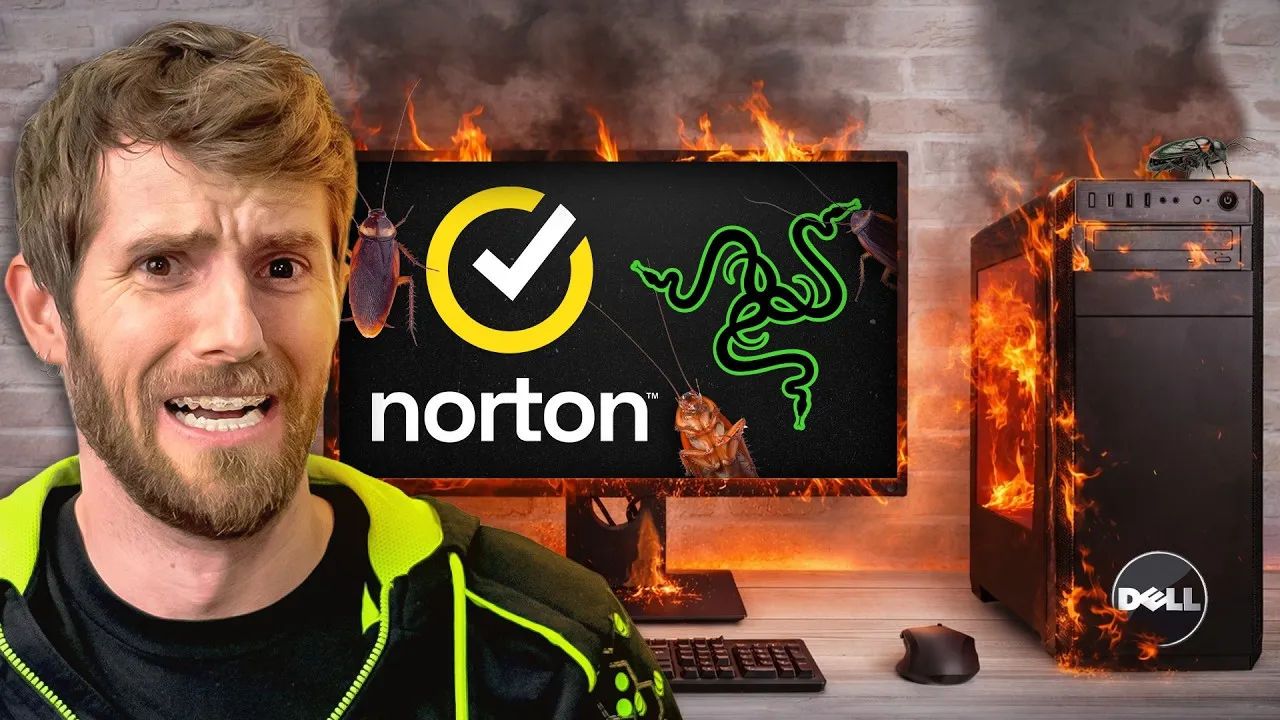
The test involved three distinct scenarios: the PC as it arrived from the factory, loaded with its out-of-the-box bloatware; a cleaned-up version with unwanted applications removed; and a particularly extreme scenario where every possible offer for additional software was accepted. This last test involved an hour of enthusiastically clicking “yes” to prompts for everything from McAfee and Razer Synapse to lesser-known utilities, turning the system into a veritable playground for unwanted applications.
Factory Bloat: A Subtle Drain
The initial comparison between the factory-fresh Dell and its cleaned-up counterpart revealed a slight but consistent drop in performance across synthetic and productivity benchmarks. While gaming performance, specifically in Cyberpunk, showed no measurable difference, the impact was felt elsewhere. Idle power consumption saw a 7% jump, translating to an extra 2.5 watts being drawn continuously. More noticeably, the bloatware-laden system took an additional 30 seconds to boot fully. Beyond benchmarks, the user experience suffered from minor annoyances like extra system tray icons and the constant need to appease security software like McAfee.
The question arises: why would manufacturers intentionally degrade the user experience? The answer, as is often the case in the tech industry, is money. Historically, pre-installed software offered convenience and differentiation. However, this evolved into trialware and eventually, as the article puts it, “an ad delivery system.” This practice stems from the “race to zero” mentality in the PC market, where slim profit margins incentivize manufacturers to monetize every available avenue, even if it means compromising the customer experience. A historical example cited is Sony charging $50 for a “fresh start” option to remove pre-installed software, indicating the significant revenue potential of these add-ons.
The “Say Yes to Everything” Challenge
The experiment then escalated to the “say yes to everything” phase. While some installers, like Firefox, were relatively clean, others, such as Dell’s own offerings and McAfee, aggressively pushed for additional installations. The process of installing 25 common applications took about an hour, transforming the downloads and programs folders into a chaotic mess. The system tray became so crowded it required a second monitor to view all the icons.
The performance impact in this scenario was more pronounced. A noticeable drop of 2-8% was observed in benchmarks, which, while seemingly small, can accumulate over time. Boot times increased by over half a minute, and idle power draw crept up by another watt. Gamers, for the most part, remained unaffected by these specific installations.
The Peripherals Peril: RGB and Resource Hogs
The most significant performance degradation occurred when introducing software associated with gaming peripherals. Plugging in an MSI keyboard immediately triggered prompts for driver utilities. This led to a cascade of installations, including Dropbox, MSI Center, Voice Mod, and Norton 360. The sheer volume of security software installed – McAfee, Avast, Malware Bytes, Norton 360, and Norton 360 for gamers, all running alongside Windows Defender – highlighted the potential for conflicts and severe system slowdowns. The installation of RGB control software like Armory Crate and Corsair iCUE also contributed, often requiring system reboots.
After another hour, eight peripherals and their associated software were installed. This is where the system truly began to struggle. Benchmarks showed performance drops of nearly 16% in some workloads, equivalent to a CPU downgrade. Productivity and synthetic workloads saw a 6-12% decrease. Gaming performance also suffered, with 1440p framerates dropping by nearly 10% in 1% lows. Cyberpunk with ray tracing experienced horrific frame pacing issues, halving the 1% lows. The idle power consumption skyrocketed from 38 watts to 61 watts – a 60% increase. Boot times ballooned to nearly 4 minutes. The article posits that this situation would be even more dire on laptops, which typically come with even more pre-installed bloatware.
Threat Locker: The Antidote?
To assess a potential solution, the system was cleaned, and Threat Locker was installed. The company, which sponsored the video, aimed to demonstrate that their software could prevent unwanted installs with minimal performance impact. The results were promising. Threat Locker had no appreciable effect on boot times. While it did cause a slight increase in idle power draw compared to a completely clean system, it was significantly less than the bloatware-laden configurations. Productivity tests showed negligible effects from Threat Locker, while its core function – preventing malicious or unwanted actions – remained effective.
For gamers, Threat Locker imposed no significant performance hits. The software’s “learning mode” allows administrators to whitelist essential applications, minimizing disruption. Its “elevation control” provides temporary, time-based privileges for users needing to install new software, preventing the wholesale compromise of system security.
Verdict: Be Vigilant
This extensive test underscores the critical importance of paying attention during software installations and monitoring your system tray for unnecessary background processes. For users with multiple RGB ecosystems, consolidating with a single control program like OpenRGB can help mitigate overhead. For organizations, Threat Locker offers a robust solution to maintain system cleanliness, performance, and security, particularly for users prone to blindly accepting all prompts. While most tech-savvy users can navigate bloatware prompts, administrators can leverage tools like Threat Locker to enforce best practices and protect their network.
Specs & Key Features
- Test System: Dell Tower Plus Desktop
- RAM: 16GB
- Test Scenarios: Factory Bloatware, Clean Install, Max Bloatware (accepting all prompts)
- Bloatware Sources: OEM pre-installs (Dell), third-party software offers during installation (McAfee, Razer Synapse, CCleaner, Norton 360, MSI, Corsair, etc.), gaming peripheral utilities
- Performance Metrics: Synthetic benchmarks, productivity benchmarks, gaming benchmarks (Cyberpunk 2077), boot times, idle power consumption, system tray icon count
- Key Findings: Significant performance degradation, increased boot times, higher power consumption, and reduced frame pacing in demanding games due to excessive bloatware.
- Threat Locker Features: Prevention of unwanted installs, minimal performance impact, learning mode for allow-listing, elevation control for temporary privileges.
Source: I said YES to every Bloatware Pop-up (YouTube)