Streamline Your Video Production with AI Assistance
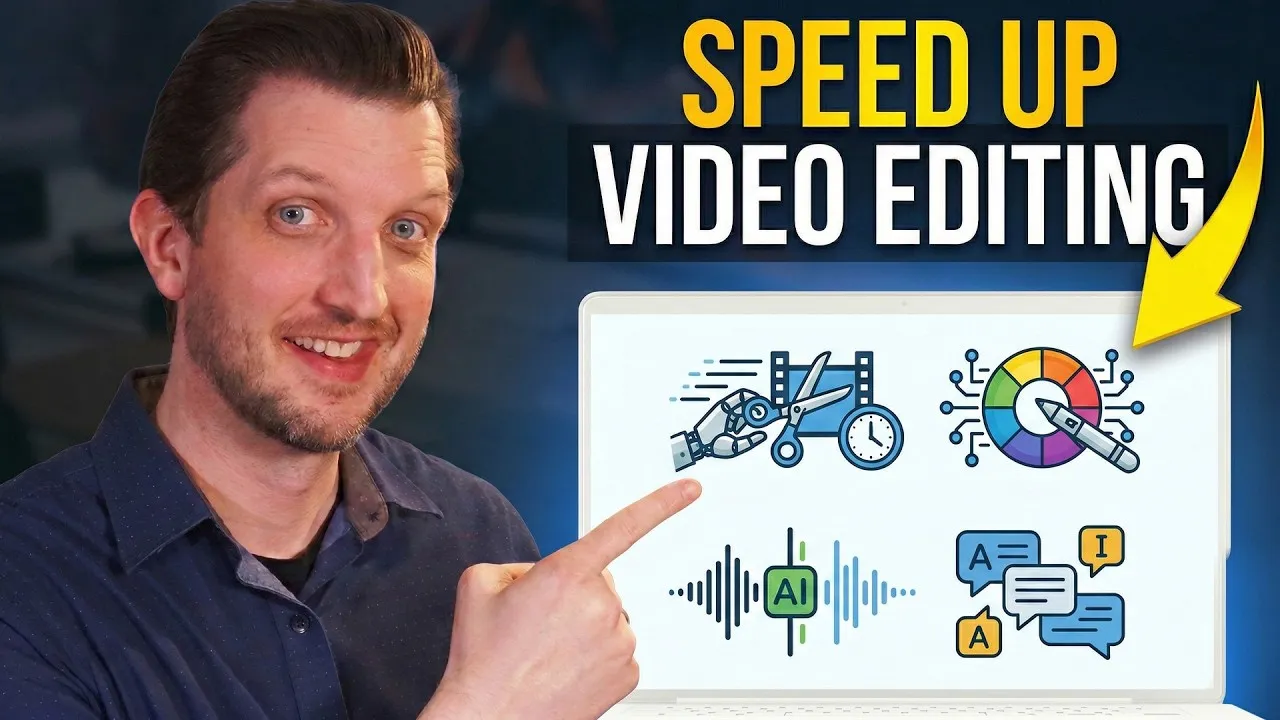
In today’s fast-paced digital landscape, efficiency is key for video editors. Leveraging Artificial Intelligence (AI) can significantly accelerate your workflow, saving you valuable time and resources. This guide will walk you through several powerful AI tools, focusing on practical applications within a video editing context, using the platform Veed.io as our primary example. We’ll explore how AI can automate tedious tasks, enhance your content, and ultimately free you up to focus on the creative aspects of editing.
What You’ll Learn
- How to automatically generate subtitles for your videos.
- Methods to clean up audio and remove background noise.
- Techniques for removing video backgrounds seamlessly.
- Using AI to generate custom images and B-roll.
- Creating AI-powered voiceovers from text.
- Enhancing viewer engagement with AI-corrected eye contact.
Prerequisites
- A video editing project you wish to work on.
- Access to an AI-powered video editing platform (Veed.io is used in this guide).
- A basic understanding of video editing concepts.
Step 1: Automate Subtitle Generation
Subtitles are crucial for accessibility and viewer engagement, especially since many online videos are watched with the sound off. AI can generate these quickly and accurately.
- Upload your video to the AI editing platform.
- Navigate to the ‘AI Tools’ section.
- Select the ‘Subtitles’ option. For longer videos, you may need to trim them to fit within the free tier limits or upgrade your subscription.
- Click ‘Auto Subtitle’ and select your video’s language (e.g., English). The platform can also handle translations.
- The AI will process your video and generate subtitles in just a few seconds.
- Choose a subtitle style that matches your video’s aesthetic. Veed.io offers stylized options beyond basic captions.
- Preview your video with the generated subtitles. This process drastically cuts down the time and cost associated with manual subtitle creation or outsourcing.
Expert Tip: While AI subtitle generation is highly accurate, always review them for any errors, especially with technical jargon or unique pronunciations.
Step 2: Enhance Audio with AI Cleanup
Poor audio quality can detract from even the best visuals. AI can intelligently remove unwanted background noise and enhance clarity.
- With your video loaded, access the ‘AI Tools’ menu.
- Choose the ‘Clean Audio’ feature.
- Activate the feature. The AI will automatically detect and reduce background noise, hums, and other distractions.
- Listen to the improved audio. This tool eliminates the need for complex audio engineering knowledge, making professional-sounding audio accessible to everyone.
Warning: Overusing audio cleanup can sometimes make voices sound unnatural. Use it judiciously and compare the original and cleaned audio to find the best balance.
Step 3: Remove Video Backgrounds
Need to isolate a subject or place them against a new background? AI makes background removal a breeze.
- Ensure your video is loaded in the editor.
- Locate and select the ‘Remove Background’ tool within the AI features.
- The AI will analyze the video and meticulously cut out the background around the subject. This process may take a moment to complete.
- Once processed, the background will be transparent. You can now add a new background, such as a solid color, an image, or another video clip.
- Review the cut-out to ensure clean edges. This feature is invaluable for creating professional-looking green screen effects without the need for a physical green screen.
Step 4: Generate Custom Images and B-roll
Struggling to find the perfect visual element? AI can create unique images or short video clips based on your descriptions.
- Go to ‘AI Tools’ and select ‘Generate’.
- Choose ‘Images’ (or ‘Video’ if available).
- Enter a detailed text prompt describing exactly what you need (e.g., “a golden retriever running on a beach at sunset”). Include details about style, lighting, and composition.
- Specify the desired aspect ratio if necessary.
- Click ‘Generate’. The AI will produce unique visuals based on your prompt.
- Download the generated image or video clip and import it into your project as B-roll or a background element.
Expert Note: The more specific and descriptive your prompt, the better the AI will understand and fulfill your request. Experiment with different phrasing to achieve desired results.
Step 5: Create AI Voiceovers
Recording voiceovers can be time-consuming, requiring multiple takes and editing. AI text-to-speech offers a quick alternative.
- Access the ‘AI Tools’ menu and select ‘AI Voice’.
- Type or paste the script you want narrated into the text box.
- Choose a voice from the available options. You can select different genders, accents, and tones.
- Preview the generated audio by playing it back.
- Once satisfied, export the AI-generated voiceover and add it to your video timeline. This is perfect for explainer videos, product demos, or adding narration without hiring a voice actor.
Time-Saving Tip: Use AI voiceovers for initial drafts or when budget and time are constraints. You can always replace them with a human voiceover later if needed.
Step 6: Improve Eye Contact with AI
Maintaining eye contact with the camera is crucial for connecting with your audience. AI can subtly adjust your gaze in post-production.
- Navigate to the ‘AI Tools’ section.
- Find and enable the ‘Eye Contact’ feature.
- The AI will analyze your footage and digitally shift your eyes to appear as if you are looking directly into the camera lens, even if you were looking slightly off-camera during recording.
- Observe the result. This feature is particularly useful for footage shot without a teleprompter or when recording via video conferencing tools where the camera is not directly in front of your eyes.
Expert Note: This feature can significantly enhance the perceived engagement and professionalism of your videos, especially in contexts like online courses or presentations.
Conclusion
AI tools are revolutionizing video editing by automating repetitive tasks and providing creative solutions. By integrating features like automatic subtitles, audio cleanup, background removal, AI-generated media, text-to-speech voiceovers, and eye contact correction into your workflow, you can dramatically increase your efficiency and elevate the quality of your video productions. Explore these tools to see how they can transform your editing process.
Source: How to Use AI to Speed Up Your Video Editing Workflow (YouTube)