Learn to Build and Deploy Production-Ready Software with AI Assistance
This guide will teach you how to use AI coding tools like Claude to significantly speed up software development. You’ll learn to build a complete, AI-powered support ticket system, from initial setup to deployment. We’ll cover how AI can handle tasks like writing code, fixing bugs, and even automating responses, allowing you to focus on the core engineering challenges.
Prerequisites
Before you begin, make sure you have:
- At least three months of experience building React applications.
- Comfort with JavaScript and TypeScript.
- Understanding of HTML and CSS.
- Knowledge of components, state, props, and hooks.
- Experience working with APIs.
- Some familiarity with backend frameworks like Express is helpful but not required, as concepts will be explained.
Step 1: Understand the Power of AI Coding Agents
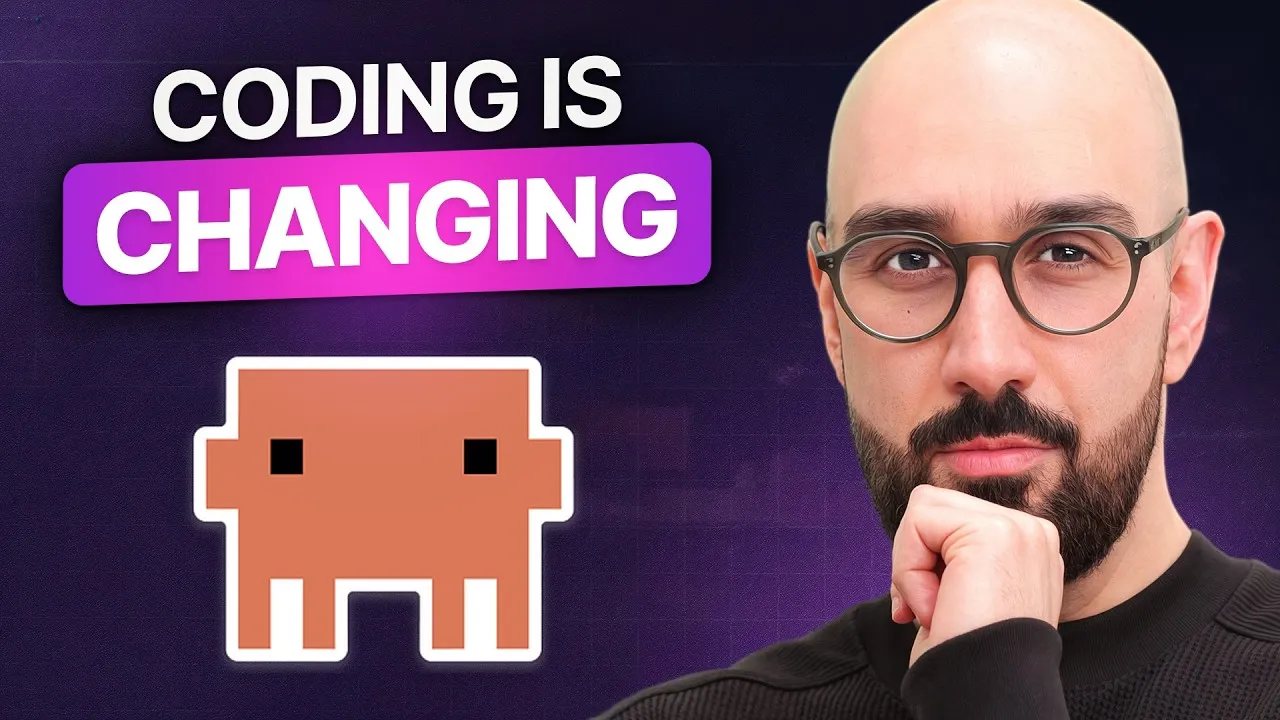
AI coding agents, like Claude Code, are more than just conversation partners. Unlike traditional AI assistants that offer suggestions, these agents can actively interact with your codebase. They can read files, write code, run commands, fix bugs, and even commit changes to Git. You describe the task, and the agent performs it. This technology is rapidly changing software development, with companies like Netflix and Spotify already using it. Think of it like power saws for carpenters: they don’t replace the carpenter but make tasks like cutting wood faster and easier. Similarly, AI agents handle repetitive coding tasks, freeing you to focus on architecture and problem-solving.
Tip: Embrace the Change
Don’t be afraid of these new tools. Just as developers moved from text editors to IDEs and from manual deployments to CI/CD pipelines, AI coding agents are the next evolution. Embracing them early can give you a significant advantage.
Step 2: Set Up Your Development Environment
To start using Claude Code, you first need to create an account and choose a plan on the Claude website. They offer subscription plans with varying usage limits, or a pay-as-you-go API option. While free tiers exist for trying out the tool, building real applications usually requires a paid plan. Investing in these tools is an investment in your own efficiency.
Once your account is set up, visit the Claude Code documentation to find the installation instructions for your operating system. You’ll typically use a command in your terminal to install the software. Pay close attention to the output after installation, as you may need to add Claude Code to your system’s PATH to run commands smoothly. If you encounter a “command not found” error, follow the provided instructions to fix it.
Expert Note: PATH Configuration
Ensuring Claude Code is in your system’s PATH is crucial. This allows your operating system to find and run the `cloud` command from any directory in your terminal.
Step 3: Clone the Starter Project
For this tutorial, we’ll start with a pre-existing project that has a bug and some messy code. This project serves as a practical playground to learn Claude Code’s capabilities. Navigate to your desired directory in your terminal and clone the starter repository from GitHub using the provided link. After cloning, open the project in your code editor, preferably VS Code for better integration.
Inside your editor, open a new terminal window. It’s often more effective to position this terminal on the left side of your screen, with your code editor on the right. This layout provides ample space for viewing prompts and code simultaneously. You can hide other panels, like the file explorer, to maximize your working area.
Tip: Optimize Your Workspace
Customizing your editor layout, like placing the terminal on the left, can greatly improve your workflow and make it easier to interact with Claude Code.
Step 4: Initialize Claude Code and Configure Settings
With the project open and the terminal ready, you can now run Claude Code. The first time you launch it within your project, you’ll likely need to log in using your Claude account credentials. You’ll also be prompted to select a theme, such as dark mode or light mode.
Claude Code offers several useful commands, often accessed using a slash (`/`). For instance, `/model` lets you choose the AI model, and `/terminal setup` can configure key bindings for easier multi-line prompt entry. You can also use an exclamation mark (`!`) to run shell commands directly within Claude Code, eliminating the need to switch to a separate terminal for tasks like `npm install` or `git` commands.
Warning: Understand Command Execution
When Claude Code proposes to run a command, especially one involving file modifications or system changes, pay attention to the proposed action and its description. You’ll typically have options to allow the command once, allow it for the session, or disallow it entirely. Always review these prompts carefully.
Step 5: Run the Application and Install Dependencies
Before running the application, you need to install its dependencies. You can do this by typing `npm install` in the Claude Code terminal. Alternatively, you can instruct Claude Code to “run this app.” The AI agent will then analyze the project, identify the need for dependency installation, and execute the necessary commands for you. This process might involve granting permission for Claude Code to use its tools, such as the bash tool for running commands.
Once dependencies are installed, Claude Code can automatically start the development server. You’ll see output indicating the application is running and its address. You can manage running tasks using commands like `/tasks` to view or stop background processes.
Tip: Let AI Handle Repetitive Tasks
Allowing Claude Code to handle dependency installation and app startup can save time and prevent errors, especially when you’re new to a project.
Step 6: Initialize Project Memory with `init`
To help Claude Code understand your project better, you should initialize its memory. This is done using the `init` command, which creates a `cloud.md` file. This file acts as a project-specific prompt, providing context about your project’s architecture, conventions, and basic commands. Every time you interact with Claude Code, the contents of this file are loaded into the AI’s context window, improving its understanding and the relevance of its responses.
When running `init`, Claude Code will use its write tool to create the `cloud.md` file. You’ll need to approve this action. It’s generally recommended to allow all edits for the session and then review changes later using your source control panel. This approach is faster than approving each file modification individually.
Expert Note: Non-Deterministic Outputs
The content generated by AI models can vary each time you run a command like `init`. Don’t get fixated on the exact text; focus instead on the workflow and how the AI assists in breaking down tasks and recovering from errors.
Step 7: Commit Changes and Refactor Code
After initializing the `cloud.md` file, it’s good practice to commit these changes. You can do this directly using Git commands in the terminal, or you can ask Claude Code to make the commit for you. Using a prompt like “commit” allows the AI to generate a well-formatted commit message, often including co-authorship details from the AI model itself. This is a convenient way to maintain clean and informative commit history.
The next step involves addressing the bug in the expense tracker application. You’ll use Claude Code to identify the issue, refactor the messy code, and add new features. The AI can help pinpoint errors, suggest improvements, and even rewrite sections of code to adhere to better engineering practices. Remember to actively review the AI-generated code, identify any potential issues, and make necessary adjustments.
Tip: Active Review is Key
Never blindly accept AI-generated code. Always review it carefully to ensure it’s correct, efficient, and follows your project’s standards. This active participation is what makes AI a powerful assistant, not a replacement for developers.
Step 8: Build a Full-Stack Support Ticket System
Once you’re comfortable with the basics, you’ll move on to building the main project: a full-stack AI-powered support ticket system. This involves several stages:
- Planning and Setup: Define project scope, requirements, and choose your tech stack.
- Authentication: Implement user login, registration, and role-based access control.
- User Management: Create, edit, and delete users with proper testing.
- Ticket Management: Build the core functionality for submitting, viewing, filtering, sorting, and paginating tickets. Agents will manage conversations, update statuses, and reply to customers.
- AI-Powered Features: Integrate AI to polish agent replies, summarize long ticket conversations, classify incoming tickets automatically, and even implement an auto-resolve feature for common issues.
- Email Integration: Connect your application to receive customer emails directly.
- Deployment: Set up error logging, Dockerize the application, and deploy it to the cloud.
Expert Note: AI for Automation
Features like automatic reply polishing and auto-resolving tickets demonstrate how AI can dramatically improve customer support efficiency and response times.
Step 9: Integrate AI for Continuous Improvement and Deployment
A powerful aspect of AI-assisted development is its integration into the deployment pipeline. You can set up Claude Code with tools like GitHub Actions. Imagine creating an issue on GitHub, having Claude automatically fix it, and then reviewing the code. Merging these changes can trigger an automated deployment straight to production. This provides a glimpse into the future of AI-assisted software delivery.
Throughout this process, remember that the goal is not to have AI write all the code while you sleep. Instead, it’s about a collaborative process where you actively guide, review, and refine the AI’s output. This approach allows you to build complex applications much faster than traditional methods, focusing your energy on the creative and architectural aspects of software engineering.
Tip: Follow the Course Structure
Each lesson builds upon the previous one. To get the most out of this learning experience, follow the course from beginning to end without skipping lessons, even if a topic seems familiar.
Source: Claude Code Tutorial – Build Apps 10x Faster with AI (YouTube)