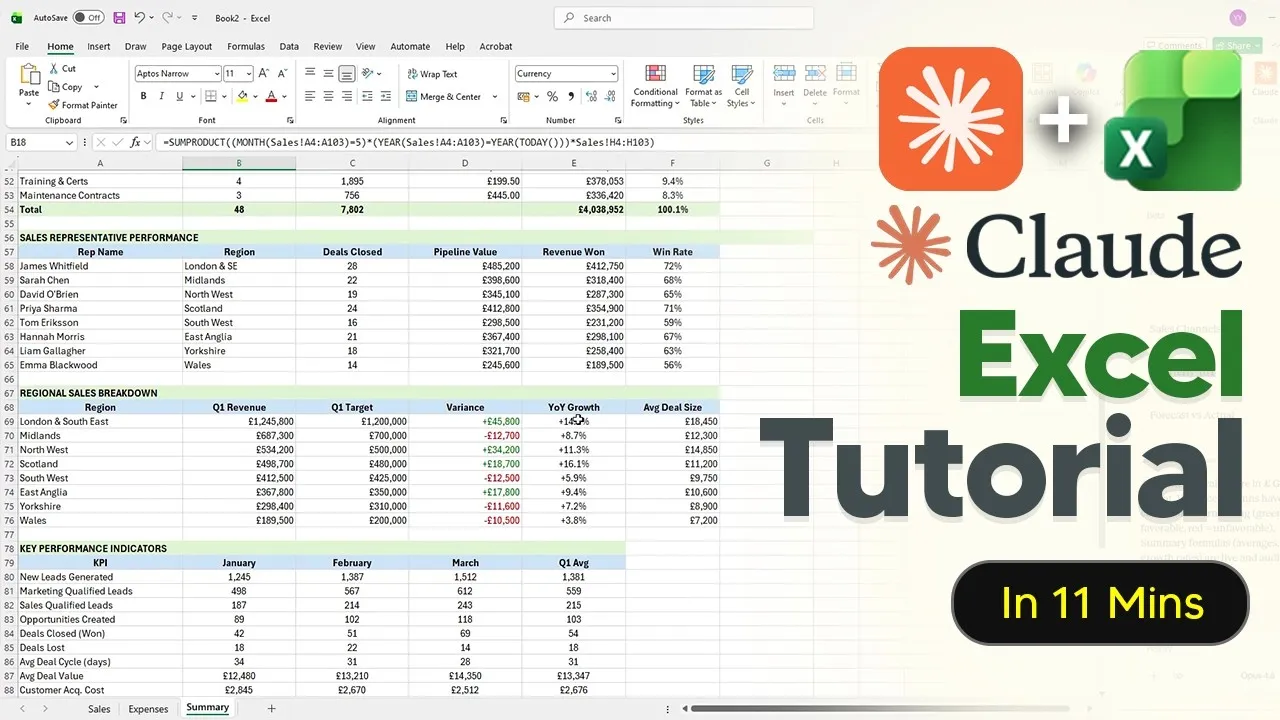
Claude AI Now Directly Edits Your Excel Spreadsheets
A new tool is changing how we work with spreadsheets. It’s called Claude for Excel, and it’s an add-in that brings the power of Claude AI right inside Microsoft Excel. This isn’t just another chatbot where you copy and paste information. Instead, it can read your actual Excel files, looking at every single cell, every formula, and how everything is connected.
A Smarter Way to Use AI in Spreadsheets
Using Claude directly within Excel is very different from uploading an Excel file to a regular chatbot online. When you upload a file to a standard chatbot, it often turns your spreadsheet data into plain text. This process can lose the structure, cell references, and all the formulas that make your spreadsheet work. Claude’s Excel add-in, however, can directly interact with your workbook. It can make changes, suggest fixes, and even tell you exactly which cell it used for any information it provides.
Requirements and Setup
To use this powerful new tool, you’ll need a Claude Pro subscription, which costs about $20 per month, or a Team or Enterprise subscription. The good news is that it uses your existing Claude usage limits. There’s no extra cost for the Claude Excel add-in itself. The add-in uses Claude’s advanced models, Opus 4.6 and Sonet 4.6.
Installing Claude for Excel is straightforward. You can usually find it by going to the ‘Home’ tab in Excel and clicking ‘Add-ins’. Then, search for ‘Claude’ and you should see ‘Claude by Anthropic’. Click to add it. If you can’t find it there, you can also visit the Microsoft App marketplace and search for ‘Claude Anthropic for Excel’. Make sure you sign in with the correct Microsoft account when prompted.
Once installed, a Claude icon will appear in the top right corner of Excel. Clicking it opens the sidebar. You’ll likely need to sign in with your Claude account. For easier access, you can also use the keyboard shortcut Ctrl+Alt+C to show or hide the Claude sidebar.
Essential Settings for Safe Use
Before you start using Claude in Excel, it’s wise to adjust a few settings. Go to ‘More options’, then ‘Settings’, and turn on ‘Session logging’. This feature shows you exactly what changes Claude has made, which is crucial if something unexpected happens to your workbook. It helps you understand how Claude arrived at its results.
As a security measure, always back up your Excel file before letting Claude make significant changes. If Claude makes unwanted modifications, you’ll want a clean copy to revert to. You don’t want to be stuck with a messy or incorrect version of your important data.
Getting Started with Prompts
When you’re ready to use Claude, it’s best to be very detailed in your instructions, or ‘prompts’. For example, a business owner could ask Claude to create a sales and expense tracker. You might prompt: “I need to build a small business sales and expense tracker. Create a new Excel structure with these sheets called expenses, sales, and summary.” Claude can quickly set this up for you.
When Claude suggests changes, you’ll see options like ‘Always allow’ or ‘Allow once’. It’s recommended to choose ‘Allow once’. This means you approve each action Claude takes, especially those that could significantly alter your workbook. Selecting ‘Always allow’ could lead to unintended changes if your prompt isn’t perfect.
Powerful Capabilities Demonstrated
Claude can quickly build complex structures. For instance, after creating the basic sales and expense tracker, it provides details on how it reasoned through the setup and highlights key metrics. When you input new sales data, like selling 200 units of a project called ‘Marketing’ for $200 each, the ‘Summary’ sheet automatically updates with the new sales revenue. It can also create dropdown menus for categories, making data entry easier.
Another impressive feature is Claude’s ability to process information from other documents. You can upload a PDF report and ask Claude to fill out your Excel sheet with its data. Claude can read the PDF, extract the relevant information, and populate your spreadsheet. If some data from the PDF doesn’t fit neatly into the existing Excel structure, Claude can smartly add new categories or sections at the end of your sheet, including key performance indicators (KPIs) and year-over-year growth.
This capability saves a huge amount of time compared to manually entering data from documents. While processing a PDF might take a few minutes, it’s far more efficient than doing it yourself.
Understanding and Fixing Formulas
Claude can also help you understand complex formulas. If you double-click a cell with a formula, Claude can explain exactly what it does. For example, if a cell calculates net profit and loss by subtracting one value from another, Claude will clearly break down that equation for you. This is incredibly useful if Claude generates a formula you don’t fully grasp or if you need to understand an existing complex formula in your own spreadsheet.
Furthermore, Claude can find and fix errors in your spreadsheets. You can give it a sheet with intentional mistakes and ask it to find and correct them. Claude will identify the errors and fix the values, often in real-time. This is a lifesaver for worksheets that have hidden issues or produce incorrect results.
Data Cleaning and Visualization
Cleaning messy data is another area where Claude excels. It can split columns, like separating an address into street, city, and postcode. It can also standardize data formats, such as converting dates into a consistent year-month-day format. This helps make your data much more organized and useful.
Claude can even visualize your data. You can ask it to create charts, like a bar chart showing monthly budget versus actual spending. In about 20 seconds, Claude can generate a visual representation of your data, making it easier to understand trends and performance.
Advanced Formula Creation
For users who need custom formulas, Claude can write them for you. If a formula is missing, like one to calculate total cost, you can ask Claude to create it. It can write formulas based on your instructions, such as multiplying quantity by unit cost. Claude will also show you exactly what formula it wrote and where it was placed. You can even ask it to build more complex formulas, like flagging items over a certain value.
Limitations and Important Considerations
While Claude for Excel is powerful, it’s important to understand its limitations. Firstly, it’s not a replacement for human expertise. AI models can sometimes make mistakes or ‘hallucinate’ incorrect information. You must always verify the accuracy of the results, especially in high-stakes situations where decisions depend on the data. Anthropic, the maker of Claude, does not guarantee that the models will never hallucinate.
Secondly, this tool is not recommended for highly sensitive or regulated data without proper security controls. When you use the add-in, your data is sent to Anthropic’s servers and may be stored for up to 30 days. This means sensitive information like financial details, customer data, or employee salaries could be processed on their servers. Team and enterprise plans do not override these data retention settings for the Excel add-in.
Another significant limitation is that Claude cannot handle VBA (Visual Basic for Applications) or macros. It cannot write, read, or execute VBA code. Finally, there is no chat history saved between sessions. Each time you reopen Excel or start a new session with the Claude add-in, it’s a fresh conversation. You’ll need to re-enter any context if you close and reopen the application.
Despite these limitations, Claude for Excel represents a significant step forward in integrating AI into everyday productivity tools, making complex spreadsheet tasks more accessible and efficient.
Source: How To Use Claude In Excel – (Claude Excel Tutorial) 2026 (YouTube)