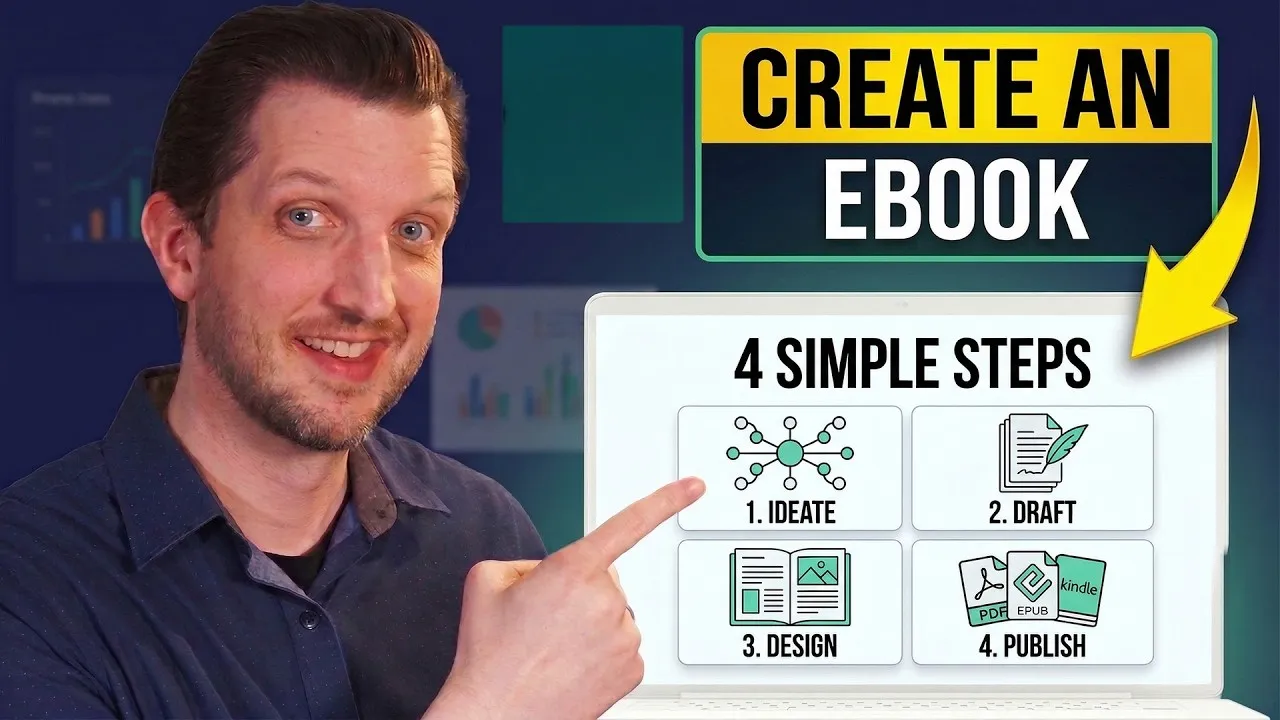
How to Create an eBook Using ChatGPT and Canva in 4 Simple Steps
Creating an eBook can be a powerful way to share your knowledge, earn passive income, generate leads for your business, or grow your audience. This guide will walk you through the entire process, showing you how to create a professional-looking eBook from start to finish using free tools like ChatGPT and Canva.
What You’ll Learn
You will learn how to generate an eBook outline using ChatGPT, write the content with AI assistance, design the eBook using Canva templates, and finally export and share your finished product. This method makes creating an eBook much simpler and faster than writing it all by hand.
Prerequisites
- A free account with ChatGPT (OpenAI)
- A free account with Canva
- Basic computer skills for copy-pasting and downloading files
Step 1: Generate Your eBook Outline with ChatGPT
The first step is to create a solid structure for your eBook. Instead of starting from scratch, we’ll use ChatGPT to help build an outline. Think of this like giving instructions to a very smart assistant.
- Open ChatGPT: Go to the ChatGPT website and log in or sign up for a free account.
- Write a Prompt: To get a good outline, you need to give ChatGPT specific instructions. For example, you could type: “Think like a marketing expert who specializes in digital marketing. Write an outline for a short, punchy ebook to teach people how to get started with digital marketing for their business.”
- Review the Outline: ChatGPT will provide a suggested title, subtitle, and a list of chapters or sections. This is your starting point.
- Refine the Outline: Look at the outline provided. You can ask ChatGPT to make changes. For instance, you could say: “Modify this outline and remove section seven” or “Suggest a different topic for section three.” Tailor it to fit your specific knowledge and goals for the eBook. The goal is to have a clear roadmap for your book.
Expert Tip: The more specific your prompt, the better the outline will be. Mention the target audience, the desired length, and the main goal of the eBook for best results.
Step 2: Write Your eBook Content with ChatGPT
Now that you have an outline, it’s time to generate the actual text for your eBook. While you could write it all yourself, ChatGPT can help speed up this process significantly.
- Break Down the Task: It’s best to have ChatGPT write the content section by section rather than asking it to write the entire book at once. This gives you more control and leads to better quality.
- Generate the Table of Contents: First, ask ChatGPT to create a table of contents based on the outline you finalized.
- Write Each Section: For each chapter or section in your outline, give ChatGPT a specific command. For example, type: “Write the content for section one of the ebook on digital marketing.”
- Review and Edit: After ChatGPT generates the text for a section, read it carefully. Make any necessary changes to match your voice and expertise. You might need to add more details, clarify points, or ensure the information aligns with your brand.
- Repeat for All Sections: Continue this process for every section of your eBook.
Warning: ChatGPT can sometimes make up information or present details that aren’t entirely accurate. Always fact-check and edit the content to ensure it’s correct and fits your intended message. Treat ChatGPT as a writing assistant, not the final author.
Step 3: Assemble Your eBook in Canva
With your content ready, it’s time to design your eBook. Canva is a user-friendly tool with many templates that can make your eBook look professional.
- Go to Canva: Visit the Canva website and log in to your account. If you don’t have one, sign up for a free account.
- Find Ebook Templates: On the Canva homepage, click on “Templates” and then search for “ebook multi-pages.”
- Choose a Template: Browse through the available templates. Look for one that matches your style and brand. Pay attention to templates that might require a Pro account (often marked with a crown icon) if you are using the free version. Select a template that seems easy to customize.
- Customize the Template: Click on “Customize this template” to open it in the Canva editor.
- Add Your Content: This is where you’ll copy and paste the text you generated with ChatGPT.
- Title and Subtitle: Copy your eBook’s title and subtitle from ChatGPT and paste them into the designated text boxes on the cover page. Resize the text as needed to make it look good.
- Author Name: If you wrote the content yourself, add your name. If ChatGPT generated it, you can omit the author name or add your own.
- Body Content: Go through each page of the template and replace the placeholder text with the content you created for each section. Copy the text from ChatGPT and paste it into the corresponding pages in Canva.
- Adjust Layout: Resize text boxes, move elements around, and adjust formatting to make sure everything fits well and looks clean.
- Add or Delete Pages: If you need more space for a particular section, you can duplicate existing pages. If a page has too much design and not enough text space, you can delete parts of the design or find a simpler page layout.
Free Resource: Looking for more design options? The creator offers a free resource with 18 eBook templates for PowerPoint, Google Slides, and InDesign, plus 30 customizable icons. Check the description of the original video for the link.
Step 4: Export and Share Your eBook
Once your eBook is designed and filled with content, the final step is to save it and get it ready for distribution.
- Find the Share Button: In the top right corner of the Canva editor, click the “Share” button.
- Select Download: From the dropdown menu, choose “Download.”
- Choose File Type: For an eBook, the best format is PDF. Select “PDF Print” or “PDF Standard” as the file type. PDF Print is generally better for higher quality if you plan to print, while PDF Standard is good for digital distribution.
- Download the File: Click the “Download” button. Canva will process your file and save it to your computer.
- Distribute Your eBook: Once downloaded, you can upload the PDF to cloud storage (like Google Drive or Dropbox) to create a shareable link. You can also attach it to emails, add it to your website, or use it on social media to reach your audience.
Congratulations! You’ve now created your first eBook using AI and a free design tool. This process allows you to produce valuable content efficiently, helping you achieve your goals.
Source: How to Create an eBook (ChatGPT + Canva) (YouTube)