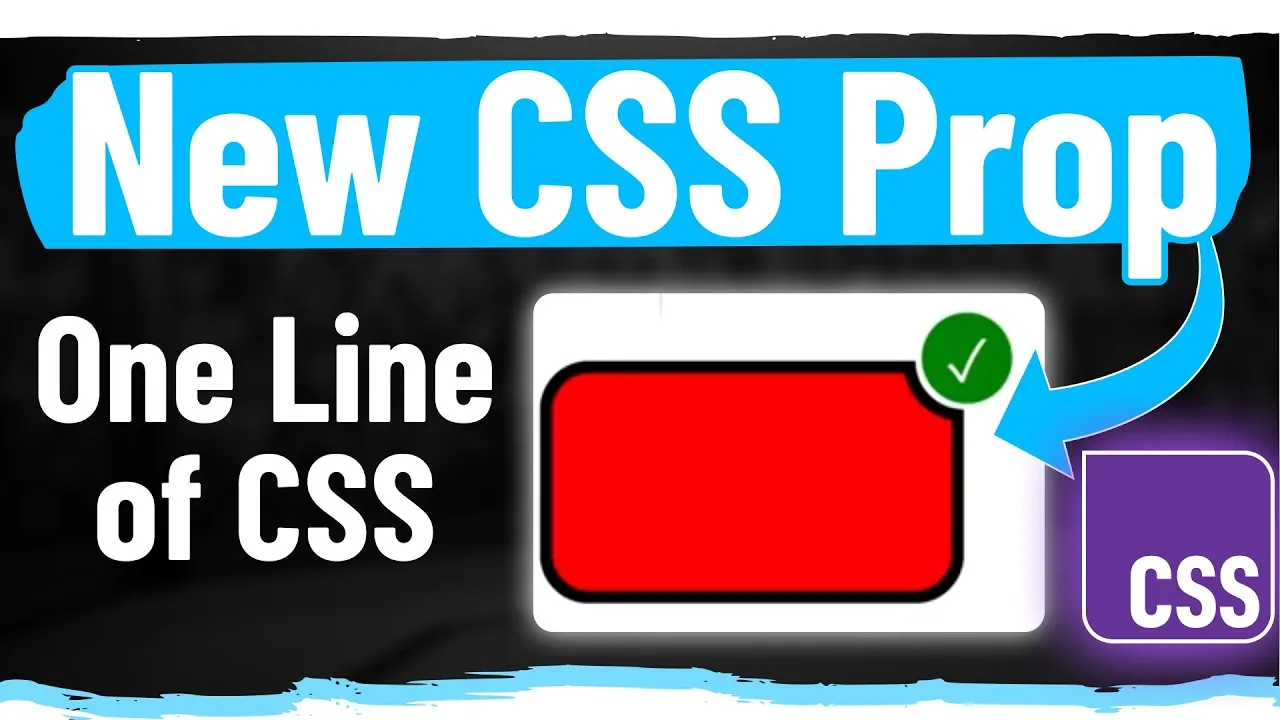
How to Create Custom CSS Corner Shapes Easily
You can now make cool CSS shapes with just a couple of lines of code. This new CSS property, called corner-shape, makes it simple. It’s not a trick with masks or anything complicated. Instead, it lets you control how your border corners look. This property can really change how we design web pages.
What You’ll Learn
This guide will show you how to use the new corner-shape CSS property. You’ll learn about its basic shapes and how to customize them. We’ll also look at how to apply these shapes to specific corners and create advanced designs like speech bubbles and animated effects. Finally, we’ll cover browser support so you know when you can use it.
Prerequisites
- Basic understanding of HTML and CSS.
- A code editor and a web browser to test your code.
Understanding the Basics of corner-shape
Normally, when you set a border-radius on an element, like 50px, you get perfectly rounded corners. This has always been the default. But what if you wanted different shapes? That’s where corner-shape comes in.
What corner-shape Does
The corner-shape property lets you choose the style of your border corners. By default, it’s set to round, which gives you those familiar rounded corners. But you can change this value to create other shapes.
Basic corner-shape Values
round: This is the default. It creates smooth, circular corners, just like a standardborder-radius.Example:
border-radius: 50px; corner-shape: round;scoop: This value does the opposite ofround. Instead of curving outward, it curves inward. This can create interesting shapes like a ticket or a badge.Example:
border-radius: 60px; corner-shape: scoop;Expert Tip: Make your element wider to see the
scoopeffect more clearly. It works best when the curve has room to show.bevel: This creates a straight line connecting the two edges of the corner. It’s like cutting off the corner with a straight edge. This is useful for making shapes like stop signs or hexagons.Example:
border-radius: 50px; corner-shape: bevel;square: This value turns off theborder-radiuscompletely, making the corners sharp and square. It might seem strange, but it has its uses.Example:
border-radius: 50px; corner-shape: square;notch: This is the opposite ofsquare. Instead of a sharp corner, it creates an inward-pointing square notch. This can be used for shapes like a plus sign.Example:
border-radius: 50px; corner-shape: notch;
Customizing Shapes with super-ellipse
Beyond the basic values, you can fine-tune your corner shapes using the super-ellipse function. This function lets you use values from negative infinity to positive infinity.
Understanding super-ellipse Values
1: This is the same as theroundvalue, giving you a normal rounded corner.-1: This gives you thescoopeffect, curving the corner inward.0: This creates a perfectly straight line, similar to thebeveleffect.Infinity: This results in a square corner with no rounding, like thesquarevalue.-Infinity: This creates a notched shape, similar to thenotchvalue.
How Values Affect Roundness
The larger the positive number you use with super-ellipse, the smaller the curve will be, making the corner less rounded. As you decrease the number towards zero, the curve becomes more pronounced. Going into negative numbers makes the curve go inward. The further you go into negative numbers, the deeper the inward curve. The numbers stretch between negative and positive infinity.
Example: corner-shape: super-ellipse(3); will make the corner less rounded than corner-shape: super-ellipse(1);. Conversely, corner-shape: super-ellipse(-3); will create a deeper inward scoop than corner-shape: super-ellipse(-1);.
Creating Animations with corner-shape
The ability to change corner shapes dynamically allows for cool animations. You can animate the corner-shape property to transition between different styles.
Animating Between Shapes
To create an animation, you can use CSS keyframes to change the corner-shape value over time. For instance, you can animate from a square shape (infinity) to a scooped shape (-3).
When you animate, the border-radius property also plays a role. If border-radius is set to 100%, the shape can grow and shrink dramatically. If you use a fixed pixel value for border-radius, like 50px, the animation will happen within that defined space.
Advanced Use: Setting border-radius to 100% allows for very interesting effects. You can make shapes appear to fade out completely or reappear as they animate, creating effects like twinkling stars.
Applying corner-shape to Specific Corners
You don’t have to apply the same shape to all corners. You can target specific corners like top-right, bottom-left, etc., to create more detailed designs.
Targeting Individual Corners
You can specify which corner you want to shape. For example, you can set only the top-right corner to have a scoop effect.
Example: .my-element { corner-shape: top-right-radius: scoop; }. This allows you to create shapes where one corner is different from the others.
Nesting Elements with Precise Shapes
This feature is great for nesting elements. You can make the shape of one element’s corner perfectly match the inverse shape of another element.
Imagine you have an element with a normal rounded corner (round) and another element placed on top with a scoop shape on the same corner. They can fit together almost like puzzle pieces. This makes it easy to create designs where backgrounds show through specific cutouts, which was very difficult before.
Tip: Use transparent backgrounds on your elements to see how they fit together. This helps in creating complex visual layering.
Creating Advanced Shapes like Speech Bubbles
The corner-shape property is powerful enough to create complex UI elements like speech bubbles.
Building a Speech Bubble
To create a speech bubble pointing downwards, you can adjust the bottom borders. You’ll set the border-radius on the bottom-left and bottom-right corners to create a curved effect.
Here’s how it works:
- Set the horizontal curve (e.g.,
100%) to define how far the curve extends across the edge. - Set the vertical orientation (e.g.,
50px) to control the depth or point of the curve. A value of0stops the curve, while a larger value creates a more pronounced scoop. - Use
super-ellipsewith negative values (like-1.5) to achieve the inward scooping effect needed for the bubble’s point.
You can experiment with these values to get the exact shape you want. For example, changing the super-ellipse value from -1.5 to -2.5 will make the scoop deeper.
Combining Multiple corner-shape Values
You can even combine different corner shapes on a single element to create unique, irregular designs.
Using Shorthand and Longhand
You can define shapes for each corner individually. For instance, you might have a rounded top-left corner, scooped top-right and bottom-left corners, and a beveled bottom-right corner.
CSS offers shorthand properties for corner-shape, but writing out the full property names (e.g., border-top-left-radius-shape) can be clearer and easier to read. This gives you precise control over every corner.
Example: You can set border-top-left-radius-shape: round;, border-top-right-radius-shape: scoop;, border-bottom-left-radius-shape: scoop;, and border-bottom-right-radius-shape: bevel;. You can then rotate the element to create complex, abstract shapes.
Browser Support and Considerations
While the corner-shape property is powerful, its browser support is not yet universal.
Current Browser Support
Currently, browser support for corner-shape is around 66%. Major browsers like Safari (including on iOS) and Firefox do not support it yet. This means users on iPhones, Macs, or using Firefox might not see these custom shapes.
When to Use corner-shape
Because of limited support, it’s best to use corner-shape for aesthetic enhancements rather than critical design elements. If the custom shape is not essential for the core functionality or understanding of your site, it’s safe to use.
If a browser doesn’t support corner-shape, it will simply fall back to the default rounded corner behavior. This ensures your site remains usable for everyone. For highly specific designs that rely on this property, you might need to find workarounds or wait for broader browser adoption.
Conclusion
The corner-shape property is an exciting addition to CSS, offering new ways to style elements. By understanding its basic values, customization options with super-ellipse, and application to specific corners, you can create unique and dynamic designs. While browser support is still growing, it’s a valuable tool for adding flair to your web projects.
Source: New CSS Property corner-shape Is Amazing (YouTube)