Design Websites and Apps Instantly with Google Stitch
Google has released a new tool called Stitch that can change how you design websites and apps. Imagine typing a description of what you want your design to look like, and having an AI create it for you. Stitch works like this, but for visual design instead of writing code. You describe your design idea, and Stitch generates user interfaces (UIs) for websites and apps that are easy to change later. This guide will show you how to use Stitch with different examples and explain its features. We’ll also look at how to turn your Stitch designs into a real, working website or app using another Google tool.
What You’ll Learn
In this guide, you will learn how to:
- Use Stitch’s different design modes, like ‘Ideate’ and ‘Flash’.
- Create UIs for mobile apps and web applications.
- Edit designs using text prompts and direct editing tools.
- Preview your designs and export them to other tools.
- Turn your Stitch designs into a live website or app with Google AI Studio.
Prerequisites
- A Google account to log in to Stitch.
- Basic understanding of website and app design concepts (helpful but not required).
Getting Started with Google Stitch
Stitch is currently free to use. You can find a link to it in the description of the original video. When you open Stitch, you’ll see different design models you can choose from. These models, like ‘Ideate’, ‘Redesign’, ‘Flash’, and ‘Thinking’, are good for different design tasks. Let’s explore how to use them.
Step 1: Using the ‘Ideate’ Mode for Mobile Apps
The ‘Ideate’ mode helps you brainstorm and find solutions for your design problems. It’s a great starting point.
- Select the ‘Ideate’ option from the main screen.
- Choose whether you are creating a mobile app or a website/web app. For this example, we’ll choose ‘mobile app’.
- You can add inspiration by uploading files or entering a website URL.
- You can also enhance your prompt. You might use another AI tool, like Google Gemini, to help you write a detailed design prompt.
- Stitch offers design system options where you can pick colors and styles, or describe them in your text prompt.
- There’s also a ‘Live Mode’ which lets you interact with the AI in real-time, but we’ll cover that later.
- Enter your design prompt. For instance, a prompt for a habit-tracking app could include details like ‘gamified’, ‘minimalistic’, ‘dark mode with neon accents’.
- Log in with your Google account. Stitch is free to use.
Behind the Scenes: What Stitch Creates
When you start an ‘Ideate’ project, Stitch does more than just create a visual. It first generates a document for itself, like a product requirement document. This document includes visual direction and outlines the core user flow, thinking about the user experience (UX) alongside the user interface (UI). It also lists the different pages the app will need. This helps you understand the project’s scope before the visual design begins.
Refining Your ‘Ideate’ Design
After the initial planning, Stitch will ask you to proceed with the design. You can then:
- Click the option to ‘Design it’ or move forward.
- Adjust the color palette or change the hierarchy of elements on the home screen.
- Type in specific instructions for changes you want.
- Click the option to move forward with the plan.
Stitch will then create the first version of your app design. On the left side, you can see details about the design, like the color palette, font choices, button styles, and icons. Stitch creates these elements so they can be used consistently throughout the app.
Exploring the Design Canvas
Stitch presents your design on a canvas. You can see the different pages it has created. If you need more pages, you can ask Stitch to add them, like ‘add the habit detail screen’. The canvas is flexible; you can move elements around to arrange them as you like. Some elements might appear at the bottom of the screen.
Direct Editing and Previewing
One of the most useful features is the ‘Direct Edit’ option. You can select any element on the screen and quickly edit it. You can change text directly or use AI to modify it. This means you don’t always need to type a new prompt to make small changes.
To see how your app will look and work, use the preview function. Even if not all pages are finished, Stitch generates a prototype. You can click through the preview to see how the app functions on a phone. You can also preview how it looks on tablets and computers, which is very helpful for ensuring responsiveness.
Exporting Your Design
Stitch allows you to export your work. You can send it directly to Google AI Studio, another Google tool that turns designs into code. You can also export to other design tools like Figma if you prefer to continue working there.
Step 2: Using the ‘Flash’ Model for Web Apps
The ‘Flash’ model is excellent for quickly creating good-looking visuals for web apps that are ready to be used by coding agents. It’s ideal for rapid prototyping.
- Select the web app option.
- Choose the ‘Flash’ model. This model is known for its speed and ability to produce export-ready visuals.
- Enter your prompt. For example, a prompt for a ‘SAS analytics dashboard’ can be used.
Fast Prototyping with ‘Flash’
The ‘Flash’ model works very quickly. A design for a SAS analytics dashboard might take less than 60 seconds to generate. This model is great for internal tools, dashboards, and complex data views where speed is important.
Variations and Refinements
Once the initial design is created, you have several options:
- Instant Prototype: See how the design works.
- Variations: Ask Stitch to generate different versions of the design. You can specify how many variations you want.
- Modify: Make direct edits or add annotations.
- Preview: See the design in action.
You can request new variations, and Stitch will present different looks for your dashboard. This helps you quickly explore various design possibilities and choose one to build upon.
Step 3: Using the ‘Thinking’ Model for Public-Facing Websites
The ‘Thinking’ model, especially version 3.1, is the most advanced option. It’s best for creating public-facing websites or apps that you plan to launch to customers.
- Select the web version.
- Choose the ‘Thinking with 3.1’ model. This model focuses on creating high-quality, aesthetically pleasing designs.
- Enter your prompt. For example, a prompt for a ‘landing page for a coffee company’ can be used.
High-Quality Aesthetics with ‘Thinking’
This model takes a bit longer to generate designs, but the results are often superior. It produces websites with excellent aesthetics, better typography, and well-balanced spacing. It typically chooses the best layout for your content. The generated landing page for a coffee company looked modern, premier, and followed the prompt closely.
‘Live Mode’: Talking to Your Designer
Stitch includes a feature called ‘Live Mode’. This allows you to interact with the AI by talking to it. You can describe changes you want in real-time, and the AI will update the design instantly. For example, you could say, ‘Can you change the layout of the text? It’s hard to see.’ The AI can then suggest brighter text colors or adjust the background for better readability. This mode is like having a conversation with your AI designer, making the iteration process very natural and fast.
Step 4: Turning Your Design into a Live Website with Google AI Studio
Once you are happy with your design in Stitch, you can turn it into a functional website or app using Google AI Studio.
- In Stitch, find the ‘Export’ option.
- Select ‘Build with AI Studio’. This will upload your design images and a basic prompt to Google AI Studio.
- In Google AI Studio, press the ‘Build’ button. The tool will generate code based on your Stitch design.
- You will see your website generated, closely matching the design you created in Stitch. It will also be mobile-optimized.
- Google AI Studio offers further options to enhance your product, such as adding user login, more pages, dark/light themes, or AI features powered by Gemini.
- To make your website live, press ‘Publish’. You may need to set up a project and potentially billing, as the app will be hosted in the cloud.
- After publishing, you can open the link to your new website.
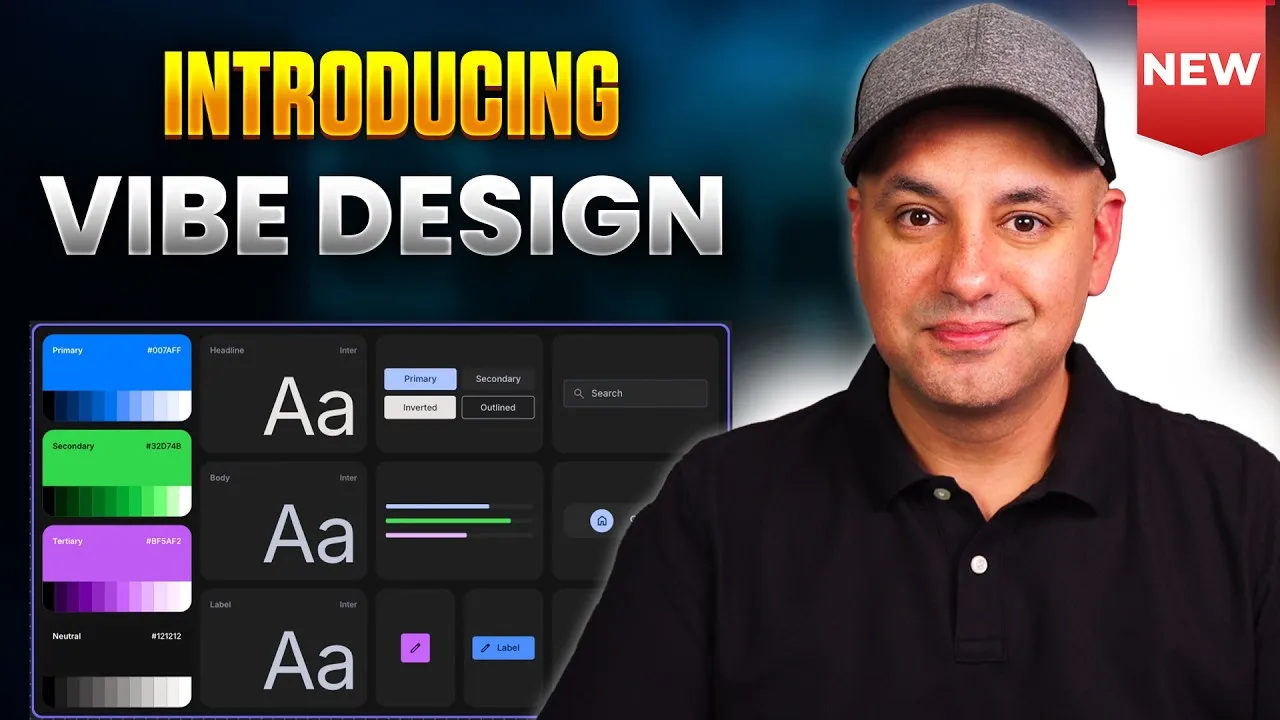
This process essentially combines ‘Vibe Design’ (using Stitch) with ‘Vibe Coding’ (using AI Studio). You can get a good-looking website without needing to write any code or do extensive design work yourself.
Additional Options in AI Studio
Google AI Studio provides advanced options for further customization, including setting up your own domain. This tool, along with Stitch, is part of Google’s ongoing updates to AI-powered creation tools.
Exploring Other Google AI Tools
Google is constantly releasing new tools and updates. Besides Stitch and AI Studio, they have released models like LIA for music generation and Veo for video generation. These tools, often integrated into platforms like Art List, showcase the rapid advancements in AI for creative fields.
Source: New Google Stitch Just Change Design Forever (YouTube)