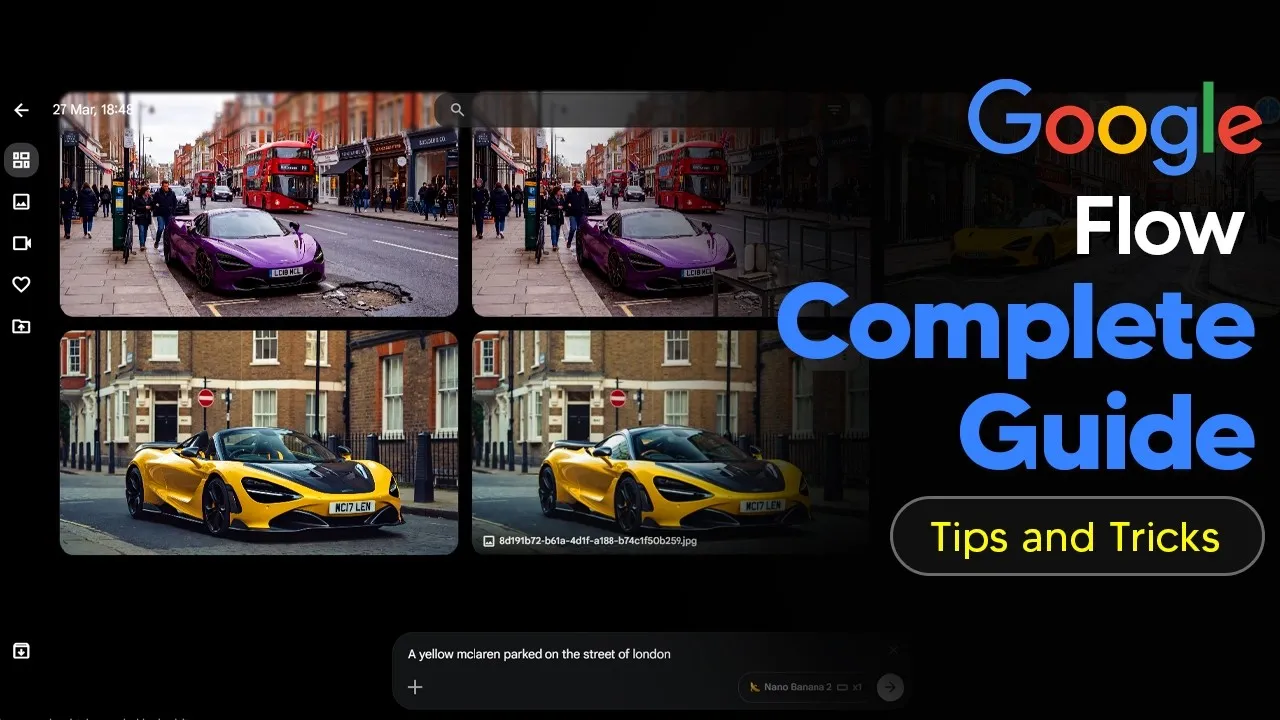
Google Flow Launches AI Studio for Video and Image Generation
Google has introduced Flow, a new AI-powered creative studio designed for generating and editing images and videos. This platform brings together three key Google AI models to offer users powerful creative tools. Flow aims to be the go-to solution for AI content creation, especially for those who previously used discontinued tools like Whisk.
Core AI Models Powering Flow
Flow integrates advanced AI models to handle various creative tasks:
- VO 3.1: This is Google’s video generation model. It takes text prompts and turns them into video clips.
- Nano Banana 2: An image generation model that evolved from Google’s Imagen. It produces high-quality images that can be used on their own or as part of video projects.
- Gemini: Works behind the scenes to make the prompting process more natural and intuitive. Gemini helps Flow understand user requests described in everyday language.
Understanding Google Flow’s Pricing and Credits
Access to Google Flow relies on a credit system, with different pricing tiers available:
- Free Tier: Users with a free Google account receive 50 free credits each day. While this allows for testing, these credits are limited and do not roll over.
- Google AI Pro: For $20 per month, this plan provides 1,000 monthly credits. This is considered a reasonable price for regular users.
- Google AI Ultra: This premium plan costs around $200-$250 per month and offers 25,000 monthly credits. It’s best suited for users who generate a high volume of content daily.
Credit costs vary depending on whether you are generating images or videos, and the specific model used. For instance, generating three videos using VO 3.1 fast might cost 30 credits, while a single video on the same setting costs 10 credits. Higher quality settings, like VO 3.1 quality, consume more credits per generation but offer better results.
It’s important to note that credits do not roll over from month to month, meaning users should aim to use their allocated credits before the end of the billing cycle.
Generating and Editing Images with Nano Banana 2
Flow’s image generation capabilities are powered by Nano Banana 2. Users can upload existing images or generate new ones from scratch using text prompts.
- Image Editing: Once an image is generated, users can make specific edits. For example, you can ask Flow to change the color of a car or remove an object from a specific area of the image.
- Adding Details: New elements can also be added to images. Users can specify a location, like adding a pothole to a road, and Flow will place it accurately.
- Precision Tools: For more detailed editing, Flow offers tools like a lasso for precise selections.
- Draw Feature: Users can also draw rough sketches to guide the AI in generating specific shapes or objects, though accuracy may vary.
- Upscaling: Generated images can be upscaled to higher resolutions, such as 4K, to improve detail and quality.
Images are generated in parallel, allowing users to create multiple variations quickly. The platform also allows users to download images in their original size or upscaled versions.
Creating Videos with VO 3.1
The VO 3.1 model handles video generation within Flow. Users can animate existing images or create videos directly from text prompts.
- Animation from Images: An uploaded image can be animated by providing a text prompt describing the desired motion. Flow creates a video clip with a start and end frame based on this prompt.
- Model Choices: Users can choose between VO 3.1 fast for quicker generation and lower credit cost, or VO 3.1 quality for higher fidelity and fewer artifacts, though it uses more credits and takes longer.
- Controlling Video Generation: For more precise control, users can define specific start and end frames. This allows for detailed scene transitions, like panning to a specific object within the video.
- Camera Controls: Flow offers camera motion options, such as ‘dolly in,’ ‘dolly out,’ and ‘orbit up,’ to guide the camera’s movement within the generated video.
- Editing Videos: Generated videos can be edited in various ways. Users can insert new elements, like a butterfly flying across the screen, or remove existing objects, such as a car.
- Extending Clips: The platform also allows users to extend existing video clips, giving them more flexibility in storytelling.
- Upscaling Videos: Similar to images, videos can also be upscaled. Standard upscaling is free, while 4K upscaling costs credits and takes time.
Hovering over generated videos allows users to preview them in a loop, which is helpful when comparing multiple variations.
Advanced Features and Navigation
Google Flow includes several features to enhance the creative workflow and project management:
- Project Organization: Users can rename projects to keep their work organized. By default, projects are named with the date and time of creation.
- Search and Filtering: Flow allows users to search for specific assets within their projects by typing keywords. It also autogenerates names for assets, aiding in searchability. Users can filter content by images, videos, favorites, and uploads.
- @ Mention Feature: A unique feature allows users to reference specific assets (images or characters) within prompts using an ‘@’ symbol. This is particularly useful for building complex scenes and ensuring consistency when interacting with multiple elements. For example, a user can prompt ‘Michael driving his mega truck in a fantasy landscape’ by referencing pre-generated assets named ‘Michael’ and ‘mega truck’.
- Scene Builder: For more advanced filmmaking, Flow offers a scene builder. This allows users to arrange video clips and other elements to construct narrative scenes.
- Batch Viewing: Users can view generated clips in batches, making it easier to review and select the best takes from a set of similar generations.
- Grid View Options: The project view can be customized with different grid sizes (small, medium, large) to best suit the user’s preference and the number of assets in the project.
Why This Matters
Google Flow represents a significant step forward in making advanced AI creative tools accessible to a wider audience. By integrating powerful image and video generation models with an intuitive interface and helpful AI assistance from Gemini, Flow lowers the barrier to entry for content creation. The ability to generate and edit both images and videos within a single platform streamlines the creative process. Features like the ‘@’ mention system and the scene builder offer sophisticated control for professional users, while the free tier allows hobbyists and beginners to experiment. This development could empower individuals and small businesses to produce high-quality visual content more efficiently and affordably, democratizing the creation of digital media.
Source: Google Flow Tutorial (How To Use Google Flow) 2026 (YouTube)