Google’s AI Edge Gallery Brings Smart Models To Your Phone
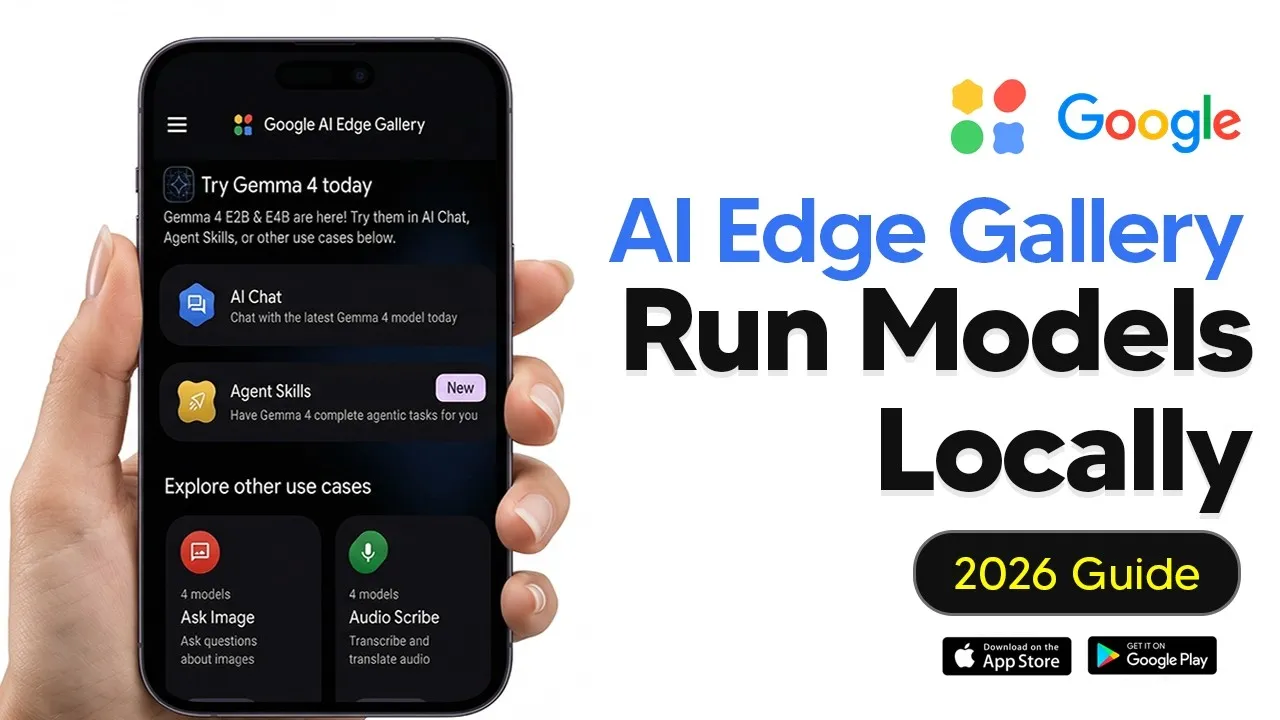
Google has launched the AI Edge Gallery, a new app that lets you run powerful artificial intelligence models directly on your smartphone. This means you can use AI for tasks like chatting, understanding images, and transcribing audio, all without needing an internet connection or sending your data to cloud servers. The app is free and available now for both Android and iOS devices.
Running AI Locally: What It Means
Think of AI models like large brains that can perform complex tasks. Normally, these brains are so big they need powerful computers to run. The AI Edge Gallery allows you to download smaller, specially designed versions of these AI brains, called models, onto your phone. This way, all the processing happens right on your device, keeping your information private and allowing you to use AI even when you’re offline.
Getting Started with AI Edge Gallery
Downloading the AI Edge Gallery is straightforward. Just search for it in your phone’s app store. Once installed, you’ll find several features to explore. The app is designed to be user-friendly, even if you’re new to AI.
AI Chat: Your Personal Assistant
The most common feature is likely the AI chat. This is where you can have conversations with an AI model. The app lets you choose from different AI models, like those from Google’s Gemma family. The performance of these models depends on your phone’s hardware.
Model Requirements
- Android: Phones with 8 GB of RAM or more, released in the last few years, can likely run the Gemma 4 models. 12 GB of RAM is even better. Older phones with 4-6 GB of RAM might struggle with larger models.
- iOS: The iPhone 15 Pro and newer models are well-suited. iPads with M-series chips and 8-16 GB RAM also work well. iPhone 13/14 models with 4-6 GB RAM can run smaller Gemma variants, but larger models may be slow. It’s recommended to avoid devices older than the iPhone 12 or those with 3 GB of RAM or less.
Understanding Model Sizes
When choosing a model, size matters. Larger models generally have better reasoning abilities but require more powerful phones. Smaller models, like Gemma 3 with 1 billion parameters, are designed for older devices with less RAM.
Chat Features and Settings
Once you download a model, you can start a chat. The model needs a moment to load, usually about 10-15 seconds. You can switch between different downloaded models easily. The app includes settings that control how the AI responds. ‘Thinking’ mode can be enabled for tasks requiring more complex reasoning.
Other settings include ‘temperature,’ which affects how random or creative the AI’s responses are. A balanced setting is good for general chat, while higher settings can lead to more creative but sometimes nonsensical output. ‘Top K’ and ‘Top P’ settings fine-tune how the AI chooses its words, influencing variety and safety in its responses. For most users, the default settings are recommended.
You can choose to run models using your phone’s CPU or GPU. The GPU is generally faster for AI tasks and is recommended for better performance.
Privacy and History
A key benefit is privacy. Since everything runs on your device, your conversations and data are not sent to Google’s servers. However, the app currently does not store your chat history. It only keeps a record of your text inputs, which you can manage.
Agent Skills: Tailored AI Actions
Agent Skills allow you to use AI for specific, pre-defined tasks. These are like custom instructions that guide the AI to perform actions in a particular way. The app comes with several basic skills, and you can also import your own.
For example, there’s a skill to generate QR codes. You can also find skills that utilize the AI’s vision capabilities. If you’re a developer, you can create and import your own skills from sources like GitHub, which provides detailed instructions on how to build them.
Multimodal AI: Seeing and Hearing
The AI Edge Gallery supports multimodal models, meaning they can understand more than just text. This includes images and audio.
Image Understanding
You can upload an image or take a photo, and the AI can describe what it sees. This is useful for identifying objects or getting information when you don’t have internet access.
Audio Transcription
The app can also transcribe audio. You can record your voice or upload an audio file, and the AI will convert it into text. While you can have a back-and-forth conversation after transcription, adding new audio clips requires resetting the current session.
Mobile Actions: Controlling Your Device
An experimental feature called Mobile Actions allows the AI to control certain functions on your phone. For instance, you can ask the AI to turn your flashlight on or off. This feature offers a glimpse into future AI capabilities for device interaction.
Prompt Lab: Quick AI Tasks
Prompt Lab offers pre-set prompts for common tasks like summarizing text, rewriting content in different tones, or generating code snippets. It’s a convenient way to get AI assistance without needing to craft complex prompts yourself.
Why This Matters
The AI Edge Gallery marks a significant step towards making advanced AI accessible to everyone, everywhere. By enabling on-device AI processing, Google is prioritizing user privacy and offline functionality. This technology can empower individuals and businesses by providing powerful AI tools that are always available and secure. It democratizes AI by removing the need for high-end hardware or constant internet connectivity, opening up new possibilities for mobile AI applications.
Source: Google AI Edge Gallery Tutorial – How To Run LLMS Locally On Your Phone (YouTube)