Google’s Gemma 4 Arrives, Offers Powerful AI Locally
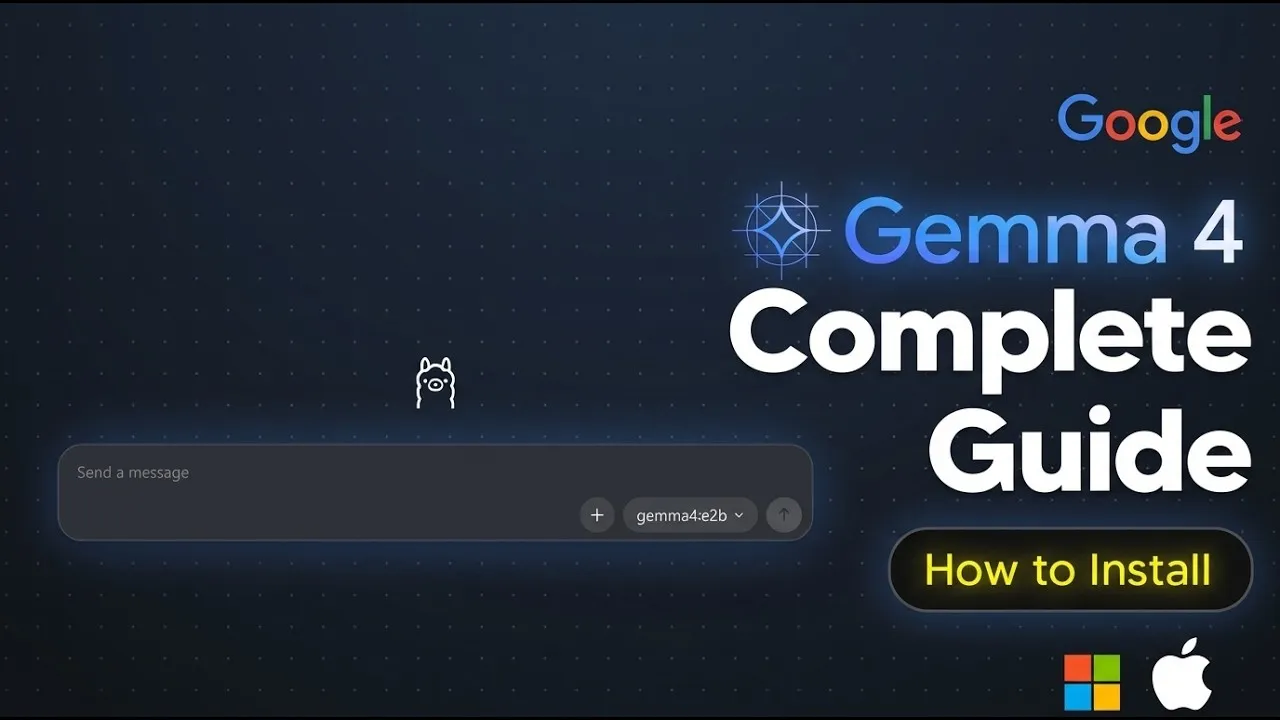
Google has released Gemma 4, a new family of open AI models. This is a significant step as it’s Google’s most capable open model released so far. It’s available under an Apache 2.0 license, meaning developers can use and modify it freely. The model’s small size makes it surprisingly powerful and accessible for many users.
What is Gemma 4?
Gemma 4 is built using the same technology behind Google’s advanced Gemini models. It comes in various sizes, including 2 billion and 4 billion parameter versions. There’s also a large 26 billion parameter “mixture of experts” model. This model cleverly only uses about 3.8 billion parameters when it’s actively working. For comparison, a standard 31 billion parameter dense model is also available.
What’s impressive is how well these smaller models perform. The 31 billion parameter model, despite its size, ranks third among all open models on the Arena AI benchmark. It even outperforms models that are twenty times larger. Gemma 4 can handle complex tasks like multi-step planning and can process both images and videos. This makes it a very versatile AI tool.
Running Gemma 4 Locally with Ollama
One of the most exciting aspects of Gemma 4 is the ability to run it on your own computer. This is made easy with tools like Ollama. Ollama simplifies the process of downloading and running AI models locally.
Getting Started with Ollama
To install Ollama, you can visit their website and download the version for your operating system – Windows, Mac, or Linux. The installation is straightforward. Once installed, Ollama provides a user-friendly interface. You can select and download models directly through the Ollama application. While Gemma 4 might not appear immediately, it’s expected to be available very soon. You’ll see a list of available models, and you can simply click to download and start using them.
Using the Command Line
For those comfortable with a bit more technical control, Ollama also works through your computer’s terminal or command prompt. After installing Ollama, you open your terminal and type a simple command: ollama run [model_name]. In this case, you would type ollama run gemma-4 (or the specific version you want). The tool will then download and set up the model for you.
Understanding VRAM and Performance
A key consideration when running AI models locally is your computer’s graphics card memory, known as VRAM. Larger AI models require more VRAM to run smoothly. Gemma 4 is designed to be more accessible, but understanding your VRAM is still important.
Gemma 4 Model Sizes and VRAM Needs
- The smaller Gemma 4 2B model requires about 7.2 GB of VRAM. This is manageable for most modern GPUs, like an NVIDIA 3060 or 4060 with 12 GB of VRAM.
- The standard Gemma 4 model and the 4B version are also generally accessible with sufficient VRAM.
- However, the larger 31 billion parameter dense model, or the 26 billion parameter mixture of experts model, can be demanding. These models might require 24 GB of VRAM or more, typically found on high-end cards like the RTX 4090 or 5090.
If your GPU doesn’t have enough VRAM, the model will try to run on your computer’s main processor (CPU). This will make the AI run much slower, often to the point of being unusable.
Checking Your VRAM
You can easily check your VRAM using built-in tools. On Windows, open the Command Prompt by typing cmd in the Windows search bar. Then, type nvidia-smi and press Enter. This command will show you your GPU model and how much VRAM it has. For example, an NVIDIA RTX 5070 Ti with 16 GB of VRAM can handle models that fit within that limit. You can also check your GPU usage in Task Manager (Ctrl+Alt+Delete > Task Manager > Performance tab).
Running Models Without Enough VRAM
If you don’t have enough VRAM, don’t worry. Renting GPU power from cloud services is a cost-effective alternative. For just a few cents per hour, you can access powerful GPUs, which is much cheaper than paying for large API subscriptions. This allows you to run even the biggest models without needing to buy expensive hardware.
Testing Gemma 4’s Capabilities
Once Gemma 4 is installed, you can start interacting with it. The Ollama interface or terminal allows you to send prompts and receive responses.
Basic Interaction
After installing a model like Gemma 4 2B, you can type messages in the chat interface. For example, asking “Hello, how can I help you today?” will get a response. The model might take a moment to load into VRAM the first time, but subsequent interactions are faster. You can ask it questions like “Who developed you?” to understand its origins.
Image and Video Processing
Gemma 4’s ability to process images and videos is particularly impressive for a locally runnable model. You can upload an image and ask the model to describe it. For instance, when shown a picture of a bright yellow sports car, Gemma 4 correctly identified it as a “bright yellow sports car on a street scene with public transport.” It noted the architecture and storefronts, showing good contextual understanding.
Reading Text in Images
A more advanced test involves asking the model to read text within an image, like a license plate. Gemma 4 successfully read the license plate “LC18 MCL” from the car image, demonstrating its optical character recognition (OCR) capabilities.
Running Larger Models (e.g., 31B)
For users with powerful hardware or those renting cloud GPUs, running larger models like the 31 billion parameter version is possible. This involves a similar process: starting the Ollama server and then running the specific model command, such as ollama run gemma-31b. These larger models can handle more complex queries, such as “What is the meaning of life?” and provide detailed reasoning before giving a response.
Why This Matters
The release of Gemma 4 and the ease of running it locally with tools like Ollama are significant for several reasons. Firstly, it democratizes access to powerful AI. Users no longer need to rely solely on expensive cloud services or APIs. Running models locally offers privacy and security, as your data doesn’t leave your machine. It’s also much more cost-effective, especially for individuals and small businesses who might find monthly API subscriptions prohibitive. This allows for more experimentation and integration of AI into personal projects and workflows.
Uninstalling Gemma 4
If you need to remove a model from your system, Ollama makes it simple. First, type ollama list in your terminal to see all installed models and their IDs. Then, copy the ID of the model you want to remove. Finally, type ollama rm [model_id] and paste the ID. This will uninstall the model, freeing up disk space and keeping your system clean.
Source: How To Install Gemma 4 – How To Download Gemma 4 Locally (Ollama) (YouTube)