Instantly Share Content to AI Apps on Your Phone
In today’s digital world, artificial intelligence (AI) is becoming an increasingly integral part of our daily lives. However, integrating AI tools into our workflows can sometimes feel like an extra, cumbersome step. This tutorial will guide you through a simple yet powerful trick to make accessing your AI applications on your mobile device, whether iPhone or Android, as seamless as possible. By customizing your device’s share sheet, you can send articles, notes, or any other content directly to your preferred AI apps in mere seconds.
What You Will Learn
- How to add your AI applications to the iPhone share sheet for quick access.
- How to pin your AI applications to the top of the Android share sheet.
- The benefits of having instant access to AI tools from any app.
Prerequisites
- A smartphone (iPhone or Android).
- At least one AI application installed on your phone (e.g., ChatGPT, Bard, etc.).
- An understanding of your phone’s basic sharing functionality.
Steps to Integrate AI into Your Mobile Share Sheet
For iPhone Users: Adding AI Apps to the Share Sheet
If you’re using an iPhone, you can easily customize the share sheet to include your AI applications. This process involves adding the app to the list of shareable options and then prioritizing its placement.
- Open any app with a share button: For demonstration purposes, we’ll use the ‘Files’ app, but this works with most applications that have a share functionality, such as Safari, Notes, or third-party apps.
- Navigate to the ‘Files’ app.
- Select a file or document to share.
- Tap the Share button: Look for the standard share icon (a square with an upward-pointing arrow) and tap it. This will bring up the share sheet.
- Access the ‘More’ options: Scroll all the way to the right on the row of app icons within the share sheet. You should see an option labeled ‘More’. Tap on it.
- Edit your share sheet: In the ‘More’ menu, you will see a list of apps. Find the ‘Edit’ button, usually located at the top right of this screen, and tap it.
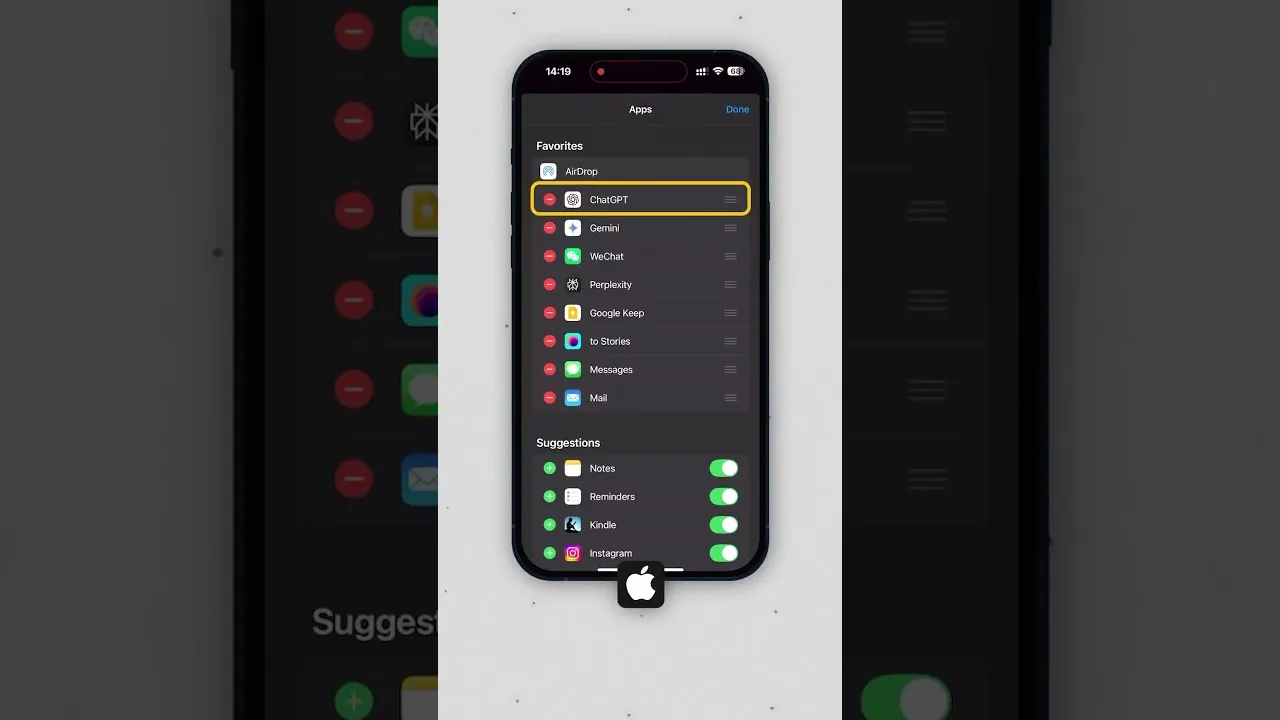
- Toggle on your AI app: Scroll through the list of available apps. Locate your desired AI application (e.g., ChatGPT). Tap the green ‘+’ icon next to its name to toggle it on and add it to your share sheet. You can add multiple AI apps if you wish.
- Prioritize your AI app: Once toggled on, you can reorder the apps. To make your AI app easily accessible, drag it towards the top of the list. A common and effective practice is to place it near ‘AirDrop’ for quick access. Look for the three horizontal lines (a handle) next to the app name to drag and reposition it.
- Save your changes: After arranging your apps, tap ‘Done’ in the top right corner to save your customized share sheet.
For Android Users: Pinning AI Apps to the Top
Android offers an even more streamlined method to ensure your AI apps are readily available. By long-pressing your AI app within the share sheet, you can pin it to the top of the system’s share panel.
- Open any file or content: Similar to the iPhone process, start by opening any item that you can share. This could be a webpage in Chrome, a document in Google Drive, or a photo in your gallery.
- Tap the Share button: Initiate the sharing process by tapping the share icon. This will reveal the Android share sheet.
- Locate your AI app: Look for your installed AI application within the share sheet. It might appear in the top row of suggested apps or further down the list.
- Long-press and pin: Once you find your AI app, press and hold its icon. A context menu or prompt should appear, offering you the option to pin the app. Select the option to pin it to the top of the share sheet.
Expert Tip: Strategic Placement
For both iPhone and Android, consider what content you most frequently want to send to your AI. If you often share web articles, placing your AI app near the top ensures you can grab that link and send it off without scrolling. Experiment with the order to find what feels most intuitive for your workflow.
Warning: App Availability
Ensure that the AI application you wish to use is compatible with your device’s sharing features. Some very new or specialized AI tools might not yet integrate seamlessly with the native share sheets.
Conclusion
By taking just a few moments to customize your mobile device’s share sheet, you can transform how you interact with AI. No longer will AI feel like an isolated tool; instead, it becomes an integrated assistant, ready to process information from any app with a single tap or long-press. This simple optimization saves time and encourages more frequent and efficient use of your AI applications, making your mobile experience smarter and more productive.
Source: The 30-second fix for #AI on mobile (YouTube)