Transform Your Progress Bars with Smart Gradient Sizing
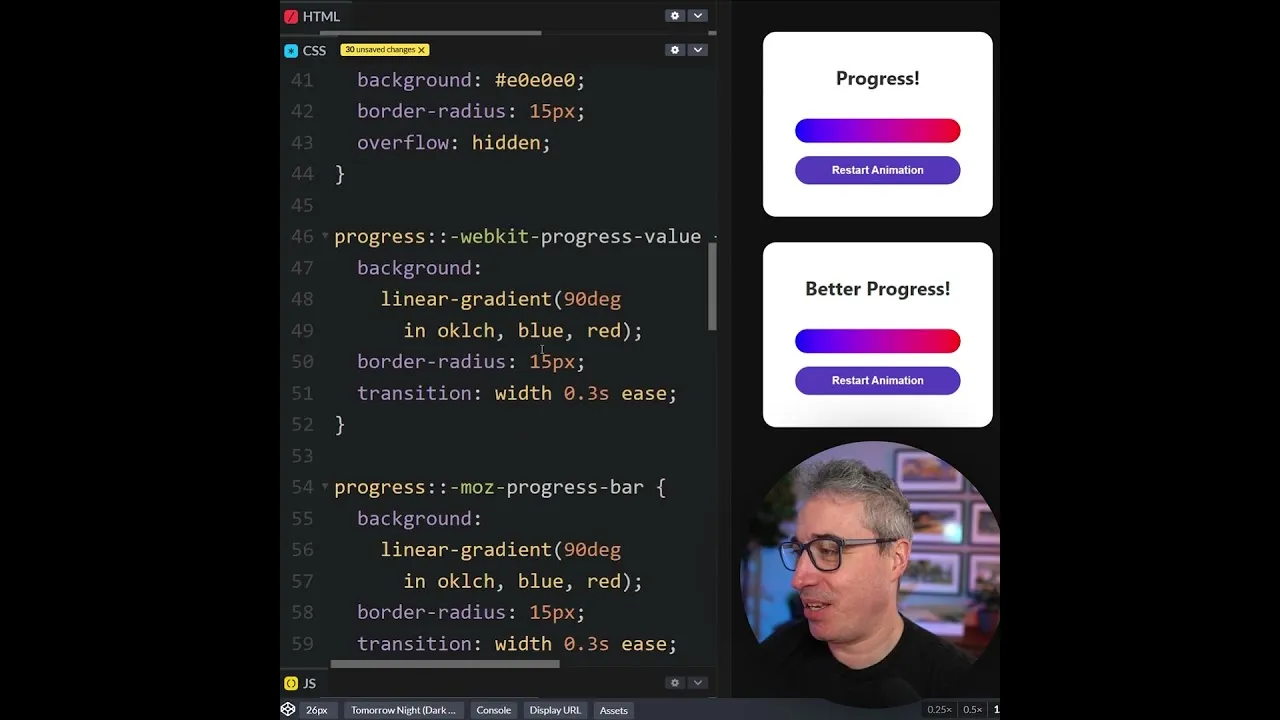
Progress bars are a common UI element, but applying gradients to them can often lead to less-than-ideal results. By default, gradients can appear squashed and distorted at the beginning of a progress bar, only looking better as the bar fills up. Fortunately, there’s a simple CSS trick using the `cqb` unit that can dramatically improve the appearance of your gradients, making them look consistent and professional throughout the entire progress bar. This tutorial will guide you through the straightforward process of implementing this solution.
What You’ll Learn
In this article, you will learn how to:
- Apply gradients to progress bars effectively.
- Understand why default gradient application can fail.
- Use the `cqb` CSS unit to control background size.
- Achieve a polished and consistent gradient look on your progress bars.
Prerequisites
- Basic understanding of HTML and CSS.
- Familiarity with styling elements like progress bars.
Step-by-Step Guide to Perfect Progress Bar Gradients
Identify Your Progress Bar Element
First, locate the HTML element representing your progress bar. This is typically a
<progress>tag. You’ll need to apply CSS styles directly to this element.Set the Progress Bar as an Inline Size Container
To prepare the element for background sizing, you need to ensure it behaves as a container with an inline size. Apply the following CSS property to your progress bar element:
container-type: inline-size;This property allows the element to be sized based on its inline (horizontal) dimension, which is crucial for controlling the background size relative to the element’s width.
Apply the Gradient Background
Next, you’ll define the gradient you want to use for your progress bar. This is usually done with the
background-imageproperty. For this example, let’s assume you have a gradient defined. The key is how you size this background.Set the Background Size Using the CQI Unit
This is the core of the solution. Instead of using fixed pixel values or percentages that might not adapt well, we will use the
cqb(container query inline) unit. This unit refers to the inline size of the container. By setting thebackground-sizeto100cqb, you are telling the browser to make the background gradient’s width exactly match the width of its containing element.Apply this to your progress bar’s CSS, ensuring it covers different browser vendor prefixes if necessary:
.your-progress-bar {
  container-type: inline-size;
  background-image: linear-gradient(to right, red, yellow); /* Example gradient */
  background-size: 100cqb;
  /* Ensure background is visible and covers the element */
  background-repeat: no-repeat;
}

/* For older browser compatibility if needed, though cqb is becoming widely supported */
/* You might need fallbacks or alternative methods for very old browsers */
Explanation: The
background-size: 100cqb;ensures that the gradient spans the entire width of the progress bar. As the progress bar fills, the gradient scales proportionally with it, avoiding the squashed effect at the start and maintaining a smooth, continuous appearance.Test and Refine
Apply your styles and test the progress bar, especially with animations or dynamic updates. You should observe that the gradient now starts smoothly and progresses evenly across the bar, regardless of its current fill level.
Expert Tips and Considerations
Understanding CQI Units
cqb units are part of Container Queries, a powerful CSS feature that allows elements to respond to the size of their parent container, not just the viewport. Using 100cqb means the background’s inline size will always be 100% of the progress bar’s inline size. This is more robust than percentages in certain complex layout scenarios.
Browser Support
The cqb unit is relatively modern. While support is good in current versions of major browsers (Chrome, Firefox, Safari, Edge), always check caniuse.com for the latest compatibility information. For projects requiring support for older browsers, you may need to implement fallbacks, such as using percentage-based background sizing or a simpler, non-gradient fill.
Gradient Direction
Ensure your gradient direction (e.g., to right, to bottom right) is appropriate for the visual aesthetic you are trying to achieve. The 100cqb sizing works independently of the gradient’s direction.
Accessibility
When designing with gradients on progress indicators, ensure sufficient color contrast between the gradient’s colors and the background, as well as between the gradient itself and any text or icons overlaid on it. This is crucial for users with visual impairments.
Conclusion
By leveraging the container-type: inline-size; property and sizing your background gradients with 100cqb, you can easily overcome the common issue of distorted gradients on progress bars. This simple CSS adjustment results in a much more polished and professional user interface. Experiment with different gradients and styles to enhance your web applications further.
Source: cqi to the rescue (YouTube)