Learn the Fundamentals of Git for Code Version Control
Git is an essential tool for any developer, allowing you to track changes in your codebase, revert to previous versions, and collaborate effectively with others. Think of it like having save points in a video game, but for your code. In this guide, we’ll cover the fundamental Git commands that will get you started with version control in under a minute.
What You’ll Learn:
- How to initialize a new Git repository.
- How to stage and commit your code changes.
- How to push changes to a remote repository like GitHub.
- How to pull the latest changes from a remote repository.
- How to create, merge, and manage branches for parallel development.
Prerequisites
- A basic understanding of your computer’s command line or terminal.
- Git installed on your system. (If not, you can download it from git-scm.com).
- A project folder you want to track.
Getting Started with Git: Step-by-Step
Initialize a New Repository:
git initThe first step to using Git is to initialize a repository in your project folder. This command tells Git to start tracking changes in this specific directory. You only need to run this command once per project.
Instructions: Navigate to your project’s root directory using your terminal and type:
git initYou’ll see a message confirming that a new, empty Git repository has been initialized.
Stage Your Changes:
git addBefore you can save a snapshot of your code, you need to tell Git which files have changed and that you want to include them in the next save point. This is called staging.
Instructions: To stage all changes in your current directory, use:
git add .The dot (
.) is a shorthand for staging all modified and new files in the current directory and its subdirectories. You can also stage specific files by replacing the dot with the file name (e.g.,git add index.html).Expert Tip: Use
git statusfrequently to see which files are modified, staged, or untracked.Commit Your Changes:
git commitCommitting saves a snapshot of your staged changes to the repository’s history. Each commit should represent a logical unit of work.
Instructions: After staging your changes, run:
git commit -m "Your descriptive message here"It is crucial to write a clear and concise message describing what changes were made. This will help you and others understand the project’s history later.
Example:
git commit -m "Add user authentication form"Push to a Remote Repository:
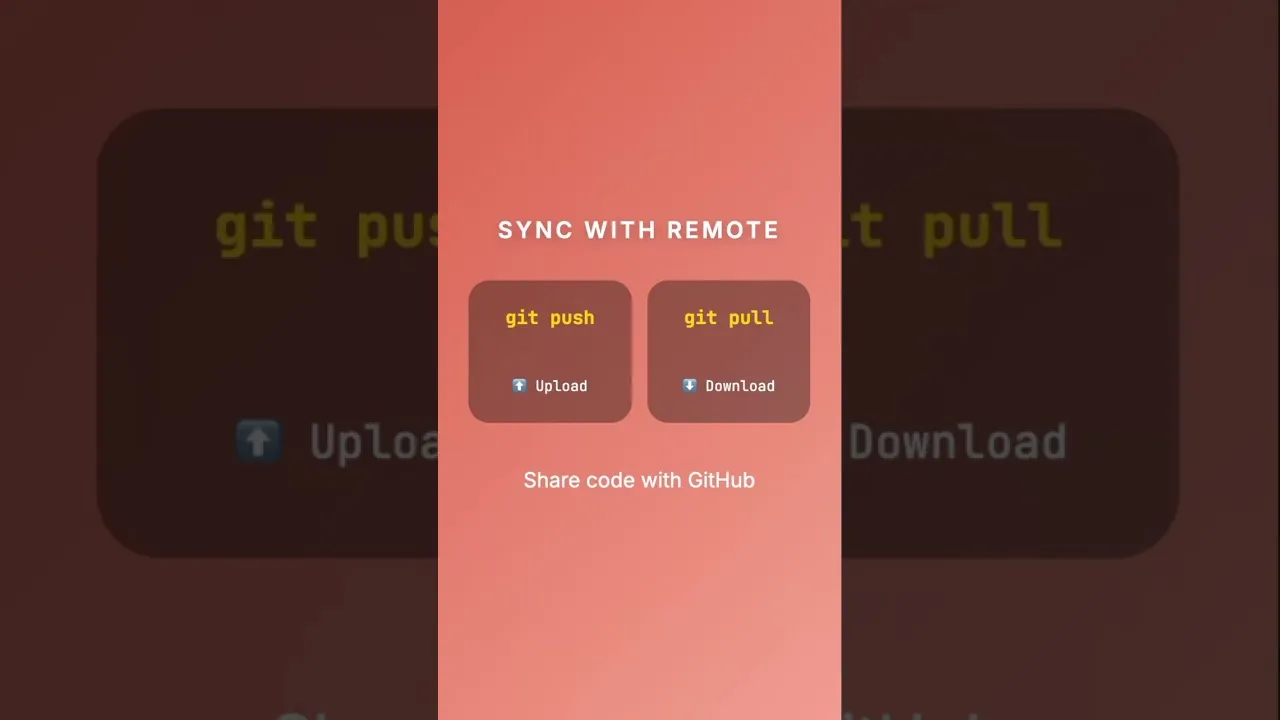
git pushgit pushis used to upload your local commits to a remote repository, such as one hosted on GitHub, GitLab, or Bitbucket. This is essential for backing up your work and collaborating with others.Instructions: Assuming you have a remote repository set up (e.g., named ‘origin’), you’ll typically run:
git push origin main(ormaster, depending on your branch name)Note: You need to have linked your local repository to a remote repository first for this command to work.
Pull from a Remote Repository:
git pullgit pulldownloads the latest changes from a remote repository and merges them into your current local branch. This is how you stay up-to-date with work done by others.Instructions: To fetch and merge changes from the ‘origin’ remote’s ‘main’ branch into your current branch:
git pull origin mainWarning: If you have local changes that conflict with the incoming changes, Git might prompt you to resolve merge conflicts.
Create a New Branch:
git branchBranches allow you to diverge from the main line of development and continue to do the new work without messing with the main line. This is great for experimenting with new features or fixing bugs without affecting the stable code.
Instructions: To create a new branch named ‘new-feature’:
git branch new-featureAfter creating a branch, you need to switch to it to start working:
git checkout new-featureExpert Tip: Many developers use the command
git checkout -b new-feature, which creates the branch and switches to it in one step.Merge Branches:
git mergeOnce you’ve completed your work on a separate branch and are happy with the changes, you’ll want to integrate them back into your main branch (e.g.,
mainormaster).Instructions: First, switch back to the branch you want to merge into (usually the main branch):
git checkout mainThen, merge the other branch into it:
git merge new-featureGit will attempt to automatically combine the changes. If there are conflicts, you’ll need to resolve them manually.
Conclusion
You’ve now learned the core Git commands: init, add, commit, push, pull, branch, and merge. These commands form the foundation of version control and will significantly improve your development workflow. Start using them today to track your code!
Source: Learn the basics of Git in 60 seconds with Beau Carnes (YouTube)