How to Use New Text Features in p5.js
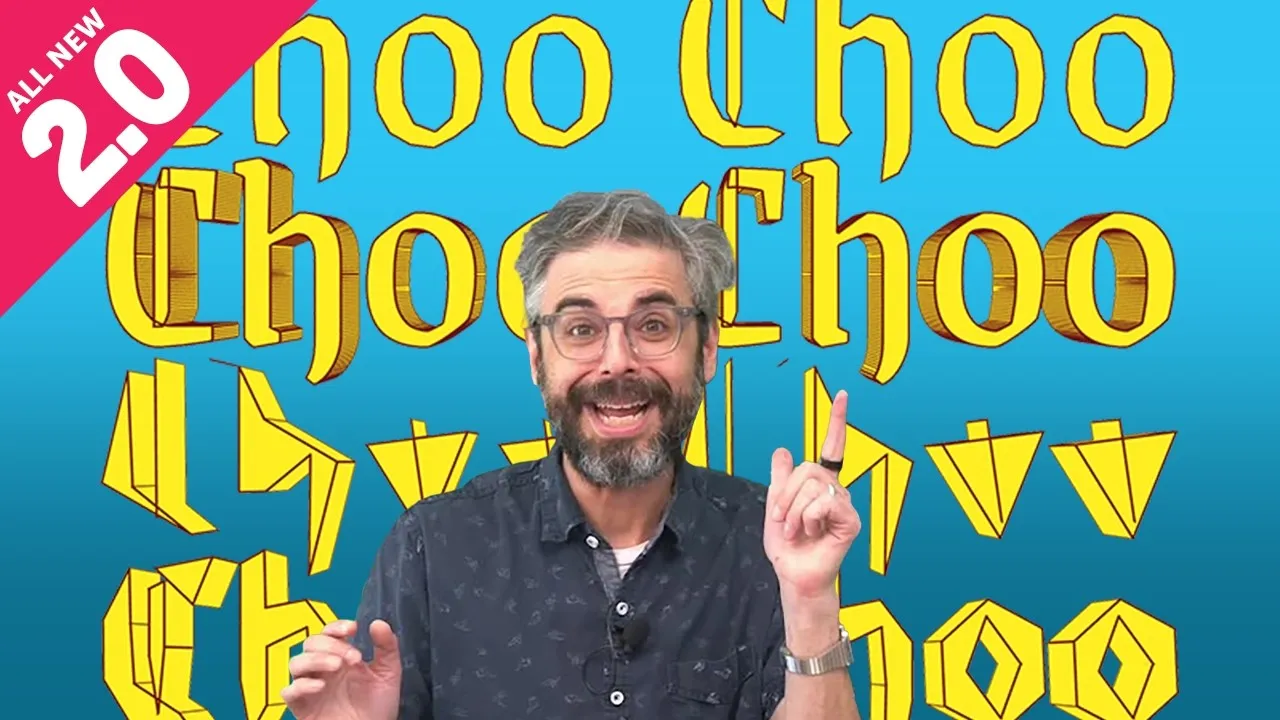
This guide will show you how to use some exciting new features in p5.js version 2.0 for drawing text. You’ll learn how to load fonts from the web, control font weight dynamically, break text down into its outline points, and even turn text into a 3D model. These tools can help you create more dynamic and visually interesting text in your projects.
Prerequisites
- Basic knowledge of JavaScript and p5.js
- A p5.js sketch set up (version 2.0 or later recommended)
- Understanding of asynchronous JavaScript (like
asyncandawait) is helpful but not strictly required as examples are provided.
Step 1: Load Custom Fonts
You can use fonts installed on your computer, but to access a wider variety, you can load fonts from online sources like Google Fonts. First, find a font on Google Fonts, like ‘Roboto’. Click ‘Get font’ and then ‘Get embed code’. You’ll find a URL for the font file.
In p5.js 2.0, loading fonts is simpler using async and await. You’ll need to declare your setup function with async. Then, use await loadFont('your_font_url') to load the font. Store the result in a variable, for example, let font;. Finally, use textFont(font) to apply it to your text.
let font;

async function setup() {
  createCanvas(400, 400);
  font = await loadFont('YOUR_FONT_URL_HERE'); // Replace with actual URL
  textFont(font);
  textSize(32);
}

function draw() {
  background(220);
  text('Hello World', 100, 200);
}
Expert Tip: If you encounter an ‘unsupported open type signature’ error, make sure your p5.js sketch is updated to version 2.0 or later. Older versions might not support the newer font loading methods.
Step 2: Explore Variable Fonts and Text Weight
Some fonts, called ‘variable fonts’, allow you to control more than just basic styles like bold or italic. You can adjust properties like weight on a scale. On Google Fonts, look for fonts tagged with ‘Variable’.
When you load a variable font, its URL often includes a range for its properties, like weight=100..900. This means you can set the font’s weight to any number between 100 and 900.
You can use the textWeight() function to control this. You can set it to a specific number, like textWeight(100) for the lightest or textWeight(900) for the boldest. You can also map this to user input, like the mouse position, to create dynamic visual effects.
let font;

async function setup() {
  createCanvas(400, 400);
  font = await loadFont('YOUR_VARIABLE_FONT_URL_HERE'); // Use a variable font URL
  textFont(font);
  textSize(50);
}

function draw() {
  background(200, 200, 200);
  let weight = map(mouseX, 0, width, 100, 900);
  textWeight(weight);
  text('Variable', 50, 200);
}
Expert Tip: You can also animate the text weight using mathematical functions like sine waves. By changing an angle over time and using sin(angle) to determine the weight, the text can appear to expand and contract smoothly.
Step 3: Get Text Contours with textToContours()
The textToContours() function lets you get the outline points of a text string. This is useful for creating effects where shapes or agents follow the path of letters.
In p5.js 2.0, textToContours() replaces the older textToPoints() for this purpose. It returns an array of arrays, where each inner array contains points that make up the contour of a letter. Each point has x, y coordinates and an angle property indicating the direction of the path at that point.
Important Note: For textToContours() to work reliably, you might need to use a font format that p5.js supports directly, like TTF or OTF, rather than WOFF2, which is common for web fonts. You may need to download the font in a different format. Also, it seems to work best with non-variable versions of fonts.
Here’s how to use it:
let font;
let allPoints = [];

async function setup() {
  createCanvas(400, 400);
  font = await loadFont('YOUR_FONT_URL_FOR_CONTOURS.ttf'); // Use TTF/OTF

  let textString = 'CHO'; // Example text
  allPoints = await font.textToContours(textString, 0, 0, 32);

  // The result is an array of arrays of points.
  // We can process this further in the draw loop.
}

function draw() {
  background(220);
  translate(100, 250);
  strokeWeight(1);

  for (let i = 0; i < allPoints.length; i++) {
    let contour = allPoints[i];
    beginShape();
    for (let j = 0; j < contour.length; j++) {
      let point = contour[j];
      // The 'angle' property is available here for advanced use
      vertex(point.x, point.y);
    }
    endShape(CLOSE);
  }
}
Options: You can pass an optional options object to textToContours(). This includes sampleFactor and simplifyThreshold. sampleFactor controls how many points are generated along the path; a higher value means more points. simplifyThreshold can remove redundant points along straight sections of the path.
Expert Tip: The angle property from textToContours() is very powerful. You can use it to orient shapes drawn at each point along the contour, creating effects like ribbons or brushes that follow the letter’s curves.
Step 4: Create 3D Text Models with textToModel()
The textToModel() function allows you to convert text into a 3D geometry that you can manipulate in a 3D environment.
To use this, you must enable the WebGL renderer in your createCanvas call: createCanvas(width, height, WEBGL). When using WebGL, the coordinate (0,0) is at the center of the canvas.
Call font.textToModel('Your Text', x, y, options). This creates a model you can then draw using model(yourTextModel).
Options:
extrude: Adds depth to the text, making it a 3D object rather than a flat plane.sampleFactor: Similar totextToContours, this affects the level of detail in the 3D geometry.
let font;
let textModel;

async function setup() {
  createCanvas(600, 400, WEBGL);
  font = await loadFont('YOUR_FONT_URL.ttf');

  // Create the 3D text model with extrusion
  textModel = font.textToModel('3D Text', 0, 0, {
    extrude: 20, // Add depth
    sampleFactor: 0.1
  });
}

function draw() {
  background(50);
  orbitControl(); // Allows mouse interaction to rotate the view

  // Set fill and stroke for the 3D model
  fill(200, 50, 50);
  stroke(255);
  strokeWeight(1);

  // Draw the 3D text model
  model(textModel);
}
Expert Tip: Once you have text as a 3D model, you can apply all standard 3D transformations (translate, rotate, scale) and lighting effects available in WebGL. This opens up a vast range of possibilities for creative text visualization.
Conclusion
With p5.js 2.0, you now have powerful new ways to work with text. You can easily load custom fonts, fine-tune their weight, extract the intricate paths of letterforms, and bring your text to life in three dimensions. Experiment with these features to add unique and dynamic text elements to your creative coding projects!
Source: What the font?!?! (YouTube)