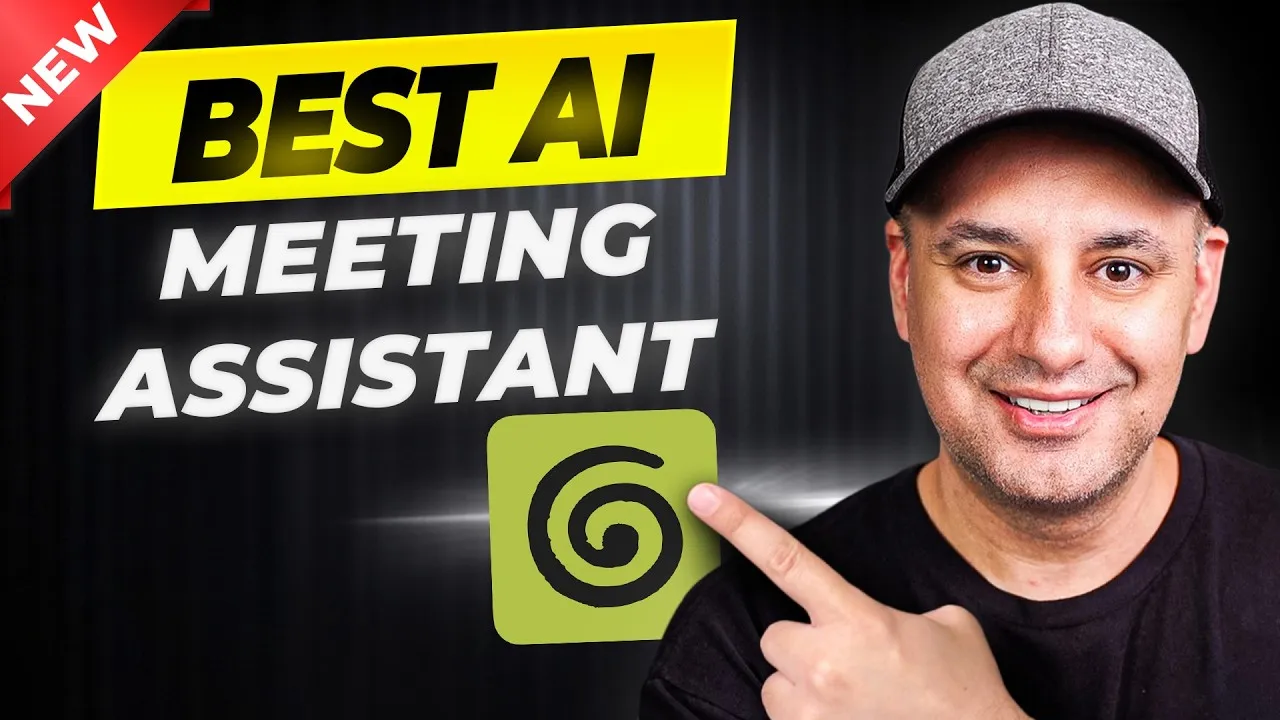
How to Use Granola AI for Smarter Meeting Notes
Virtual meetings are a part of our daily lives now. Have you ever noticed those strange AI bots joining your calls with random names, taking notes? It can feel a bit odd. But what if there was a better way? Granola AI offers a different approach. This tool works quietly in the background, without needing to join your meetings. It transcribes your calls, creates smart notes, and helps you recall important details. This guide will show you how to set up and use Granola AI to make your meetings more productive.
What You’ll Learn
You’ll discover how to install Granola AI and connect it to your calendar. We’ll cover how it works during your meetings, even though it stays hidden. You’ll also learn how to access and enhance your meeting notes using AI, create to-do lists, and even connect Granola to your favorite chatbots like ChatGPT or Claude for advanced features. Finally, we’ll explore how to share your notes and organize them using templates.
Prerequisites
- A computer (Windows or Mac)
- Internet connection
- A calendar account (Google Calendar, Outlook Calendar, etc.)
- Optional: A ChatGPT or Claude account for advanced integration
Step-by-Step Guide to Using Granola AI
1. Install Granola AI and Connect Your Calendar
First, download Granola AI from the link provided. Once installed, run the application. During the initial setup, Granola AI will ask to connect to your calendar. This allows it to see your upcoming meetings. You can choose which calendars it should monitor. This is helpful if you use multiple calendars for work and personal events. Granola AI will then display your upcoming meetings on its main screen.
Tip: Granola AI places a small icon on your screen that shows you when a meeting is coming up. It will even remind you a minute before it starts.
2. How Granola AI Works During Meetings
Granola AI operates in the background. You don’t need to invite any AI bot to your meeting. When your meeting starts, Granola AI begins transcribing the conversation automatically. If you choose to take your own notes during the meeting, Granola AI can combine them with the transcription later. This blend of your notes and the AI’s transcription creates a more complete record. The app works with all major meeting platforms like Zoom, Google Meet, and Microsoft Teams.
Expert Note: The best part is that Granola AI doesn’t interrupt the meeting by joining as a participant. It simply records and transcribes from the background.
3. Accessing and Enhancing Your Meeting Notes
After your meeting ends, Granola AI processes the recording. It provides AI-enhanced notes that summarize the key points. These notes are well-organized and easy to read. You can see an overview of the topics discussed, important details, and any demos or specific points mentioned. If you took notes yourself, they are also saved and can be viewed alongside the AI-enhanced version. Granola AI can even link specific AI notes back to the exact moment in the transcript where the information was discussed.
Example: If you discussed a new project, the AI notes might summarize the project goals, key decisions, and next steps, pulling this information directly from the conversation.
4. Using the Built-in Chatbot for Follow-Ups
Granola AI includes a built-in chatbot feature. This allows you to ask questions about your meeting content directly. You can ask it to write a follow-up email, create a to-do list based on action items, or even expand on certain points. For instance, you could ask, “Write a follow-up email to the client about the project proposal.” The chatbot will generate a draft based on the meeting’s discussion. You can also ask for specific information, like “What were the exact words used regarding the budget?”
Warning: While you can change the AI model used in the chatbot, sticking to the standard model usually provides excellent results for most users.
5. Leveraging Templates and Recipes for Specific Formats
Granola AI offers templates to format your meeting notes in specific ways. If your meeting fits a common structure, like a one-on-one or a hiring interview, you can apply a relevant template. This reorganizes the AI-enhanced notes to match that format. For example, a hiring template might create sections for candidate qualifications, interview questions, and interviewer feedback. Granola AI also has “recipes” that can perform specific tasks on your notes, such as creating a “Too Long; Didn’t Read” summary or drafting follow-up emails. You can even create your own custom templates to fit your unique meeting types.
Example: Applying a “Product Demo” template might structure the notes to highlight the product features shown, user benefits, and potential customer questions.
6. Sharing Your Meeting Notes
Sharing your notes is straightforward. Granola AI provides options to share your meeting summaries easily. You can invite specific people via email or generate a shareable link. You can control the access level, allowing only invited individuals or anyone with the link to view the notes. This is similar to how you share documents in services like Google Drive.
Tip: For sensitive information, choose to share only with specific individuals via email to maintain privacy.
7. Integrating Granola AI with ChatGPT or Claude (MCP)
For advanced users, Granola AI can connect with popular AI chatbots like ChatGPT and Claude through something called MCP (Meeting Capture Protocol). This integration lets you use your preferred chatbot to access and analyze your Granola AI notes. After setting up the connector in your chatbot account (e.g., Claude), you can ask it questions about your meetings directly. For example, you could ask Claude, “Give me a three-sentence summary of my meeting about cloud computing yesterday.” The chatbot will then access your Granola AI data and provide the summary.
Expert Note: This connection allows you to use the advanced features and contextual understanding of your favorite chatbot with the meeting data captured by Granola AI.
8. Organizing Your Notes with Folders
As you accumulate more meeting notes, organization becomes important. Granola AI allows you to create folders to categorize your content. You can create folders for different projects, clients, or meeting types, such as “YouTube Meetings” or “Hiring.” This makes it much easier to find specific notes later. These folders can also be shared with your team if you are collaborating.
Recommendation: Set up folders for recurring meeting types, like client calls or team syncs, to keep your workspace tidy.
Who Should Use Granola AI?
Granola AI is ideal for anyone who attends many virtual meetings, especially those with back-to-back schedules. It’s beneficial for client work, sales calls, hiring processes, strategy sessions, content planning, and customer research. If you need to stay engaged during conversations without the distraction of manual note-taking, Granola AI is a great solution. It ensures you capture all important details and can easily refer back to them later using AI-powered summaries and chatbot interactions.
Source: The Best AI Meeting Assistant I’ve Tried | Granola AI (YouTube)