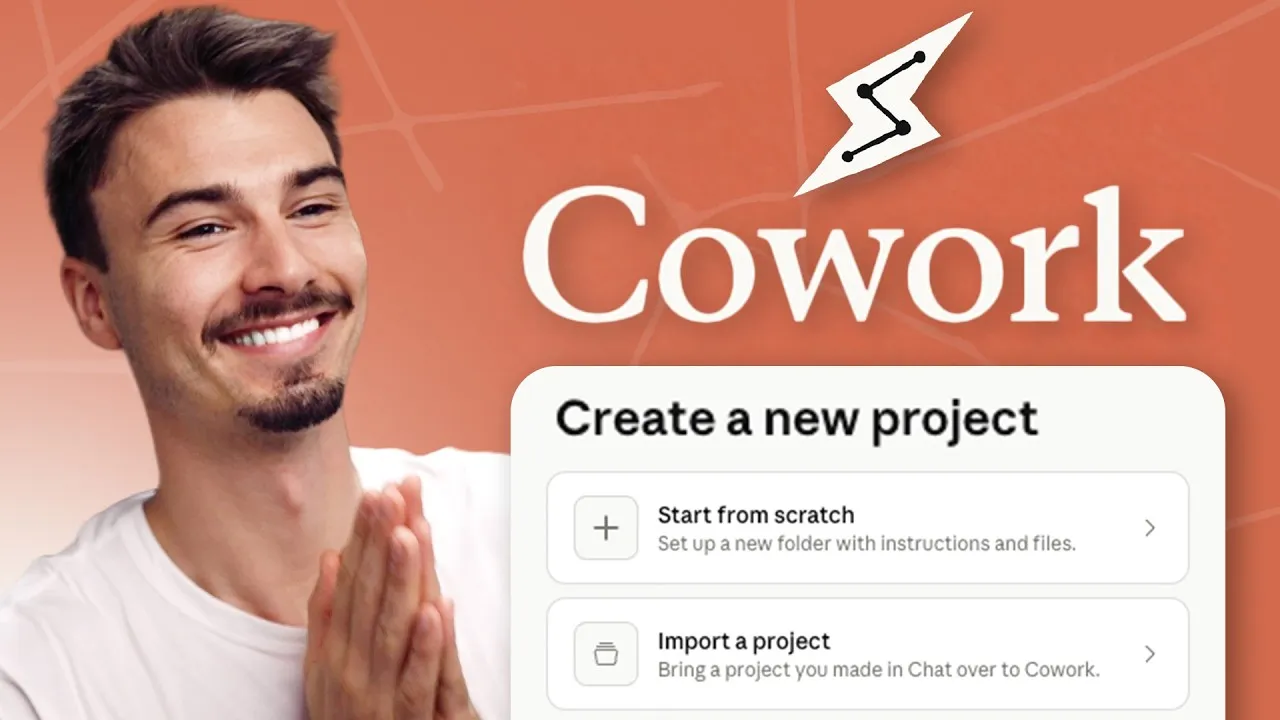
Master Your AI Workflow with Claude Co-work Projects
Imagine having a smart assistant that works for you even when you’re away from your computer. The new Projects feature in Claude Co-work makes this a reality. It helps you organize all the different tasks you give to AI. If you’re not yet using AI agents that can perform actions, now is the perfect time to start. These agents are becoming very powerful, and Projects lets you manage the potential chaos. This guide will show you how to use Projects and why they are essential for anyone using Co-work.
What You Will Learn
In this article, you will learn how to set up and use Projects in Claude Co-work to organize your AI tasks. We will cover creating new projects, importing existing ones, and how Projects help manage context for different areas of your life. You’ll also see a practical example of how Projects can automate tasks like creating personalized news briefings.
Prerequisites
- A Claude Pro subscription (around $20/month).
- The Claude Co-work application installed.
- (Optional) The Claude browser extension installed for web control.
Understanding the Power of Projects
Projects in Claude Co-work are similar to those found in tools like ChatGPT or Claude. However, Co-work goes a step further. It can access your computer’s files, control your web browser remotely, and connect to various other tools. Projects add a crucial layer of organization to these advanced capabilities.
The main benefit of Projects is managing context. When you work with AI, giving it the right information is key. Different tasks require different background details. For example, your side hustle has a different context than your main job or your personal errands. Projects allow you to create separate spaces for these different situations. This means you don’t have to re-explain everything each time you switch tasks.
How to Set Up and Use Projects
1. Creating a New Project
To start organizing your AI work, you need to create a project. In the Claude Co-work app, find the ‘Projects’ tab. Click the plus (+) button next to ‘Projects’ to begin.
- You can choose to ‘Start from scratch’. Give your project a name, like ‘AI Education’ or ‘Side Hustle Ideas’.
- Next, you can add specific files that contain the information or context for this project. It’s best to use Markdown (.md) files over PDFs. Markdown files are easier for AI to work with and provide more consistent results.
- Think about the information that will remain relevant over time, like your core values, identity details, or project goals.
2. Importing an Existing Project
If you’ve already set up projects in other AI tools, or if you have a standard setup you use often, you can import it.
- Click the plus (+) button next to ‘Projects’ again.
- Select the ‘Import project’ option.
- Choose the project you want to bring into Co-work. This is a great way to transfer your established workflows.
3. Understanding the Project Structure
When you create a new project, Claude Co-work creates a dedicated folder for it on your computer. This is a big improvement over older systems where everything might have been dumped into one general folder.
- Dedicated Folders: Each project gets its own folder, keeping your files neatly separated.
- Custom Memories: The project folder also stores custom memories specific to that project. This helps the AI learn and remember details relevant only to that particular area of work. Your ‘personal goals’ context is different from your ‘professional goals’ context, and Projects keep them separate.
- Instructions and Tasks: Within the Co-work interface for a project, you’ll find areas for instructions and scheduled tasks. You can set up personal tasks, business tasks, or project-specific tasks, making it easy to compartmentalize your work.
4. Linking with the Chat Interface
Projects in Co-work are linked to your regular chat interface within Claude. This means any context, files, or memories you set up in a Co-work project are also available when you interact with Claude through the standard chat window.
- You can easily switch between your Co-work projects and the main chat interface.
- Information from your Co-work projects, like Markdown files and memories, is dynamically brought over to your chat sessions.
A Practical Use Case: Personalized News Briefings
Let’s see how Projects can automate a useful task. A common use for AI agents is creating personalized news briefings.
- Select Your Project: Go into a project that already has your personal context set up (like a personal or work-related project).
- Run a Common Prompt: In the chat area for that project, ask the AI to ‘Create a personalized news brief for me.’
- AI in Action: Because the project contains information about you and your interests, the AI can use this context. It will also use its web search capabilities and potentially your browser extension to find relevant news.
- Customized Summary: The AI will search for news related to generative AI, global events, or stock changes, depending on what it knows you care about. It then compiles a summary tailored to your interests.
5. Scheduling the Task
Once the AI generates a briefing you like, you can schedule it to run automatically.
- Look for an option to ‘Schedule’ the task, often indicated by an arrow or a schedule icon.
- Choose how often you want the news brief to be generated (e.g., every weekday at 8 a.m.).
- Confirm the schedule. Now, the AI will automatically create your personalized news briefing at the set time.
6. Improving Scheduled Tasks
When you schedule tasks, the AI often refines the underlying prompt to make it more effective. You can review these improved prompts.
- Click on the scheduled task to see the detailed prompt the AI is using.
- You can edit this prompt to add specific sources you prefer or clarify what kind of stories you want. This helps the AI get even better at delivering what you need.
Conclusion
Claude Co-work’s Projects feature makes using AI agents much more user-friendly and organized. By creating separate projects for different aspects of your life, you can manage context effectively and save time. This allows you to focus on getting things done rather than constantly re-explaining yourself to the AI. With features like automated task scheduling and improved prompts, agentic applications are becoming incredibly powerful and easy to use.
Tip: Many users find that using Markdown files to describe their identity, values, and goals within a project provides the best context for the AI.
Expert Note: The ability to compartmentalize information and tasks based on context is crucial for advanced AI workflows. Projects provide this structure, making complex AI interactions manageable.
Source: New Claude Cowork Projects Explained in 9 Minutes (YouTube)