How to Switch from ChatGPT to Claude Without Losing Data
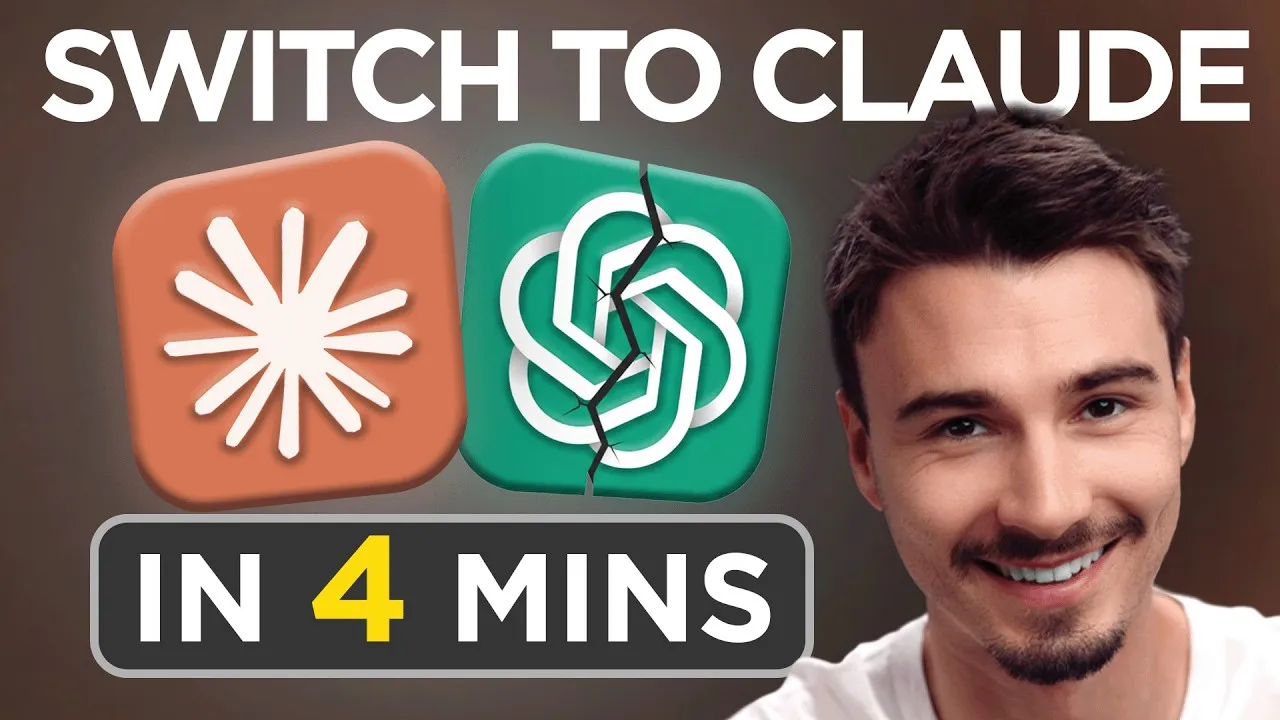
Many users are transitioning from ChatGPT to Claude, whether for its enhanced writing abilities, preferred coding and app generation, or even ideological reasons. Historically, moving your saved data and conversations between these platforms hasn’t been straightforward. However, Claude has introduced a simple, built-in tool to facilitate this migration, allowing you to bring your valuable information over in just a couple of minutes. This guide will walk you through the process, ensuring a seamless experience and preventing any data loss.
What You’ll Learn
This tutorial will cover the step-by-step process of exporting your data from ChatGPT and importing it into Claude. You will learn how to optimize the export process to capture the maximum amount of information, including personal memories and chat history, and how to handle data migration for users who utilize ChatGPT’s ‘Projects’ feature.
Prerequisites
- An active ChatGPT account with saved data (memories, chat history).
- An active Claude.ai account.
- Access to both ChatGPT and Claude.ai through a web browser.
Step-by-Step Migration Guide
Step 1: Initiate the Import Process in Claude
- Log in to your Claude.ai account.
- In the bottom-left corner of the interface, click on your profile picture.
- Navigate to Settings.
- Under the Capabilities tab, locate and click the button that says “Import memory from other AI providers”.
- Click the “Start import” button. You will now see a prompt that needs to be copied. This prompt is designed to extract all saved memories and context from your previous AI provider.
Step 2: Optimize Your ChatGPT Data Export
While simply copying and pasting the provided prompt into ChatGPT might seem intuitive, it often doesn’t capture all the information you might want to transfer. To ensure a more comprehensive export:
- In your ChatGPT account, click on your profile picture.
- Go to the Personalization tab.
- Ensure the following options are enabled:
- Reference saved memories
- Reference browser memories
- Reference chat history
- Now, select a different model. In the model picker, change from “Auto” to “Thinking”. This model is found to be more effective at retrieving a wider range of information.
- Paste the prompt provided by Claude into the ChatGPT chat interface.
- Press Enter to run the prompt. The “Thinking” model will now process your request, attempting to retrieve more comprehensive data about you from your account and previous chats.
Step 3: Copy and Import Data into Claude
Once ChatGPT has processed the prompt and generated the output:
- Locate the code block containing your exported information in ChatGPT.
- In the top-right corner of this code block, click the copy icon.
- Return to your Claude.ai tab.
- Right-click within the Claude chat interface and select Paste to paste the copied information.
- Click the “Add to memory” button.
Claude will now format this information into new memories. These memories are stored within Claude and are even enhanced, as they are cleanly categorized and automatically regenerated nightly based on your new conversations.
Step 4: Review and Refine (Optional)
After the data has been imported:
- Review the newly created memories in Claude.
- If you notice any inaccuracies or wish to make corrections, click the pencil icon next to the memory and input your changes.
- This review and correction step is entirely optional. Once you are satisfied, you can exit this section.
You have now successfully migrated your ChatGPT memories and information to Claude, allowing it to serve as your primary AI assistant.
Step 5: Migrating Data from ChatGPT Projects
If you utilize ChatGPT’s “Projects” feature to organize your chats, files, and instructions, the migration process is slightly different:
- Follow Steps 1 and 2 above to initiate the import in Claude and optimize your ChatGPT export, ensuring you use the “Thinking” model. When exporting from a project in ChatGPT, you will notice significantly more information is retrieved.
- Copy the exported data from ChatGPT as described in Step 3.
- In Claude, navigate to the Projects section.
- Create a new project (e.g., “Work Context”).
- Within your new Claude project, you will need to manually add the imported information. You can do this by:
- Clicking “Add this information to the project memory”.
- Copying and pasting the relevant sections of the exported data into the project’s instructions field.
This manual transfer brings over the core context of your ChatGPT project. Claude’s project-level memories will update over approximately 12 hours, incorporating this information.
Conclusion
By following these steps, you can ensure a smooth and comprehensive transition of your data from ChatGPT to Claude. This allows you to leverage Claude’s capabilities without losing the valuable context and information you’ve built up, enabling a seamless workflow with your preferred AI assistant.
Source: How to Switch from ChatGPT to Claude (Without Losing Anything!) (YouTube)