Make Your Forms Pop with a Simple CSS Trick
Want to add some visual flair to your website’s form elements without a lot of extra work? There’s a simple CSS property that can instantly change the look of checkboxes, radio buttons, sliders, and progress bars. This technique uses the `accent-color` property, which is an inherited style. It lets you set a primary color for these interactive elements, making them match your site’s design. You’ll learn how to apply this one-liner to quickly customize your forms.
What You’ll Learn
This guide will show you how to use the `accent-color` CSS property. You will discover how to change the color of common form controls like checkboxes, radio buttons, range sliders, and progress bars. By the end, you’ll be able to give these elements a custom look with just a single line of CSS.
Prerequisites
- Basic understanding of HTML and CSS.
- A text editor for writing code.
- A web browser to see your changes.
Step-by-Step Guide
Step 1: Identify Your Form Elements
First, you need to know which HTML elements you want to style. Common form elements that `accent-color` affects include:
- Checkboxes (“)
- Radio buttons (“)
- Range sliders (“)
- Progress bars (`
You can target these elements directly in your CSS file or within a style tag in your HTML.
Step 2: Apply the `accent-color` Property
To change the color of these elements, you’ll use the `accent-color` CSS property. This property is inherited, meaning it can be applied to a parent element and will affect its children. You can set it on the `body` tag to affect all form elements on the page, or target specific elements.
For example, to make all your form elements appear with an orange-red color, you would add the following CSS:
input[type="checkbox"],
input[type="radio"],
input[type="range"],
progress {
  accent-color: orangeRed;
}
You can use any valid CSS color name, hex code, RGB value, or HSL value. Choosing a color like `orangeRed` will instantly change the default color of these interactive controls.
Step 3: Observe the Automatic Adjustments
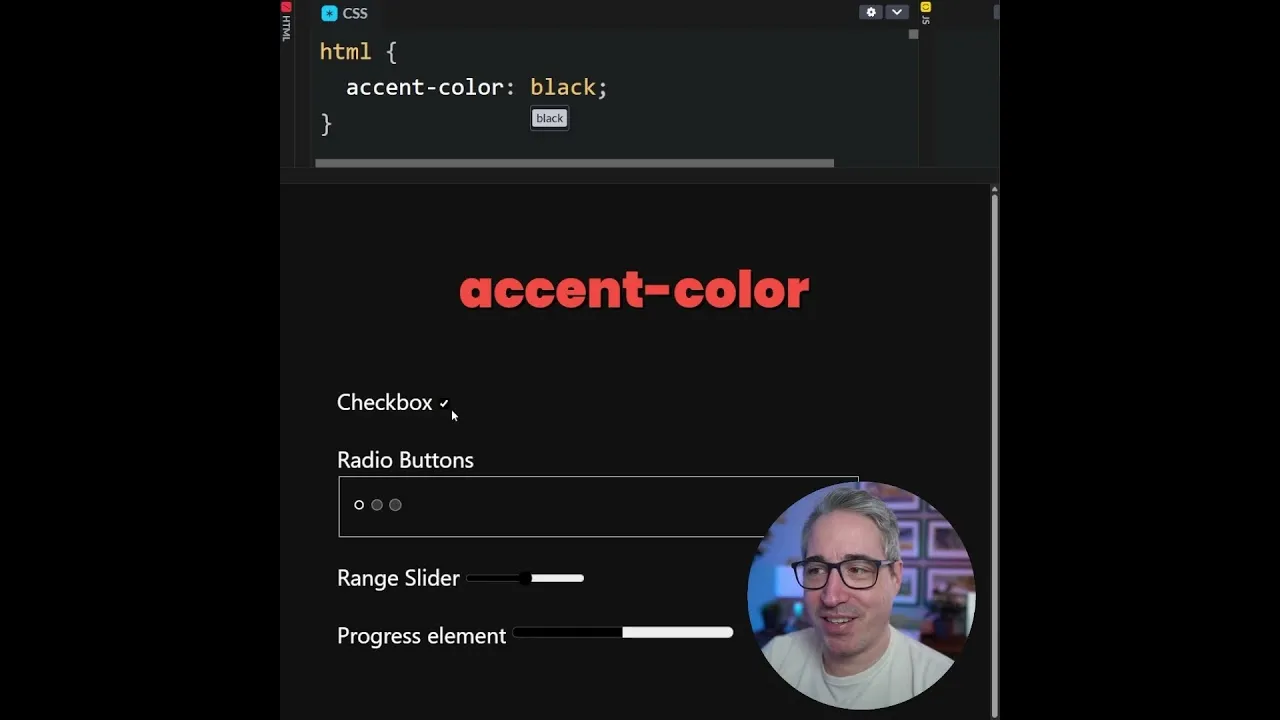
One of the great things about `accent-color` is that it automatically adjusts the contrast for you. When you set a color, the browser will choose appropriate colors for the check marks, handles, or progress indicators. This ensures that your elements remain visible and accessible.
For instance, if you set the `accent-color` to `black`, the browser might render a white check mark on a black checkbox. This automatic contrast adjustment helps maintain usability without extra coding effort. You don’t have to worry about designing custom states for every element.
Step 4: Test Different Colors
Experiment with different colors to see how they affect your form elements. Try using bright colors, muted tones, or colors that match your brand identity. The `accent-color` property provides a quick way to inject personality into your forms.
For example, changing the value to `dodgerBlue` will give your checkboxes and radio buttons a blue tint. Similarly, using a hex code like `#8A2BE2` (BlueViolet) will apply that specific shade. The browser handles the display and ensures the elements still look good.
Expert Tip: Targeting Specific Elements
While applying `accent-color` to all form elements is easy, you might want to style only certain ones. You can use more specific CSS selectors. For example, if you only want to change the color of radio buttons within a specific form, you could use a selector like `#myForm input[type=”radio”]`.
This allows for more granular control over your styling. It’s a good practice for maintaining a consistent design across your entire website. You can ensure that only the elements you intend to change are affected.
Warning: Browser Compatibility
The `accent-color` property is relatively new. While most modern browsers support it, older browsers might not. Always check browser compatibility if you need your website to work perfectly for all users. You can use tools like Can I Use to verify support.
If you need to support older browsers, you might have to consider alternative styling methods or JavaScript solutions. However, for most current web development, `accent-color` is a reliable and efficient choice. It simplifies the process significantly.
Conclusion: Quick and Easy Customization
Using the `accent-color` CSS property is a fantastic shortcut for styling form elements. It requires minimal effort but delivers a noticeable visual improvement. You can quickly match your forms to your website’s overall theme. This saves you time and avoids the complexity of building custom form controls from scratch.
Give it a try on your next project. You’ll be surprised how much difference a single line of CSS can make. It’s a simple yet powerful tool for web designers and developers.
Source: CSS one-liner to improve form elements (YouTube)