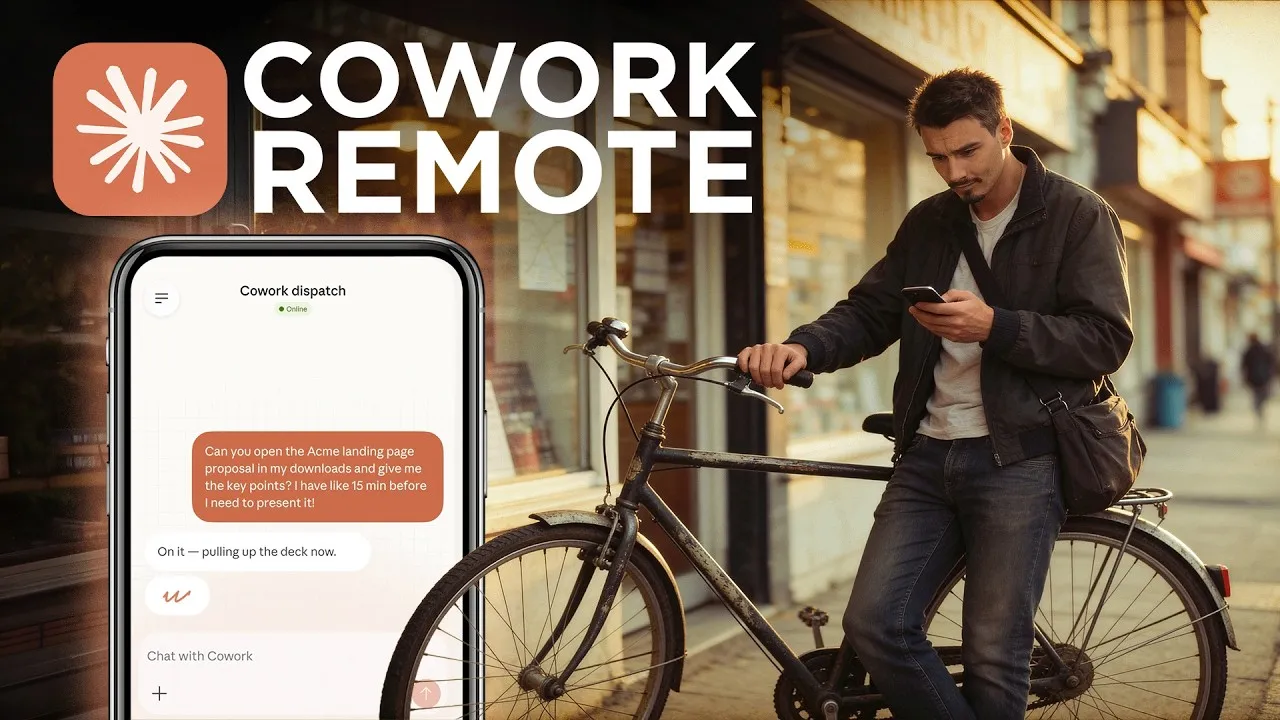
Use Your Phone to Control Your AI Assistant
Imagine telling your computer what to do, even when you’re not sitting in front of it. That’s the future Anthropic is building with its AI assistant, Claude. Recently, they added a powerful new feature called ‘Dispatch’ that lets you control Claude from your phone, just like a walkie-talkie. This makes Claude feel more like a personal agent that can get things done for you, no matter where you are. This article will guide you through setting up and using this exciting new feature.
What You’ll Learn
You’ll learn how to connect your phone to your Claude desktop app, send commands to your AI assistant remotely, and understand the benefits of having a truly accessible AI agent. We’ll also touch on how this feature makes Claude more user-friendly and secure.
Prerequisites
- A computer running Claude desktop app.
- A smartphone (iOS or Android).
- The latest versions of both the Claude desktop app and the Claude mobile app installed on your devices.
- Your computer needs to be powered on and running for remote control to work.
Step-by-Step Guide
Update Your Apps
First, make sure you have the latest versions of both the Claude desktop application and the Claude mobile app. You can usually find updates in your device’s app store or through the application’s built-in update checker. This is crucial because the ‘Dispatch’ feature is new and requires updated software on both your computer and phone.
Enable Remote Control
Open the Claude desktop app on your computer. Look for a new tab or section related to remote control or device pairing. Anthropic calls this new feature ‘Dispatch’. You’ll likely see an option to pair your mobile device, often through a QR code.
Pair Your Mobile Device
Open the Claude mobile app on your smartphone. Navigate to the pairing or connection settings within the app. You should find an option to scan a QR code. Point your phone’s camera at the QR code displayed on your computer’s Claude desktop app. This process links your phone to your computer’s Claude instance.
Grant Necessary Permissions
Once paired, Claude on your computer will likely ask for permission to access certain files or folders. For tasks like organizing your desktop, it will need access to your desktop folder. You might also need to grant access to your documents folder. Review these requests carefully and grant access only to the areas you are comfortable with the AI managing. You can often choose to grant access just once or allow it persistently.
Send Your First Command
Now that your devices are connected, you can start sending commands. Open the Claude mobile app and find the interface for sending commands. Try a simple task, like “Organize my desktop.” You’ll see the command appear on your computer screen, and Claude will begin working on it. This is similar to using a walkie-talkie, where you speak into your phone, and the action happens on your computer.
Manage Tasks Remotely
The ‘Dispatch’ feature allows you to manage tasks remotely. If Claude needs confirmation, like asking for permission to move files, it will prompt you through the mobile app. You can approve or deny these requests directly from your phone. This gives you control over your AI assistant’s actions, even when you’re away from your computer.
Explore Scheduling Features
Claude Co-work, the platform hosting this feature, also includes scheduling capabilities. After your AI assistant completes a task, you can schedule it to repeat. Look for a ‘schedule’ tab within the Claude Co-work interface. This means you can set up recurring tasks, like generating a weekly report, and have Claude handle them automatically without needing new commands each time.
Tips and Warnings
- Keep Your Computer On: For remote control to work, your computer must be powered on and running the Claude desktop app.
- Backup Your Data: Before giving Claude access to sensitive folders like your desktop or documents, it’s wise to back up your important files. While AI is powerful, mistakes can happen.
- Be Mindful of Permissions: Grant file access cautiously. You can often limit Claude’s access to specific folders to enhance security. Consider giving it access only to a dedicated folder for AI tasks.
- Understand the ‘Agent’ Concept: Claude Co-work is evolving into a personal agent. It aims to perform tasks for you, but it’s still important to review its actions, especially when dealing with important files or data.
- Consumer-Friendly Approach: Anthropic’s goal with features like ‘Dispatch’ is to make advanced AI accessible to everyone. Unlike some other AI agents that require complex setup, this aims for a simple, intuitive experience.
The Bigger Picture: AI Agents
The development of features like ‘Dispatch’ shows a clear trend: making AI assistants more like personal agents. These agents don’t just help you with tasks; they aim to complete them for you. While some other companies are also building similar AI agents, Anthropic’s approach with Claude Co-work is noted for being more secure and user-friendly. It avoids the need for a separate, dedicated machine, making it a more practical option for many users. This move towards accessible AI agents is still in its early stages, but features like remote control are a significant step forward for everyday usability.
Source: Anthropic Made a Safer OpenClaw & More AI News You Can Use (YouTube)