Build AI Coding Workflows with Claude Code
This guide will show you how to use Claude Code to create powerful, automated coding workflows. You’ll learn about the core concepts behind agentic tools, how to set up and use the Claude Code command-line interface (CLI), and explore various advanced features. We will cover everything from installing the tool to managing sessions, configuring settings, and integrating with your development environment.
Prerequisites
- A basic understanding of coding concepts.
- Access to a terminal or command prompt.
- An API key for a supported AI model provider (e.g., Anthropic, OpenAI, Google Cloud).
Understanding Agentic Coding Tools
Agentic coding tools are programs that use AI models to help developers with coding tasks. Unlike simple code completion tools, these agents can understand context, make decisions, and perform complex actions. Claude Code is a prime example, designed to build sophisticated, automated coding workflows.
What is Claude Code?
Claude Code is a tool that lets you build ‘agentic’ coding workflows. Think of it like having an AI coding assistant that can do more than just suggest code. It can understand your project, run code, and even manage complex tasks. It works by using AI models to understand instructions and then execute them.
The Agentic Loop
The core idea behind agentic tools is the ‘agentic loop.’ This is a cycle where the AI model, Claude Code, and any tools it uses work together. The model receives input, decides what action to take (like running a command or calling another tool), executes that action, and then uses the result to decide the next step. This loop repeats until the task is finished.
Setting Up Claude Code CLI
The Claude Code Command Line Interface (CLI) is your main way to interact with the tool. You’ll use it to start sessions, run commands, and configure settings.
System Requirements
Before installing, ensure your system meets the requirements. The Doctor CLI tool can help check this. It’s a utility that verifies if your environment is ready for Claude Code.
Installing the CLI
The installation process varies slightly depending on your operating system. You can install it on Windows using PowerShell or Command Prompt, or on Linux. The process generally involves downloading and running an installer script.
- Open your terminal: Use PowerShell or Command Prompt on Windows, or your preferred terminal on Linux.
- Run the install command: Follow the specific instructions for your OS. This usually involves a single command to download and execute the installer. For example, it might look like
curl ... | bashor a similar command. - Verify installation: After installation, type
claude --versionto confirm it’s installed correctly.
API Key Setup
To use Claude Code, you need to connect it to an AI model. This is done using API keys. You’ll need to get an API key from your chosen AI provider, such as Anthropic, OpenAI, or through cloud platforms like AWS Bedrock, Google Vertex AI, or Azure OpenAI.
- Obtain an API Key: Go to your AI provider’s website and generate an API key.
- Configure Claude Code: Use the
claude auth setupcommand in your terminal. - Enter your key: The CLI will prompt you to paste your API key.
Expert Tip: Keep your API keys secure. Do not share them publicly or commit them to version control systems like Git.
Working with Sessions
Sessions in Claude Code are like active workspaces for your coding tasks. They allow you to manage context and resume work easily.
Starting and Managing Sessions
You can start a new session or work within an existing one. This helps keep your work organized.
- Start a new session: Use the
claude newcommand. - List sessions: Use
claude listto see your active sessions. - Resume a session: Select a session from the list and use a command like
claude resume [session_id]. - Fork a session: Create a new session based on an existing one with
claude fork [session_id]. This is useful for exploring different ideas without altering your main work.
Session Commands
Claude Code offers commands to manage your sessions effectively.
claude compact: Reduces the size of the session’s context.claude clear: Clears the current session’s history.claude rename [new_name]: Renames the current session.claude rewind: Undoes the last action or step in the session.claude status: Shows the current status of your session.claude logout: Logs you out of your current session.
Understanding Claude Modes and Settings
Claude Code has different modes and settings that change how it behaves and what it can do.
Permission Modes
For security, Claude Code has permission modes that control what actions the AI can perform. This prevents the AI from accidentally running harmful commands. You can set these rules for different contexts, like Bash, or when fetching web content.
Editing Settings
You can edit Claude Code’s settings using the CLI or a graphical interface (GUI). This allows you to customize its behavior, such as defining which tools it can use or how it responds to certain prompts.
Sandboxing
Sandboxing is a crucial security feature. It means Claude Code runs potentially risky operations in an isolated environment. This protects your main system from any unintended consequences. Imagine it like running a new app in a virtual ‘sandbox’ on your computer; if it crashes, it won’t harm your main system.
Fast Mode and Image Reasoning
Claude Code can operate in ‘Fast Mode’ for quicker responses. It also supports ‘Image Reasoning,’ allowing it to analyze and understand image content as part of its tasks.
Integrating Claude Code into Your Workflow
Claude Code can be integrated into various parts of your development process.
IDE Integration
You can use Claude Code directly within popular Integrated Development Environments (IDEs) like VS Code and JetBrains IDEs. This brings AI coding assistance right into your editor.
GitHub Actions
Automate your workflows by integrating Claude Code with GitHub Actions. This allows you to trigger coding tasks or reviews as part of your CI/CD pipeline.
Dev Containers
Claude Code works well with Dev Containers. This means you can set up consistent development environments where Claude Code is pre-configured and ready to assist your team.
Advanced Features
Explore some of the more advanced capabilities of Claude Code.
Persistent Context
Claude Code allows you to maintain context across sessions using files like Claude.md or by defining specific rules. This helps the AI remember important information and project details over time.
Agent Skills
You can define ‘Agent Skills’ which are custom actions or scripts that Claude Code can execute. This allows you to extend its capabilities and tailor it to your specific project needs.
Multi-Agent Teams
For complex problems, Claude Code supports ‘Sub-agents’ and ‘Multi-Agent Teams.’ This means you can have multiple AI agents working together, each with a specific role, to tackle larger tasks more effectively.
Code Review
Use Claude Code to automate parts of your code review process. It can help identify potential issues, suggest improvements, and ensure code quality.
By following these steps, you can effectively set up and utilize Claude Code to enhance your coding productivity and build intelligent, automated workflows.
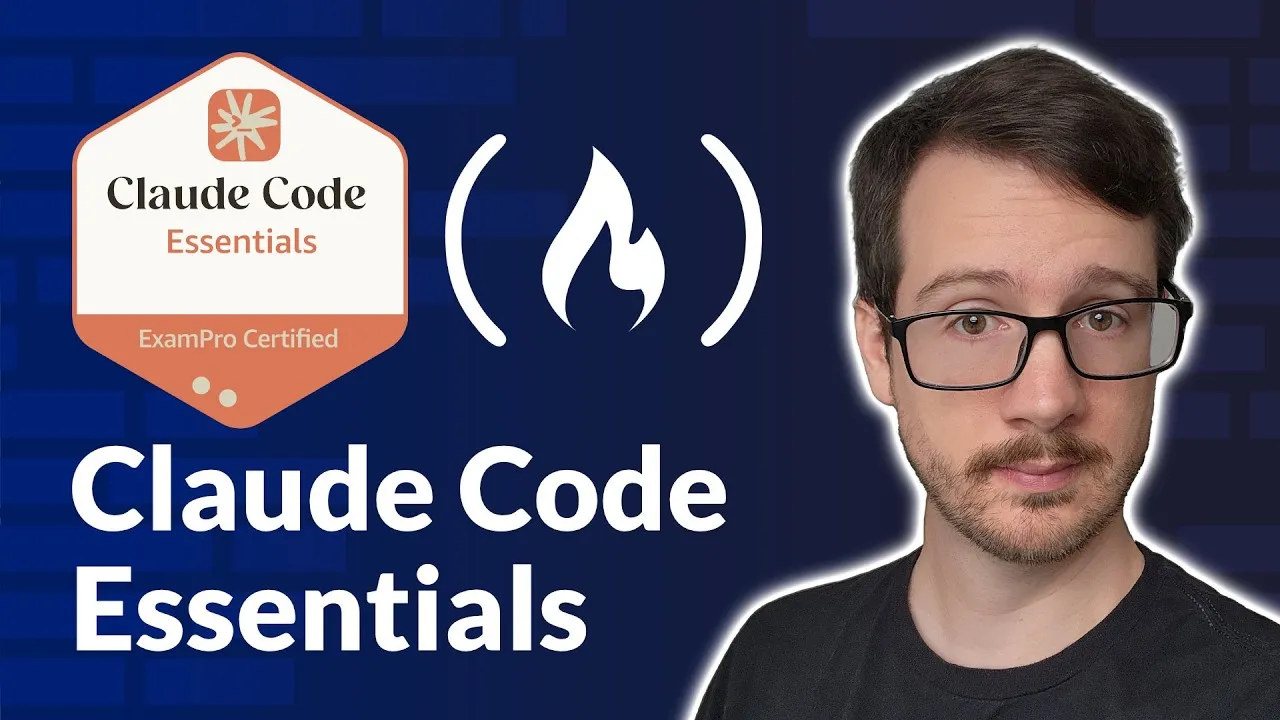
Source: Claude Code Essentials (YouTube)