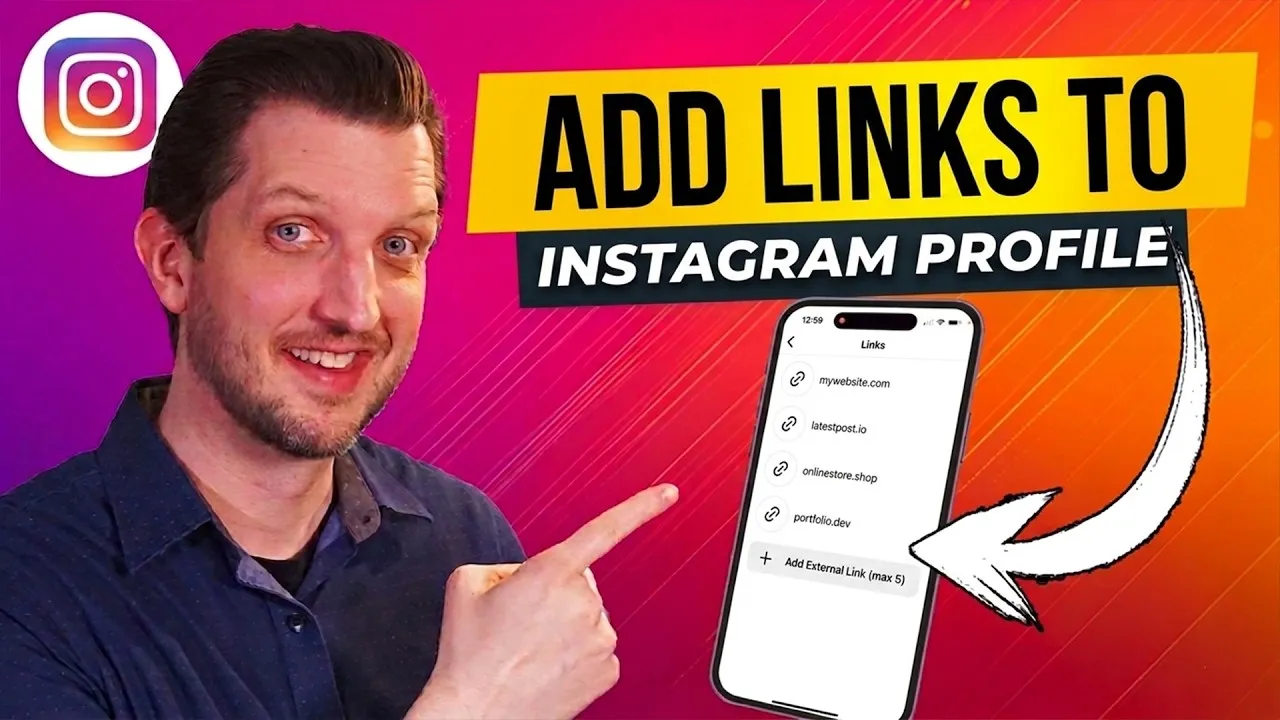
How to Add a Clickable Link to Your Instagram Bio Easily
Want to send your Instagram followers to your website, blog, or favorite online spot? Instagram lets you add a clickable link right in your profile. This guide will show you exactly how to do it, step by step. You’ll learn how to add one or even multiple links so people can easily find more of your content or offers.
What You’ll Learn
This tutorial will walk you through the simple process of adding a clickable URL to your Instagram bio. We’ll cover accessing the right settings, entering your link, and naming it so your followers know where they’re going. By the end, you’ll have a functional link ready for your profile visitors.
Prerequisites
- An Instagram account
- The Instagram app installed on your smartphone
- The URL (web address) you want to add
Steps to Add Your Instagram Bio Link
Open Your Instagram App
First, unlock your phone and open the Instagram application. Make sure you are logged into the account you want to edit. This process is done directly through the mobile app.
Go to Your Profile Page
Once the app is open, look for your profile icon. It’s usually in the bottom right corner of the screen, often showing your profile picture. Tap on this icon to go to your personal profile page.
Tap ‘Edit Profile’
On your profile page, you will see a button that says ‘Edit Profile’. This button is typically located just below your bio text and follower counts. Tap on ‘Edit Profile’ to access the settings for your account information.
Locate the ‘Links’ Section
Inside the ‘Edit Profile’ screen, you’ll see various fields for your bio, name, and other details. Look for a section specifically labeled ‘Links’. This is where Instagram allows you to add external web addresses. It’s usually found below the main bio text area.
Add a New Link
Tap on the ‘Links’ section. You should see an option to ‘Add link’. Tap this button to open a new field where you can input your desired web address. This is where you’ll paste or type the URL you want to share.
Enter Your URL
You will see a box labeled ‘URL’. Carefully paste or type the full web address (like ‘https://www.example.com’) into this box. Double-check that the URL is correct to avoid errors.
Add a Title for Your Link
Below the URL field, there’s usually a place to add a ‘Title’ or ‘Label’. This is the text that will appear next to your link on your profile. Choose a short, clear name that tells people what they will find if they click. For example, if it’s your YouTube channel, you could title it ‘My YouTube’ or simply ‘Channel’.
Save Your Changes
After entering your URL and title, look for a ‘Done’ button, usually in the top right corner of the screen. Tap ‘Done’ to save the link you just added. If you want to add more links, you can repeat steps 5-7. Instagram allows you to add multiple links here.
View Your Updated Profile
Go back to your main profile page by tapping the back arrow. You should now see your website listed prominently. If you added more than one link, you might see an option like ‘more’ or a dropdown menu where your additional links are accessible. Your followers can now tap on these links to visit the sites you’ve shared.
Expert Tip
Using your bio link effectively can significantly boost traffic to your other platforms. Consider using a service like Linktree or a custom landing page on your website if you have many links to share. This keeps your Instagram bio clean while offering multiple destinations for your audience.
Important Note
Instagram’s features can change over time. If you don’t see the ‘Links’ section exactly as described, explore the ‘Edit Profile’ options carefully. The core functionality of adding a URL to your bio should remain consistent.
Source: How to Add a Clickable Link to Instagram Bio (YouTube)