Overview
This guide will teach you the fundamentals of React Native, a powerful tool for building mobile applications. You’ll learn how React Native works, how to set up your development environment using Expo, and how to build a complete nutrition tracking app from scratch. By the end, you’ll have a solid understanding of React Native and Expo, enabling you to create your own mobile apps.
What is React Native?
React Native is a framework that lets you build native mobile apps for both iOS and Android using JavaScript and React. Unlike some other technologies that wrap web apps in a mobile shell, React Native creates truly native applications, offering better performance and a more authentic user experience. The biggest advantage is its single codebase. Instead of writing separate apps in Java or Swift for Android and iOS, you can use one JavaScript codebase for both. This saves time and money, makes collaboration easier, and reduces maintenance effort.
How React Native Works
React Native uses the same core React library you’d use for web development. React itself handles your app’s components, state, and logic. For web apps, React works with React DOM to render HTML. For React Native, it uses different components like View, Text, and Pressable, which then translate into actual native iOS or Android UI elements. Under the hood, React Native has a JavaScript side for your code and a native side for the platform’s UI. They communicate using a system called JSI (JavaScript Interface), ensuring smooth interaction between your JavaScript code and the native components.
Introducing Expo
While you can use the React CLI to build React Native apps, Expo offers a much simpler and more beginner-friendly approach. Expo is a framework built on top of React Native that provides a set of tools and services. It handles much of the complex setup for native development and includes many features out-of-the-box. Think of Expo as a helpful assistant for React Native development. It offers a complete cross-platform development environment, a rich set of APIs for common tasks like camera access or location services, and a file-based navigation system called Expo Router. You can even test your app on your physical device using the Expo Go client app. Expo also provides cloud services (EAS Build) to help you build and submit your apps to the app stores more easily.
Setting Up Your Development Environment
Before you start coding, you’ll need to set up your environment. First, create an account at expo.dev. This is free and allows you to use Expo’s cloud services for building and managing your apps. Once you have an account, you’ll create a new project on the Expo website. The website will provide you with commands to install the EAS CLI (a command-line tool for managing Expo services) and create your project. You’ll use npx create-expo-app@latest --template default@SDK55 to create a new project named macro-zone. After creating the project, navigate into its directory and run eas init to link your local project to your Expo account.
Choosing Your Testing Method
When testing your app, you have a few options. On Windows or Linux, you can use the Android emulator through Android Studio. On a Mac, you can use the iOS simulator via Xcode. You can also run your app in a web browser, though some native features might not work. For testing on a physical device, you can download the Expo Go app. When you run your project using npm start, you’ll see a QR code. Scan this with the Expo Go app on your phone to see your app live. If you’re using SDK 55 on iOS, you might need to use the TestFlight app.
Starting the Macro Tracking App
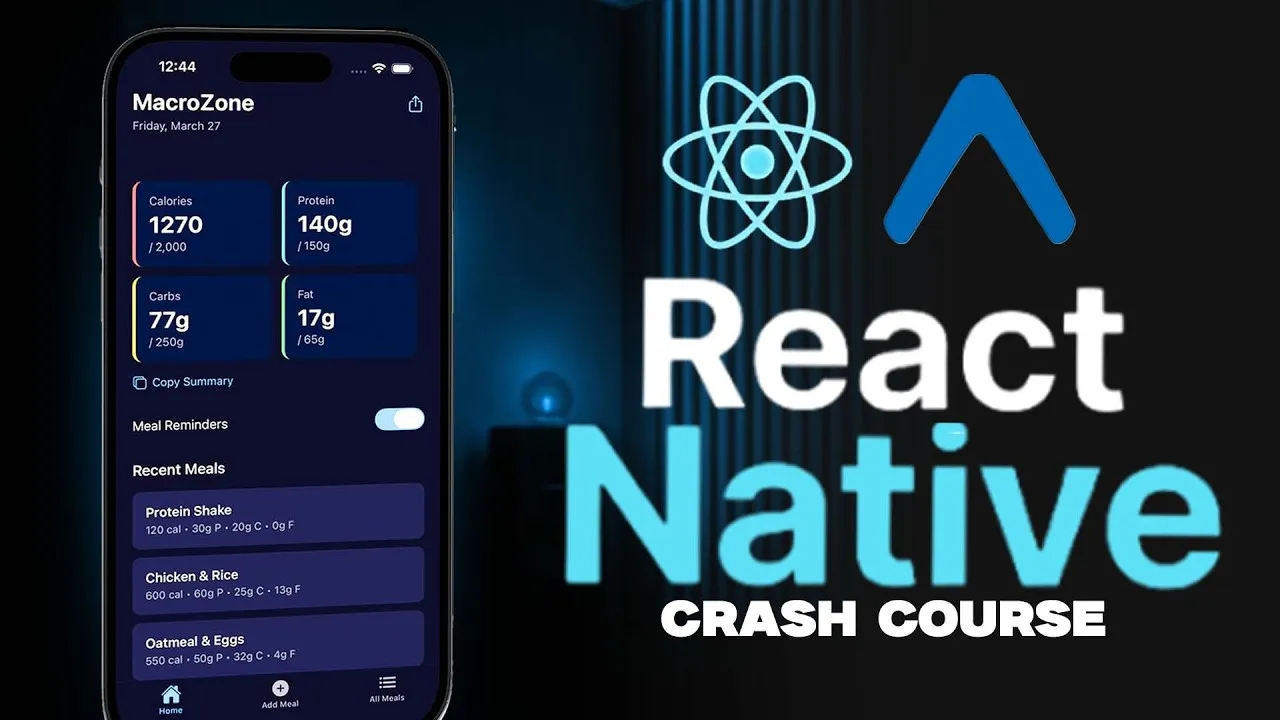
We will build a nutrition tracking app called Macro Zone. This app will allow you to log meals with their calorie, protein, carb, and fat content. It will feature different screens for adding meals, viewing all meals, and a dashboard to see your progress. We’ll also explore Expo APIs for sharing content and setting meal reminders.
Resetting the Project
The initial project setup includes some sample code. To start fresh, you can run the command npm run reset-project. This will remove the sample files, leaving you with a clean project ready for development. After resetting, run npm start again and open the project in your simulator or on your device. You’ll see a basic screen prompting you to edit the App.tsx file.
Core React Native Components
React Native provides fundamental components for building your user interface. The most common ones are:
- View: This is a basic container component, similar to a
divin HTML. You use it to structure your layout and can apply styling like flexbox. - Text: This component is used to display text. All text in your React Native app must be wrapped in a
Textcomponent. - ScrollView: If your content might exceed the screen’s height, use
ScrollViewto enable scrolling. This is useful for lists of items, like the meals in our app. - Image: For displaying images.
- Button: A standard button component.
- Pressable: A more versatile component for handling touch interactions, allowing you to define different states for when the user presses or long-presses it.
Styling Your App
You can style your React Native components in a few ways. Inline styling, using the style attribute with double curly braces (e.g., style={{ color: 'blue' }}), is possible but can become messy quickly. A better approach is using the StyleSheet API from React Native. You create a JavaScript object with your styles and then reference them by name. For example: const styles = StyleSheet.create({ container: { flex: 1, backgroundColor: 'white' } });. Then, apply it like: style={styles.container}. This keeps your code cleaner and more organized.
Navigation and Headers
Expo Router simplifies navigation. It uses a file-based system, meaning the structure of your files in the src/app folder determines your app’s routes. For mobile apps, screens are often stacked. The layout.tsx file in the app folder controls the overall screen structure. You can customize the header bar using the screenOptions prop on the Stack navigator. You can set a headerTitle or even hide the header entirely by setting headerShown to false.
Platform-Specific Code
Sometimes you need to show different things or use different logic based on the operating system. You can check the platform using Platform.OS (e.g., Platform.OS === 'ios') or use the Platform module from React Native. Expo also provides the expo-device package, which gives you detailed information about the device, like its brand, model, and OS version. This allows you to tailor your app’s appearance or behavior to specific platforms or devices.
Source: React Native Crash Course 2026 – Build a Complete Mobile App (YouTube)