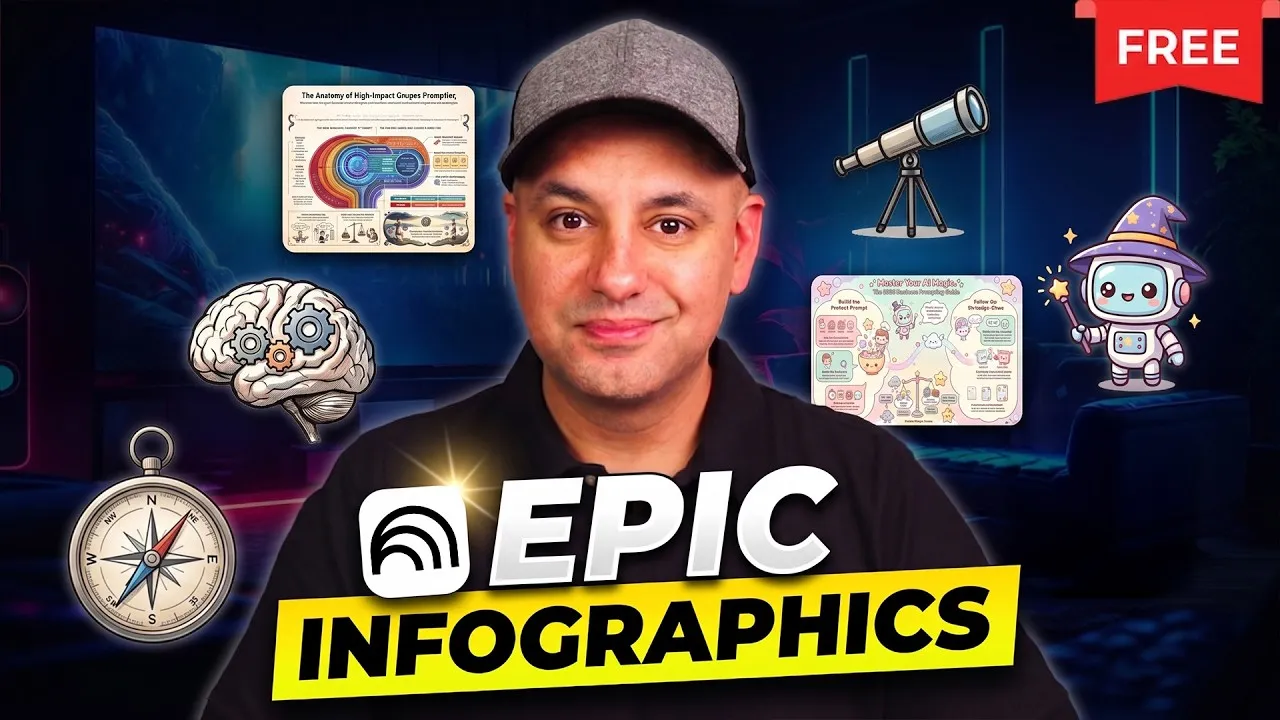
Create Stunning Infographics for Free Using NotebookLM
NotebookLM can help you create amazing, professional-looking infographics without spending any money. The key to making your infographics stand out is knowing how to use its settings and crafting the right instructions, or prompts. This guide will show you how to do just that, covering various styles, formats, and uses to make your visuals unique.
What You Will Learn
This article will guide you through creating impressive infographics with NotebookLM. You’ll learn how to set up a notebook with your sources, explore different visual styles, understand how to use detailed prompts to customize your designs, and discover various formats to present your information effectively. We’ll also look at tools to help you choose color palettes and explore advanced techniques for unique results.
Prerequisites
- A Google account
- An internet connection
Step 1: Access and Set Up NotebookLM
First, go to notebooklm.google.com in your web browser. To start, click on the ‘Create New’ button at the top to create a new notebook. NotebookLM is a research tool that bases its information on the sources you provide, unlike chatbots that search the entire web.
You can add information to your notebook in several ways. You can upload files like PDFs, images, or documents, and even audio files. You can also add links to websites or YouTube videos.
Another option is to link content from your Google Drive or simply copy and paste text directly into the notebook. This makes the AI’s output grounded in the specific information you give it.
Step 2: Gather Your Information
NotebookLM allows you to combine your uploaded sources with information it finds on the web. If you need to research a topic, you can type a prompt like “AI prompts for business” into the search bar. This initiates a web search, and NotebookLM will provide links to relevant resources.
You can choose to use these web results or not. For more in-depth research, select the ‘Deep Research’ option, which takes about 10 minutes and can find many sources.
After the search, you can view about 10 sources. Decide whether to import all of them or select only the ones you want to add to your notebook.
Step 3: Explore the Studio for Infographics
Once your notebook is set up, navigate to the ‘Studio’ section on the side. The Studio allows you to create various content types from your notebook, including audio podcasts, slide decks, videos, and reports. For this guide, we will focus on creating an infographic.
Click on the ‘Infographic’ option within the Studio. Here, you will find several settings to customize your infographic.
You can choose the language and change the orientation (like landscape or portrait) depending on where you plan to share it. The ‘Styles’ section is crucial for changing the overall look of your infographic.
Step 4: Understand Infographic Styles and Details
NotebookLM offers pre-set styles that can dramatically alter your infographic’s appearance. You can start with ‘Auto Select’ or explore options like ‘Sketch Notes,’ ‘Kawaii’ (a cute style), ‘Professional,’ ‘Scientific,’ ‘Anime,’ ‘Clay,’ ‘Editorial,’ ‘Educational,’ ‘Bento Grid,’ and ‘Brick.’ Each style gives a distinct feel to your visuals.
You can also describe your desired style in words within a specific text box. This custom description is key to making your infographics truly unique, as many users stick to the default styles. You can adjust the ‘Level of Details’ to be ‘Concise,’ ‘Standard,’ or ‘Detailed.’ A concise infographic uses less text and is easier to glance at, while a detailed one provides more information but might have smaller fonts.
Comparing Detail Levels
To see the difference, you can generate infographics at all three detail levels. The ‘Concise’ version is best for quick overviews, the ‘Standard’ offers a good balance of text and readability, and the ‘Detailed’ version packs in the most information, which can be useful for in-depth analysis but might require closer inspection.
Step 5: Master Custom Prompts for Unique Designs
The real power to create exceptional infographics lies in the custom text box where you can write your own prompts. This is where you go beyond the default settings to achieve unique results that others won’t get.
A helpful prompt formula can guide you. Start by stating your intention, like “I want to create an infographic.” You can specify a ‘Topic’ if you want to focus on a particular part of your notebook.
Then, define the ‘Style’ using the pre-set names or describing a new one. You can also choose a ‘Format’ (like roadmap or timeline), and if you have brand colors, you can specify them using hex codes or general descriptions.
Finally, you can instruct NotebookLM on how to organize the information, for example, “Help me organize the information in these five key bullet points.” You can also set the level of detail, though your prompt can override the default setting.
Example Custom Prompt
Let’s use a custom prompt. Set the style to ‘3D style,’ the format to ‘Roadmap,’ and the color palette to ‘blue and orange.’ Your prompt might look something like: “Create an infographic on [Your Topic] in a 3D style, presented as a roadmap, using a blue and orange color palette, and organize the information into five key points.” This level of detail gives you significant control over the final output.
Step 6: Discover Advanced Styles and Formats
NotebookLM supports a wide variety of styles beyond the initial presets. You can experiment with styles like ‘Minimalistic,’ ‘Modern Corporate,’ ‘Bold and Colorful,’ ‘Vintage Retro,’ ‘Futuristic Tech,’ ‘Flat Design,’ ‘Cartoon Style,’ ‘Luxury Elegant,’ ‘Nature Inspired,’ ‘Dark Mode,’ ‘Playful Pastel,’ ‘Comic Book Hero,’ ‘Cyberpunk Neon,’ ‘Sci-Fi Cinematic,’ ‘Explosion Effect,’ ‘Vaporwave,’ and ‘Legendary Quest.’
Similarly, there are many formats you can use. Besides ‘Roadmap,’ try ‘Timeline,’ ‘Step-by-Step Guide,’ ‘Checklist,’ ‘Cheat Sheet,’ ‘Comparison Chart,’ ‘Process Flow,’ ‘Decision Tree,’ and ‘Resource List.’ Using these specific formats helps structure your information clearly.
Step 7: Utilize Color Palette Tools
Choosing the right colors can make your infographic visually appealing. If you’re not a designer, tools like Colors (colors.co) can help. This website suggests color palettes that work well together.
You can select a base color, like blue, and the site will show you complementary colors such as orange or yellow. It provides specific color codes (hex codes) that you can directly use in your prompts for precise color matching. This ensures your infographic uses a harmonious and professional color scheme.
Step 8: Create Infographics from Specific Notes or Sources
Instead of using all sources in your notebook, you can select just one to create an infographic. This is useful for focusing on specific information. You can also create your own notes within NotebookLM, type or paste your text, and then convert these notes into a source.
Once your custom note is converted into a source, you can deselect all other sources and create an infographic based solely on your own written content. This gives you complete control over the information presented in your visual.
Daily Limits
Be aware that NotebookLM may have daily limits on how many infographics you can generate, even with a pro account. If you hit a limit, you may need to wait until the next day to continue creating.
NotebookLM is constantly being updated. New features and improvements are regularly added, offering even more possibilities for creating content. Keep an eye on updates to take advantage of the latest tools.
For more in-depth learning, consider exploring courses on platforms like Skill Leap, which offer detailed lessons on using AI tools like NotebookLM effectively. You can often find free trials or monthly subscriptions for access to comprehensive training materials.
To further enhance your design skills, check out other tools like Google Sketchpad, which can help you create interesting visual designs. Experimenting with different tools and features will help you become more proficient in creating engaging content.
Source: How to Create EPIC Infographics with NotebookLM for Free (YouTube)