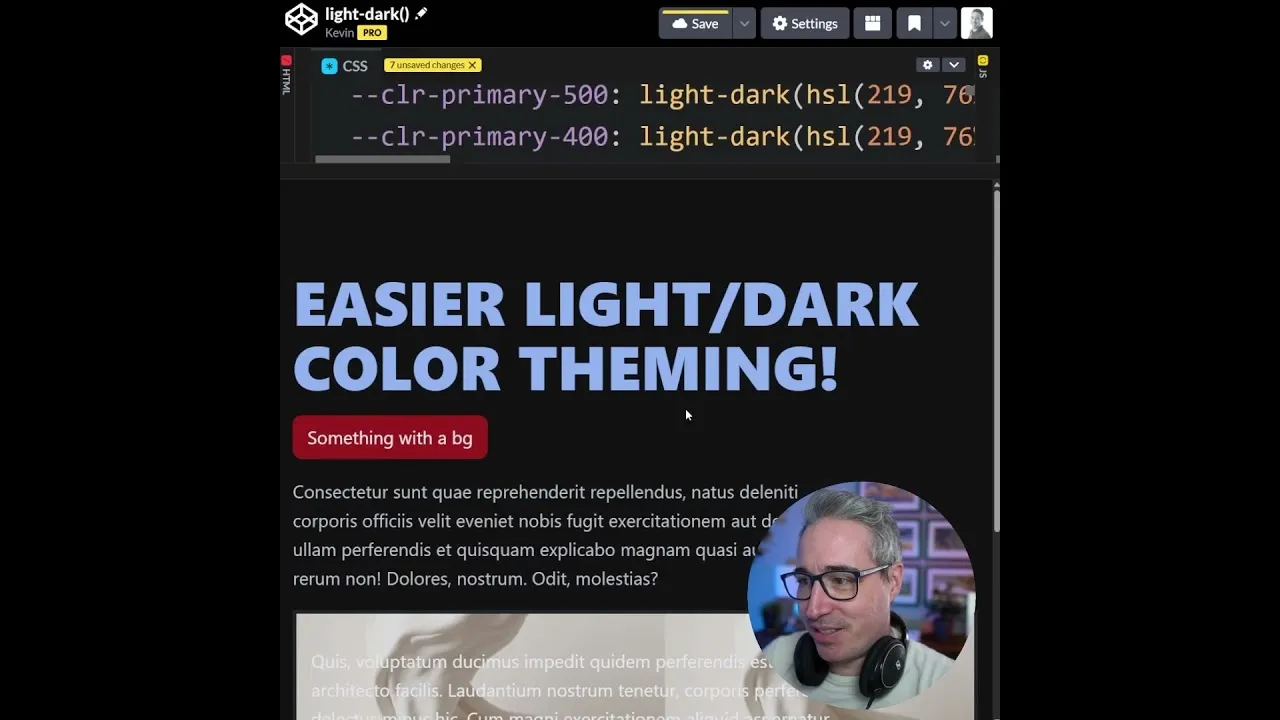
How to Easily Manage Light and Dark Color Schemes
Creating websites with both light and dark modes can get complicated. Often, you end up with separate sets of colors for each mode. This means maintaining two sets of code, which can be annoying.
When you need to change text color, it becomes even more of a headache. You might need to add special classes to make those changes. Thankfully, there’s a much easier way now thanks to the `light-dark()` function.
What You’ll Learn
This guide will show you how to use the `light-dark()` function to set up your color schemes just once. You’ll learn how to easily switch between light and dark modes without needing extra classes. We’ll also cover how to use this function with JavaScript to create toggles for your users.
Prerequisites
- Basic understanding of CSS and HTML.
- Familiarity with color variables in CSS.
Step 1: Remove Old Color Setups
First, get rid of your old, separate color setups for light and dark modes. If you have color styles defined multiple times, delete them. This function lets you define colors just once.
Step 2: Use the `light-dark()` Function
Go to your main styling file, often your `route` file or a main CSS file. Instead of having separate colors for light and dark, use the `light-dark()` function. This function takes two values: the color for light mode and the color for dark mode.
For example, you can write color: light-dark(color-for-light, color-for-dark);. This tells the browser which color to use based on the user’s system preference or your website’s setting. You can apply this directly to your colors or to color variables.
Example: Setting Primary Color
Let’s say you want to set your primary color. You would write something like this:
--color-primary-600: light-dark(#ffffff, #000000);
This means when the website is in light mode, `–color-primary-600` will be white. When it’s in dark mode, it will be black. This makes your color definitions much cleaner.
Step 3: Apply Colors Without Modifier Classes
One of the biggest benefits is that you no longer need special classes for specific color needs. If you have an element that needs a certain background color, you can set it directly.
Imagine you have a background image element. You can style it like this:
.my-background { background-image: url(...); }
Then, you can apply your neutral color: .my-background { color: var(--neutral-100); }. If your `–neutral-100` is set up using `light-dark()`, it will automatically adjust.
For instance, if your light background is white, the text will correctly become dark. You don’t need to add a class like `.dark-text` anymore.
Step 4: Create Toggles with JavaScript
The `light-dark()` function also makes it easy to create toggles for users. You can use JavaScript to let people switch between light and dark modes.
Add a data attribute to your body tag, like data-color-scheme="light". Then, use JavaScript to change this attribute.
When the attribute is set to `light`, the browser uses the light colors. When it’s set to `dark`, it switches to the dark colors.
Example: Toggling with JavaScript
You can add an event listener to a button. When clicked, this listener changes the data-color-scheme attribute on the body element.
document.body.setAttribute('data-color-scheme', 'dark'); or document.body.setAttribute('data-color-scheme', 'light');. The browser then automatically applies the correct colors defined with `light-dark()`.
Expert Tip: System Preference
By default, the `light-dark()` function respects the user’s operating system preference for light or dark mode. This means your website will automatically look good without any user interaction. You only need to add JavaScript if you want to offer an override option.
Warning: Custom Themes
Keep in mind that the `light-dark()` function is designed for simple light and dark modes. You cannot create multiple custom themes (like sepia or high contrast) using this specific function. It’s strictly for toggling between two distinct color sets.
Conclusion
Using the `light-dark()` function simplifies your CSS significantly. It helps you manage color schemes efficiently.
You can easily create websites that adapt to user preferences. Start using `light-dark()` today to make your theming easier.
Source: I wish this is how colors always worked (YouTube)