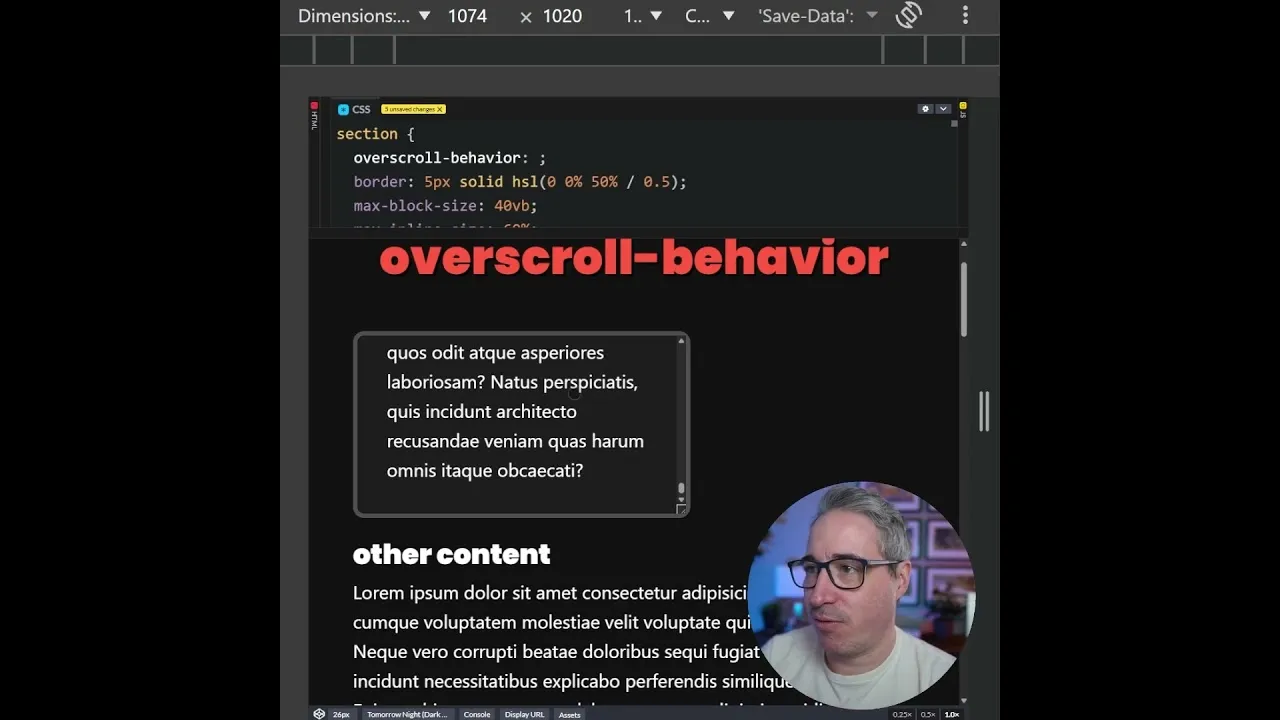
How to Stop Unwanted Page Scrolling with CSS ‘overscroll-behavior’
Have you ever scrolled to the bottom of a section on a webpage, only to have the entire page start scrolling too? This can be annoying, especially on mobile devices. It happens when scrolling within an element causes the main page to scroll.
You can fix this using a simple CSS property called overscroll-behavior. This article will show you how to use it to keep scrolling contained within specific elements.
What You’ll Learn
This guide will teach you how to apply the overscroll-behavior: contain; CSS rule. You’ll learn why this is useful for elements with their own scrollbars and how it prevents the main page from scrolling unintentionally. We’ll also cover a potential pitfall to watch out for, especially with elements that don’t have fixed sizes.
Prerequisites
- Basic understanding of HTML and CSS.
- Access to a web browser’s developer tools.
Step 1: Identify the Scrolling Element
First, find the part of your webpage that has its own scrollbar. This could be a `div` element containing a long list of items, a chat window, or any content that overflows its container. You need to target this specific element with CSS.
Step 2: Apply the CSS ‘overscroll-behavior’ Property
Open your CSS file or your website’s style editor. Add the following CSS rule to the selector for your scrolling element:
selector {
 overscroll-behavior: contain;
}
Replace selector with the actual CSS selector (like a class name or ID) that targets your scrolling element. This rule tells the browser to keep scrolling actions within the bounds of this element.
Step 3: Understand How ‘contain’ Works
When you set overscroll-behavior: contain;, you’re telling the browser that any scrolling at the edge of this element should not affect the parent element or the main page. Imagine a scrollable box within a larger room.
The contain property ensures that when you reach the top or bottom of the box, you can’t accidentally push the walls of the box, which would make the whole room move. Instead, the scrolling stops right at the edge of the box.
For example, if you have a `div` with a lot of text and a scrollbar, and you apply overscroll-behavior: contain; to it, scrolling to the very bottom of the text will stop there. The main webpage behind the `div` will not start scrolling. This is especially helpful on mobile, where accidental page scrolls can be very disruptive during quick interactions.
Step 4: Test with Horizontal Scrolling
This property is also useful for elements that scroll horizontally, like image carousels or sliders. Applying overscroll-behavior: contain; can prevent unexpected behavior when users swipe left or right near the edges of these elements. It helps keep the horizontal scrolling confined to the intended component, making the user experience smoother.
Step 5: Be Aware of Potential Issues (The Caveat)
While overscroll-behavior: contain; is very useful, there’s a catch you must check. This property works best when the scrolling element has a defined, locked size. If an element can grow too large and doesn’t have a maximum size set (like max-height or max-width), applying overscroll-behavior: contain; could accidentally prevent users from scrolling it at all.
Think of it like this: if the scrollable box is too big to fit in the room, and you’ve told it not to let anyone push the walls, you might get stuck inside the box with no way to scroll to see the rest of it. On mobile, this can be incredibly frustrating.
Users might land on a page, see a large element they can’t scroll through, and get stuck. Always test your implementation to ensure users can still access all the content within the scrollable element.
Step 6: Test Thoroughly on Different Devices
Before finalizing your CSS, test your website on various devices, especially mobile phones. Use your browser’s developer tools to simulate different screen sizes and touch interactions.
Scroll to the top and bottom edges of your contained elements. Make sure scrolling stops as expected without affecting the main page, but also confirm that you can still scroll through all the content within the element itself.
Conclusion: Weigh the Pros and Cons
The overscroll-behavior: contain; property is a powerful tool for improving user experience by managing scrolling behavior. It effectively stops unintended page scrolls originating from within specific elements.
However, always test carefully, especially on elements without fixed dimensions, to avoid trapping users. By understanding its benefits and potential downsides, you can decide if it’s the right addition to your CSS to create a more predictable and enjoyable browsing experience.
Source: Quick fix for scrolling issues (if done right) (YouTube)